WordPress White Screen of Death (or Critical Error): How to Fix It
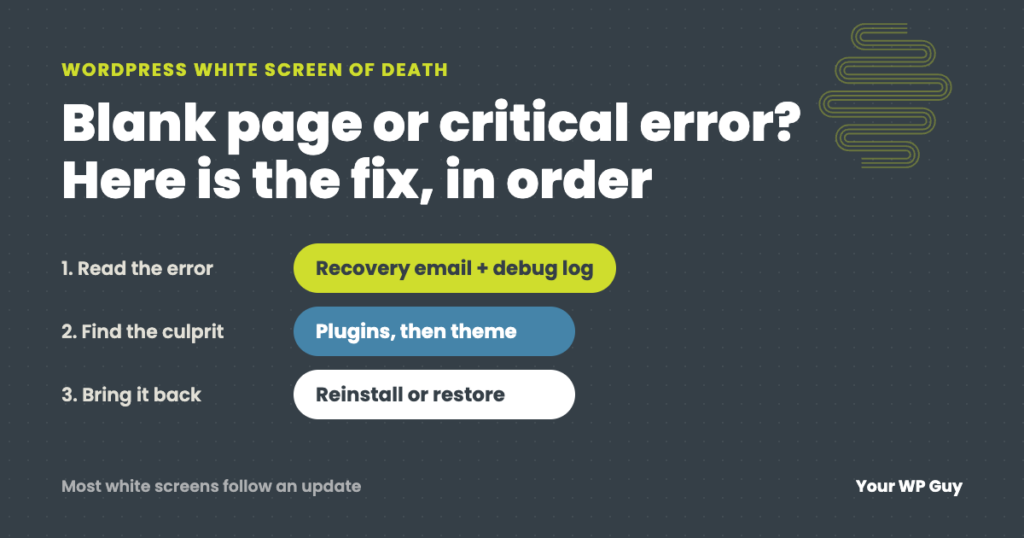
The WordPress white screen of death is a blank page, or the message “There has been a critical error on this website,” shown when PHP hits an error it cannot recover from. A plugin, a theme or a recent update is usually the cause. Check your email for WordPress’s recovery link, then turn plugins off one at a time. If you would rather not, our one-time WordPress fix gets the site back for $199.
You open your website and there is nothing there. No error, no menu, just white. Or WordPress gives you one short line: “There has been a critical error on this website.” Either way, customers cannot see your site, and you have no idea what changed.
The good news is that this error almost always has a single, findable cause, and most of the time the site comes back without losing anything. This guide explains what the white screen means, walks through the fixes in the order most likely to work, and shows why your uptime monitor may not even notice.
What is the WordPress white screen of death?
It is what you see when WordPress crashes before it can build the page. The code behind your site (PHP) runs into a “fatal error,” stops, and sends back an empty page.
Since WordPress 5.2, released in 2019, you will often see a message instead of plain white:
- “There has been a critical error on this website.” This is the same crash with a friendlier label. Older versions said “The site is experiencing technical difficulties.”
- A recovery mode email. WordPress emails the site’s admin address with the subject “Your Site is Experiencing a Technical Issue.” It names the plugin or theme that crashed and includes a special login link.
- A blank page in only one place. Sometimes only the dashboard, only one page, or only the checkout goes white, while the rest of the site works.
What causes it?
In our experience, it is usually something that just changed. The usual causes, from most to least common:
| Cause | What it looks like | Where to start |
|---|---|---|
| A plugin update or conflict | Site goes white right after updates ran | Step 2: turn plugins off |
| A theme update or custom code | Front end is white, dashboard may still work | Step 3: switch themes |
| An update that did not finish | Some pages work, others come back empty | Step 5: reinstall the plugin |
| Out of memory | “Allowed memory size exhausted” in the log | Step 4: raise the memory limit |
| A new PHP version on the server | Site breaks after the host upgrades PHP | Step 1: read the error |
A hack can also cause a white screen, but it is far less common. If you see admin accounts or plugins you do not recognize, read common signs your WordPress site may be compromised first.
How to fix the white screen of death, step by step
Before you change anything, make a backup if you can, or confirm your host has a recent one. Then work through these steps in order and test the site after each one.
Step 1: Check your email, then turn on the error log
Look for the “Your Site is Experiencing a Technical Issue” email first. If it is there, it names the plugin or theme that crashed and gives you a recovery mode link. Log in through that link, deactivate the plugin it names, and you are often done.
No email? Turn on WordPress’s error log. In your hosting file manager or over SFTP, open wp-config.php and add these lines above “That’s all, stop editing”:
define( 'WP_DEBUG', true );
define( 'WP_DEBUG_LOG', true );
define( 'WP_DEBUG_DISPLAY', false );
Reload the white page, then open wp-content/debug.log. The last “Fatal error” line names the file that crashed, and the folder name in its path tells you which plugin or theme it belongs to. Set WP_DEBUG back to false when you are done.
Step 2: Turn off plugins without the dashboard
If you can reach the dashboard, deactivate plugins one at a time, starting with the one updated most recently. If you cannot, use your hosting file manager:
- Go to
wp-contentand rename thepluginsfolder toplugins-off. Every plugin is now off. - Load the site. If it comes back, a plugin was the cause.
- Rename the folder back to
plugins, then rename one plugin’s folder at a time until the white screen returns. That plugin is your culprit.
Step 3: Switch to a default theme
If plugins were not the problem, rename your active theme’s folder in wp-content/themes. WordPress falls back to a default theme such as Twenty Twenty-Five if one is installed. If the site loads, the problem is in your theme or in custom code added to it.
Step 4: Raise the memory limit
If the log says “Allowed memory size of … bytes exhausted,” WordPress ran out of memory. Add this line to wp-config.php:
define( 'WP_MEMORY_LIMIT', '256M' );If that does not help, your host may cap memory lower, and they can raise it. Running out of memory often points to a plugin doing too much work, so it is worth finding out which one.
Step 5: Reinstall anything that updated badly
An update that is interrupted can leave a plugin half old and half new. Delete that plugin’s folder and install a fresh copy of the same version from WordPress.org or the vendor. Your settings are stored in the database, so they come back. If the white screen started after a big update, restoring yesterday’s backup is often the fastest fix.
Step 6: Clear every cache, then call your host
Caching can keep showing a broken page after you fix it, or hide a broken site behind a cached homepage. Clear your caching plugin, your host’s cache and Cloudflare if you use it. If the site is still white after all of this, ask your host to check the server’s PHP error log and recent changes such as a PHP upgrade.
Would rather have someone else fix it?
A white screen is our kind of problem. Here is how it works:
- Tell us what happenedBook a call or send us the site, and when it went white.
- We find the causeWe read the logs, find the plugin, theme or update behind it, and fix it on the spot.
- Your site is backA one-time fix is $199 for up to two hours of work, with a 30-day fix guarantee. On a care plan, fixing what an update breaks is included.
Why your uptime monitor may say the site is fine
A white screen can return the same “200 OK” status a healthy page does, so most uptime monitors report the site as up. They check whether the server answered, not whether the page had anything on it.
33 hours down, and every monitor said “up”
A client’s online lesson business told us their site was down. The homepage loaded instantly with a clean 200 status. Every other page came back completely empty, also with a 200 status. A plugin’s automatic update had corrupted its own files during install and left no error in any log. The page cache kept serving a saved copy of the homepage, so the site looked fine to every automated check for 33 hours until a person noticed. We found the cause in under three hours and fixed it the same day. Read the full story: the invisible WordPress outage every monitor called “up”.
The lesson: a monitor that only checks for a response can miss a white screen. Check that pages actually contain what they should, and check more than the homepage. That is part of what we actually monitor on every site we look after.
How to stop it from happening again
Most white screens follow an update, so the best prevention is updating carefully and checking the site after:
- Update with someone watching. Check the site after every round of updates, especially the checkout and contact forms, not just the homepage.
- Keep daily backups off the server. A backup from yesterday turns a bad update into a five-minute restore.
- Remove plugins you no longer use. Fewer plugins means fewer things that can crash, and old ones can break when your host upgrades PHP.
- Test big changes on a copy first. Major updates and PHP upgrades belong on a staging copy of the site before the live one.
- Monitor the content, not just the status code. As the story above shows, “up” and “working” are not the same thing.
This is the work our WordPress care plans do every day: updates checked by a person, daily backups, and monitoring every minute.
Site working now, but not sure how close it is to breaking? Our free Uh Oh Score checks your site and shows what needs attention, with no sales call required.
Get my Uh Oh ScoreQuestions people ask
Why is my WordPress site showing a blank white page?
WordPress hit a fatal PHP error and stopped before it could build the page. The cause is usually a plugin, a theme or an update that just ran. Turn on the error log or check your admin email for the recovery mode message to find out which one.
How do I fix “There has been a critical error on this website”?
It is the same crash as the white screen. Check the site’s admin email for the recovery mode link, log in through it and deactivate the plugin or theme it names. If there is no email, follow the steps above: error log, plugins, theme, memory, reinstall.
Will I lose my content?
Almost never. Your posts, pages and settings are stored in the database, and the white screen is usually caused by plugin or theme files. Turning plugins off or reinstalling them does not delete your content.
Why does only my dashboard show a white screen?
Some plugins only run in the dashboard, so they only crash it. The fix is the same: find the plugin with the error log or by renaming plugin folders, then update, reinstall or replace it.
Can a hack cause the white screen of death?
It can, but it is uncommon. Malicious code can break PHP just like a bad update. If you find admin accounts, plugins or files you did not add, treat it as a hack and clean it up properly.
How long does it take to fix?
When the cause is a plugin or theme, often under an hour once you know where to look. Interrupted updates and server changes take longer. Our one-time fix covers up to two hours of work.
Sources
- WordPress.org, Fatal error recovery mode in 5.2.
- WordPress Developer Resources, Debugging in WordPress.
- WordPress Developer Resources, Editing wp-config.php (memory limit).
- Your WP Guy client case: the invisible WordPress outage.
Keep your hardest-working employee on the job
A white screen means every visitor sees nothing, and you may not find out for hours. With a care plan, a real person checks your site after every update, keeps daily backups, and fixes what breaks, so the white screen is our problem instead of yours.

Jonathan Wofford is the founder of Your WP Guy, a WordPress care and maintenance service supporting 105+ active client sites. He and his team keep WordPress sites fast, secure, and running, so business owners can stay focused on their business instead of their website.