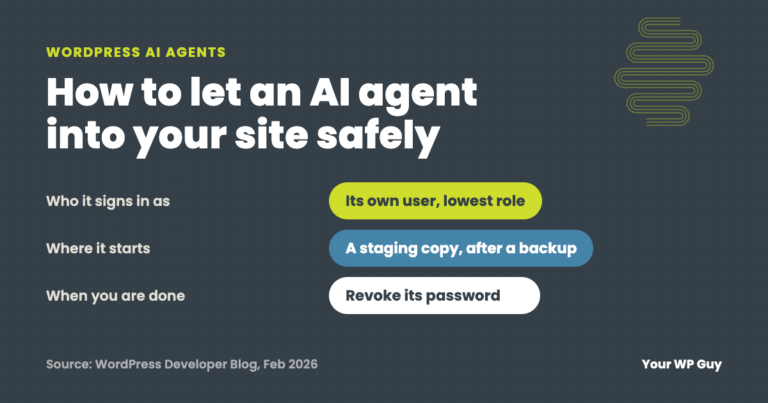
WordPress AI Agents: How to Let One Into Your Site Safely
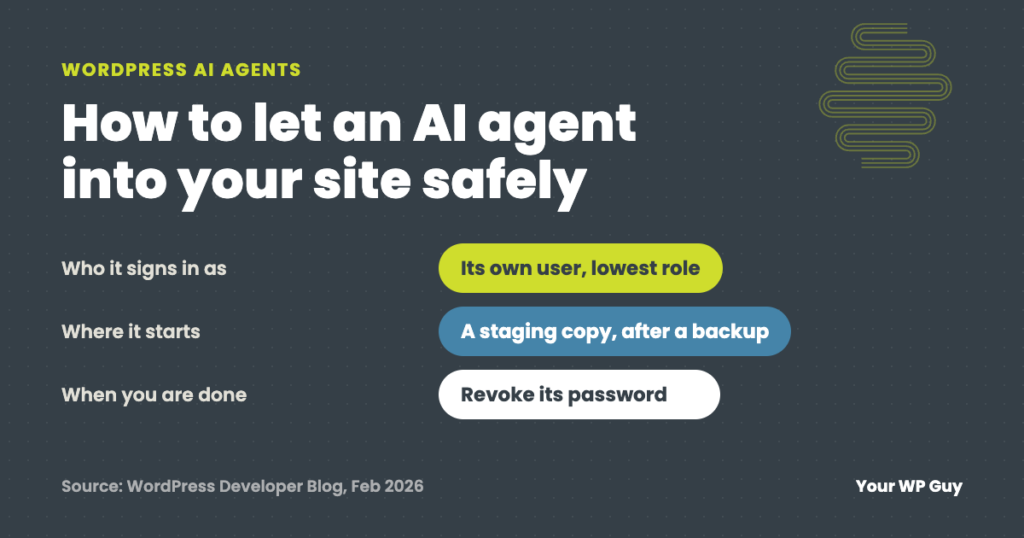
A WordPress AI agent is an AI tool, like Claude, ChatGPT or Gemini, that logs in to your site and does the work itself: it can edit posts, change settings or update plugins. To let one in safely, give it its own user with the lowest role that does the job, try it on a staging copy first, back up before it starts, keep a log and remove its access when you are done. On our WordPress care plans, a person checks every change.
Writing tools hand you text. An AI agent goes further. You tell it what you want, and it makes the change on your live site.
That is useful, and it is a new kind of access to hand out. We use AI tools that connect to sites in our own work, with a person checking every change. This guide covers what an agent is, how it connects to WordPress, what can go wrong and the steps to let one in safely.
What is a WordPress AI agent?
An AI agent is an AI tool that takes actions on your site, not just answers. A chatbot talks to your visitors. A writing plugin drafts text for you to paste. An agent logs in and does the task: publish the post, change the setting, run the update.
That is why access matters more here than with any other AI tool. Whatever the agent’s user is allowed to do, the agent can do.
How does an AI agent connect to WordPress?
Most agents connect through MCP, a common way for AI tools to talk to other software. On WordPress, two pieces make that work.
- The Abilities API. Added in WordPress 6.9, it lets plugins list the things they can do, like “create a post”, in a way an AI tool can read.
- The MCP Adapter. A plugin from the WordPress AI team, with over 70,000 installs, that turns those abilities into tools an AI agent can use.
WordPress’s developer blog puts the key point plainly: the AI tool acts as a logged-in WordPress user. By default it signs in with an application password, which is a separate password made just for apps. Some hosts and plugins now offer their own agents too. The same checks apply to them.
Which AI tools can connect?
MCP is an open standard that Anthropic, the company behind Claude, introduced. The other big AI companies now support it too. Here is what each one’s own documentation says.
| Company | Tools that can connect over MCP |
|---|---|
| Anthropic | Claude, in the Claude desktop app and Claude Code |
| OpenAI | ChatGPT (custom MCP servers, depending on your plan) and the OpenAI API |
| Gemini, through the Gemini API | |
| Microsoft | Agents built in Copilot Studio |
| xAI | Grok, through the xAI API |
| DeepSeek | No connector of its own. Its docs show its models running inside agent tools like Claude Code, and the tool is what connects |
| Open models, like Meta’s Llama | No connector of their own. Anyone can run them inside an agent app, and that app is what connects |
Sources: each company’s developer documentation, checked November 2026.
Whichever one you pick, it signs in to WordPress the same way: as a user on your site. So the steps below are the same for all of them.
What can go wrong?
Most problems come from too much access or no record of what happened. This table shows each risk and what keeps it small.
| Risk | What it looks like | What keeps it small |
|---|---|---|
| Too much access | An agent signed in as an administrator can delete pages, users or plugins | Its own user with the lowest role that does the job |
| A wrong instruction | “Clean up old posts” removes posts you wanted | Staging first, a fresh backup, and a person reviews before it goes live |
| A leaked password | Someone else uses the agent’s application password | One password per tool, revoked the moment you stop using it |
| No record | Something changed and nobody knows who did it | A named user for the agent and an activity log |
| A flaw in the connector | The plugin that lets the agent in has a security hole | Keep that plugin updated like any other |
Based on the security advice in the WordPress Developer Blog, February 2026. Connector plugins get security fixes often: see what to check before you install an AI plugin.
How to let an AI agent in safely
- Start on a staging copy. Your host or a staging plugin can make one. Let the agent work there until you trust it.
- Back up the live site. Do it right before the agent’s first session, so you have a clean point to go back to.
- Give the agent its own user. Go to Users > Add New and pick the lowest role that does the job: Editor for posts and pages, not Administrator. If your host gives you WP-CLI, this does the same:
wp user create ai-agent [email protected] --role=editor - Make an application password for that user only. Open the user under Users > Profile, find Application Passwords, name it after the tool and click Add New Application Password. With WP-CLI:
wp user application-password create ai-agent "AI agent" - Turn on only what it needs. If the connector lets you choose abilities, start with read-only ones, like listing posts, and add more later.
- Keep a log and review it. An activity log plugin records what the agent’s user changed. Check it after each session, and review content before it goes live.
- Remove access when you are done. Revoke the application password on the user’s profile, then delete the user if you no longer need it.
Never hand an agent your own login
If the agent uses your administrator account, its changes look like yours, and you cannot cut it off without changing your own password. A separate user fixes both.
Rather have someone set it up for you?
We use AI tools on sites every day, with a person checking every change.
- Talk to a WordPress expertTell us which agent you want to use and what you want it to do.
- We set up the access with youIts own user, the right role, a staging copy and a log.
- You use it, and we keep watchUpdates checked by a person, backups and the log reviewed.
Why a named user matters: what we saw in November
When a flaw in WordPress’s own updater came out in November 2026, we checked every site we look after for new accounts with elevated access added in the weeks before. Every new one was ours, including the named users our AI tools connect with. Because each connection has its own name, it took one look to tell ours apart from an attacker’s. If those tools had used a person’s login, that check would have been guesswork.
Should a small business use one?
It can, if someone has the time to set it up and check its work. Agents are fast at repetitive jobs like bulk edits and reports. They also make changes faster than anyone can review them, so the checking is the part that matters.
AI works alongside our team. Jonathan checks the work, and every change goes through checks on top of checks before and after it goes live.
Not sure who already has access to your site? Our free Uh Oh Score checks your site and shows what to fix first, with no sales call required.
Get my Uh Oh ScoreQuestions people ask
Which AI tools can work as a WordPress agent?
Any tool that supports MCP. That includes Claude, ChatGPT, Gemini, Microsoft Copilot Studio agents and Grok through its API. Models like DeepSeek and Meta’s Llama work through an agent app that supports MCP. Whichever you use, give it its own user and follow the same steps.
Is it safe to give an AI agent admin access?
Only if it truly needs it. WordPress’s developer blog advises a dedicated user with limited abilities on a live site. Start with Editor or a read-only setup, and use an administrator only for jobs that need it, on staging first.
What is the WordPress MCP Adapter?
A plugin from the WordPress AI team that lets AI tools use your site’s abilities through MCP. It needs WordPress 6.9 or newer and has over 70,000 installs.
Do I need WordPress 6.9 for an AI agent?
For the MCP Adapter, yes, because it is built on the Abilities API added in 6.9. Some other agent plugins work on older versions, but keeping WordPress current is a good idea either way.
Can an AI agent update my plugins?
If its user is allowed to, yes. Updates can break a site, so test them on staging first and have a person check the live site after each one.
How do I remove an AI agent’s access?
Open the agent’s user under Users, revoke its application password, then delete the user if you no longer need it. Also remove the key or connection inside the AI tool itself.
I asked Claude or ChatGPT to connect to my site and make changes. Isn’t that enough?
It can be, if you have the time to set up the user, the staging copy and the log, and to check each change. Count your time, too. If an hour of it is worth $75, 2 hours a month of setup and checking is $150, more than our $119 Gold plan.
Sources
- WordPress Developer Blog, From Abilities to AI Agents: Introducing the WordPress MCP Adapter, February 2026.
- WordPress.org, MCP Adapter plugin, checked November 2026.
- Anthropic, Introducing the Model Context Protocol, and Claude Code Docs, Connect Claude Code to tools via MCP, checked November 2026.
- OpenAI Help Center, Connecting custom MCP servers in ChatGPT, and OpenAI API docs, MCP servers, checked November 2026.
- Google AI Studio, Function calling with the Gemini API, checked November 2026.
- Microsoft Learn, Extend your agent with Model Context Protocol, checked November 2026.
- xAI docs, Remote MCP Tools, checked November 2026.
- DeepSeek API Docs, Integrate with Claude Code, checked November 2026.
Let AI help without handing over the keys.
On a care plan, a person checks every change, whether a person or an AI tool made it.

Jonathan Wofford is the founder of Your WP Guy, a WordPress care and maintenance service supporting 105+ active client sites. He and his team keep WordPress sites fast, secure, and running, so business owners can stay focused on their business instead of their website.