How to Clean Malware From WordPress (and Keep It From Coming Back)
To clean malware from WordPress, back up the infected site first. Then compare your files with clean copies, check the database, and remove the backdoors before you delete any fake admin users. Change every password and your security keys, update everything, and ask Google to review the site. If you would rather hand it off, our WordPress malware removal is $249 flat, with a 30-day guarantee.
Your site sends visitors to a spam page, Google shows a red warning, or your host has shut the site off. You want it clean today, and you want it to stay clean.
We clean hacked WordPress sites, and this is the order we follow. Most guides tell you to install a scanner and click a button. A scanner helps, but it can miss the one file that lets the attacker back in. This guide shows where malware hides, how to check each place, and why the order you remove things in matters.
What should you do first?
Do not start deleting things. First make a full backup of the site as it is now, files and database. It sounds odd to back up a hacked site, but it lets you undo a mistake and shows what changed.
- Back up the infected site. Download the files and export the database. Label it “infected” so nobody restores it by accident.
- Write down what you see. Note the date, the warning, and the pages that act strangely. This helps you find when it started.
- Use a clean computer. Run a virus scan on the computer you use for the site before you type any new passwords on it.
- Ask your host. Many hosts can tell you which files changed, and some keep backups from before the hack.
Not sure it is a hack? Our guide to telling if your WordPress site has been hacked covers the signs, and what is not a hack.
How do you find malware in your files?
Compare your files with clean copies. WordPress publishes a fingerprint for every core file, so you can check yours against them. These commands use WP-CLI, which most good hosts include. Run them from your site’s main folder over SSH.
Check WordPress itself:
wp core verify-checksumsCheck every plugin from the WordPress.org directory:
wp plugin verify-checksums --allAny file listed as changed or unexpected needs a look. If a core file fails, WordPress.org’s own advice is to replace the wp-admin and wp-includes folders with fresh copies of the same version. Paid plugins are not on WordPress.org, so download a fresh copy from the maker and replace them.
Then look where code should never be. The uploads folder holds images and files, not code, so any PHP file there is a red flag:
find wp-content/uploads -name "*.php"Also open these by hand: .htaccess, wp-config.php, and your theme’s functions.php, header.php and footer.php. Look for long scrambled lines, and for code added at the very top or bottom.
How do you check the database?
Malware does not only live in files. It can sit in your posts, your settings and your user list, where file scanners do not look.
List every administrator and look for names or emails you do not know:
wp user list --role=administratorSearch the database for scripts hidden in posts and settings:
wp db search "<script"Some results are fine, such as a chat or tracking script you added on purpose. Anything you do not recognize, especially pointing to a strange website, needs a closer look. Also check Settings > General: if the WordPress Address or Site Address changed, that is how visitors get sent somewhere else.
| Where malware hides | How to check | What it looks like |
|---|---|---|
| WordPress core files | wp core verify-checksums | Files that do not match WordPress’s own copy |
| Plugins and themes | wp plugin verify-checksums –all, fresh copies of paid ones | Plugins with plain names you never added |
| Uploads folder | Search it for PHP files | PHP files where only images belong |
| .htaccess and wp-config.php | Open them by hand | Redirects or scrambled code you did not add |
| Users | wp user list –role=administrator | Admins you do not know |
| Posts and settings | wp db search “<script” | Hidden scripts and links to spam sites |
Commands from the WP-CLI handbook on developer.wordpress.org, November 2026.
Why does the order of cleanup matter?
Because a backdoor can put things back. If you delete a fake admin before you remove the code that made it, the code can simply make it again.
Real example: the admin that kept coming back
In August, an admin account appeared on a site we look after, with no login attempt anywhere. A plugin flaw made public the day before, rated 9.8 out of 10, let the attacker skip the login. Within 2 minutes, two new plugins with plain names showed up. One put the hidden admin back every time a page loaded.
Our alerts caught it in 5 minutes. We removed the backdoors from the files first, then the fake accounts, then changed every password and the security keys, and updated the plugin. The site was clean in under an hour. Deleting the fake admin first would have failed. You can read more on our malware removal page.
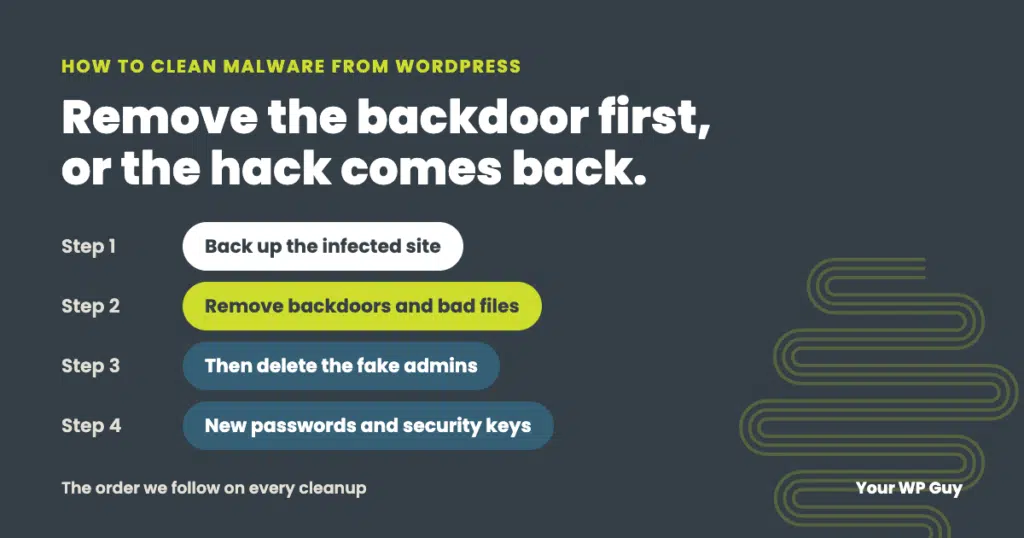
The order we follow: back up, remove the backdoors and bad files, remove fake users, change passwords and keys, update and close the way in, then check again.
How do you lock the attacker out for good?
Change every way in, then close the hole they used. Cleaning without these steps often means a second hack within days.
- Passwords. Change them for every WordPress admin, your hosting account, SFTP or SSH, and the database. Do it again once the site is clean.
- Security keys. These live in
wp-config.php. WordPress.org says changing them forces anyone still logged in out. With WP-CLI, it is one command:
wp config shuffle-saltsWithout WP-CLI, get a fresh set from WordPress’s key generator at https://api.wordpress.org/secret-key/1.1/salt/ and paste them over the 8 lines that start with define( 'AUTH_KEY' through define( 'NONCE_SALT' in wp-config.php.
- Updates. Update WordPress, every plugin and your theme. Delete plugins and themes you do not use, since deactivated ones can still be attacked.
- The way in. Hacks often start with a plugin or theme that had a known flaw. Find which one was out of date when it started, and update or replace it.
We update the sites we look after every day. Attackers now use AI to act on a newly published flaw within hours, so waiting a week is too long. A firewall such as Wordfence or Cloudflare adds a layer in front, but it does not replace updates.
AI can help you read a strange piece of code, but in a chat window the AI only sees what you paste in. You still have to find the files, decide what to remove and check the site afterward.
How do you get Google’s warning removed?
Once every page is clean, ask Google to look again. In Google Search Console, open the Security Issues report and select Request Review. Google says a review can take from a few days to a few weeks.
Only ask once everything is fixed, and do not send it again while you wait. If your host suspended the site, send them the steps you took. Some browser and security companies keep their own blocklists, so check those too.
Rather have someone clean it?
We remove the malware, close the way in and check that it is gone, for one flat price.
- Start your cleanupCheck out or call, and tell us what you are seeing. We review it the same day if it comes in before 5 PM Eastern.
- We find it and remove itA full backup first, then a scan of the files and the database, with the backdoors removed in the right order.
- We close the way inUpdates, new passwords and keys, and removal requests to Google, your host and the main blocklists. If the same infection comes back within 30 days, we clean it again at no charge.
Not every scanner alert is malware. In October, a scanner flagged unknown files inside WordPress on another site we look after. We opened every one. All 12 were empty, left behind by an old cleanup in 2022, and a search for backdoor code found nothing. Check before you delete, because removing the wrong file can break a working site.
Want to know what else is out of date? Our free Uh Oh Score checks your site and shows what to fix first, with no sales call required.
Get my Uh Oh ScoreQuestions people ask
How do I remove malware from my WordPress site?
Back up the site, compare your files with clean copies, check the database and users, remove backdoors before fake admins, then change passwords and security keys and update everything. Last, ask Google to review the site.
Can a security plugin remove malware on its own?
A scanner such as Wordfence can find and remove a lot of it. It can still miss code hidden in the database or a backdoor that brings the hack back. Check the places in this guide as well, and change your passwords and keys either way.
Can I just restore a backup?
Yes, if you have one from before the hack started. Restore it, then update everything right away, because the old backup still has the hole that let the attacker in. If you do not know when it started, the backup may hold the malware too.
How did my site get hacked?
Often through a plugin or theme with a known flaw that was not updated in time. Weak or reused passwords and nulled (pirated) plugins are the other common causes.
How long does it take Google to remove the warning?
Google says a review can take from a few days to a few weeks after you request it in Search Console. Request it only once every page is clean.
How much does malware removal cost?
Ours is $249 flat, with a 30-day guarantee: if the same infection comes back within 30 days, we clean it again at no charge. If your site is on one of our care plans and gets hacked on our watch, the cleanup is free.
Sources
- WordPress.org, FAQ My site was hacked.
- WP-CLI handbook, wp core verify-checksums.
- WP-CLI handbook, wp plugin verify-checksums.
- WP-CLI handbook, wp user list.
- WP-CLI handbook, wp db search.
- WP-CLI handbook, wp config shuffle-salts.
- Google Search Central, Security Issues report.
A clean site that stays clean
We remove the malware, close the way in and keep watch afterward, so you can get back to your business.

Jonathan Wofford is the founder of Your WP Guy, a WordPress care and maintenance service supporting 105+ active client sites. He and his team keep WordPress sites fast, secure, and running, so business owners can stay focused on their business instead of their website.