Best WordPress Caching Plugins (Pick the One That Fits Your Host)
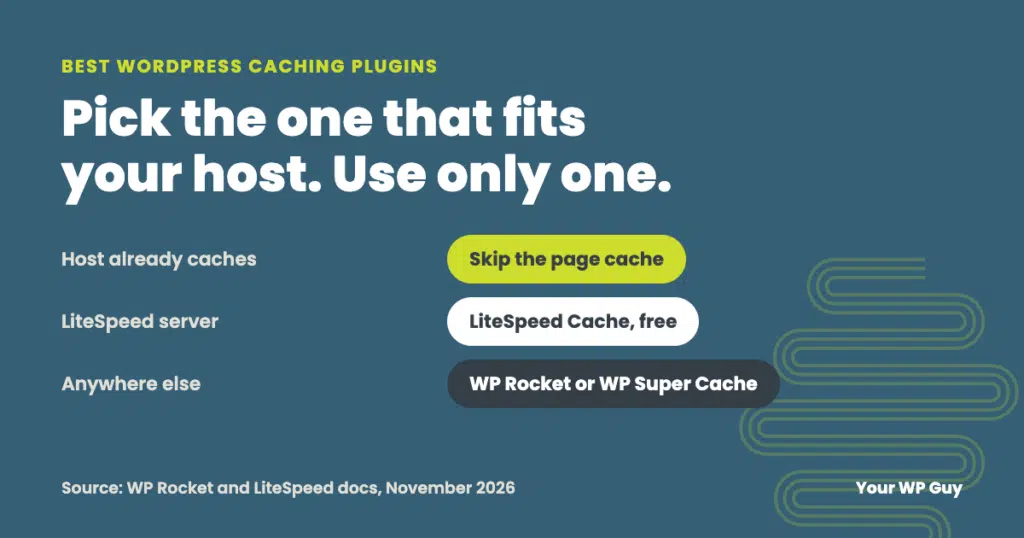
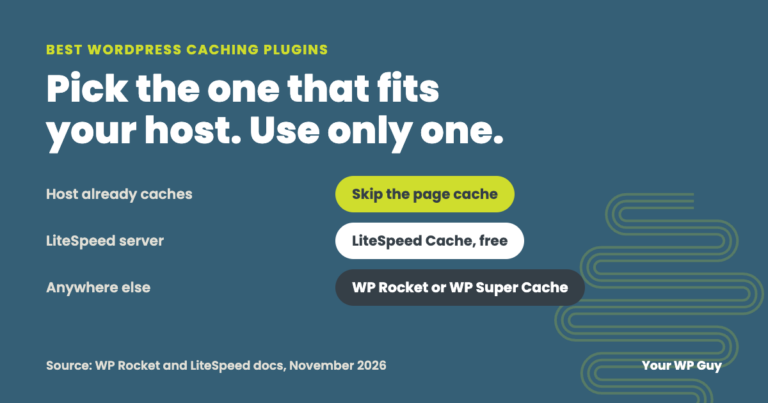
The best WordPress caching plugin is the one that fits your host. If your host already caches pages (WP Engine, Kinsta, WordPress.com and many others do), do not add another page cache. On WP Engine, skip WP Rocket too: in our experience it adds nothing there. If your site runs on a LiteSpeed server, use the free LiteSpeed Cache. Anywhere else, WP Rocket is the easiest to get right, and WP Super Cache is a good free choice. Use one caching plugin, never two, and turn on your host’s object cache if it has one. If you would rather have it done for you, our WordPress speed optimization service is $499 one time, with a refund if we cannot make your site faster.
Most lists of caching plugins rank 10 or 12 of them and leave you to pick. The trouble is that the same plugin can be the best choice on one host and do nothing at all on another. Some hosts switch a plugin’s page caching off on purpose, because they already do it on the server.
We set up and fix caching on client sites, and on most of them we use WP Rocket. We do not get paid to recommend any plugin here, and there are no affiliate links. This guide shows how to check what your host already does, which plugin fits which kind of site, and what to test so faster does not mean broken.
Does your host already cache your pages?
Page caching saves a finished copy of each page, so WordPress does not have to build it from scratch for every visitor. Many hosts do this on the server already. Before you install anything, find out.
Open a terminal (Terminal on a Mac, PowerShell on Windows) and paste this, with your own address in place of example.com:
curl -sI https://example.com/On Windows PowerShell, type curl.exe instead of curl. Run it twice, because the first visit is often not cached yet. Then look through the lines that come back:
- A line with “cache” in its name that says HIT means something is already caching your pages.
- server: LiteSpeed, or a line starting with x-litespeed, means your host runs a LiteSpeed server, so the free LiteSpeed Cache plugin is the one to use.
- cf-cache-status comes from Cloudflare. On most sites Cloudflare caches images and files, not the pages themselves, unless someone set that up on purpose. If the server line says cloudflare, it is hiding your host’s server name, so ask your host which server you are on.
Not a terminal person? Your host’s dashboard or support team can tell you in one message whether page caching is on.
Which caching plugin fits your site?
- Your host already caches pages. Skip the page cache. WP Rocket’s own docs say its page caching is switched off automatically on WP Engine, Kinsta, WordPress.com, Pressable, Flywheel and DreamPress, because those hosts cache on the server. On WP Engine, skip WP Rocket altogether: in our experience it adds nothing there. Use the host’s own caching and turn on its object cache (see below).
- Your host runs LiteSpeed. Use LiteSpeed Cache. It is free, and its page caching only works with a LiteSpeed server (or LiteSpeed’s own QUIC.cloud service).
- Your host makes its own plugin. SiteGround’s Speed Optimizer and Cloudways’ Breeze are built to work with those hosts’ servers. Start there.
- Anywhere else. WP Rocket if you want it to work well with little setup. WP Super Cache if you want free and simple. W3 Total Cache only if someone technical will tune it, because it has a lot of settings to get wrong.
What is object caching, and do you need it?
Page caching saves a finished copy of the whole page. Object caching saves the answers to WordPress’s database questions in the server’s memory. The next visit gets them without asking the database again.
That matters on pages a page cache cannot save. Think of the cart and checkout, member areas, and the WordPress dashboard. If your site has a store, members or a busy admin, object caching is often the bigger win.
It needs memory on the server, usually Redis or Memcached, so your host has to offer it. A plugin alone cannot add it. Here is how to turn it on at two common hosts:
- Cloudways. Cloudways installs Object Cache Pro for free on servers with 2 GB of memory or more, once Redis is running. In the Cloudways panel, go to Servers, pick your server, open Manage Services and start Redis. Then in WordPress, go to Settings > Object Cache and check that it says Connected. On a smaller server, the free Redis Object Cache plugin does the job.
- WP Engine. In the User Portal, pick your site’s environment, click Caching and switch Object Caching on. WP Engine warns that if your site’s autoloaded settings add up to more than 800,000 bytes, object caching can cause 502 errors. If you see them, switch it off and clean up those settings first.
- Other hosts. Ask support one question: “Do you offer Redis or Memcached object caching, and is it on for my site?”
Use one object cache, the same as one caching plugin. Remove any other object cache plugin before you turn a new one on.
The caching plugins compared
| Plugin | Cost | Best for | Watch out for |
|---|---|---|---|
| WP Rocket | $5 a month for 1 site, billed yearly ($60); no free version | Most sites on ordinary hosting; easy setup | Script and CSS settings need testing; made no difference on WP Engine |
| LiteSpeed Cache | Free | Sites on LiteSpeed hosting | No page caching on other servers |
| WP Super Cache | Free | Simple sites and blogs | Page caching only; few speed extras |
| W3 Total Cache | Free; Pro $99 a year | Sites with someone technical to tune it | Many settings that can break pages |
| WP Fastest Cache | Free; Premium $49 one time | Small sites that want simple settings | Fewer extras without Premium |
| FlyingPress | $59 a year for 1 site | People who like to fine-tune speed | Smaller company, fewer guides online |
| Host plugins (SiteGround, Cloudways Breeze) | Free with the host | Sites on that host | Little use if you move hosts |
Prices from each plugin’s own site, regular prices (not sale prices), November 2026.
The free ones are popular. On WordPress.org, LiteSpeed Cache has more than 7 million active installs. WP Super Cache, from the company behind WordPress.com, has more than a million.
What breaks after you turn caching on?
Caching is safe on most sites, but it changes how pages reach your visitors. These are the problems we see after someone turns it on.
Forms stop sending after a few hours
Many forms carry a hidden security token, and WordPress tokens expire. WP Rocket’s docs say they are good for 12 hours by default. A cached copy of the page can keep handing out an expired token, so the form fails. WP Rocket’s fix is to clear the cache every 10 hours or less. Send a test message from every form after you turn caching on, and again the next day.
Shoppers see the wrong cart
The cart, checkout and account pages must never be cached, or one shopper can see another’s cart. WP Rocket skips WooCommerce’s cart, checkout and account pages on its own. With any other plugin, check its list of pages it never caches, especially if your store uses custom cart or checkout pages.
You see no change at all
When you are logged in, most caching is skipped, so the site always feels slower to you than to visitors. Test in a private window.
Two caching plugins fight
Two plugins both caching or combining files can slow a site down or break it. Use one caching plugin. If your host caches pages, turn the plugin’s page cache off.
Your changes do not show up
If you edit a page and still see the old version, the cache is serving the old copy. Clear the plugin’s cache, then your host’s or Cloudflare’s if you use them.
Keep it updated. A caching plugin runs on every page of your site, so a security hole in one is serious. In August 2024, LiteSpeed Cache had a flaw rated 9.8 out of 10 that let attackers give themselves admin rights without logging in, on sites running version 6.3.0.1 or older. It was fixed in 6.4. Here is our report on that flaw.
How to set up caching safely
- Back up first. Make a full backup, so you can undo anything in minutes.
- Write down your speed. Test your homepage and a busy inner page in a free tool like GTmetrix or PageSpeed Insights, on mobile and desktop.
- Check your host. Use the check above, pick the plugin that fits, and turn on your host’s object cache if it offers one.
- Install one plugin and turn on page caching only. Leave the script, CSS and image extras off for now.
- Test like a visitor. In a private window, send every form, place a test order if you have a store, and check menus and pop-ups on a phone.
- Add extras one at a time. Turn on one more setting, test again, and keep it only if the numbers improve and nothing breaks.
AI can help you understand a setting, but in a chat window the AI only sees what you paste in, so you still run each test yourself and tell it what happened.
Rather have someone set it up?
We find what is really slowing your site down, then set up caching that fits your host and test it so nothing breaks.
- Get a free speed reviewSend us your website. We record a short video showing what is slowing it down and how we would fix it.
- We tune it in 1 to 3 business daysThe one-time speed tune-up is $499, with a before-and-after report and a refund if we cannot make your site faster.
- We keep it fastUpdates and new content slow sites down again. Our care plans check speed for you every month.
Real example: caching was not the problem
A nonprofit’s homepage took more than 40 seconds to show its main content on a slow phone connection. Every plugin was set up correctly. The real cause was one missing line in the theme that switched off WordPress’s image lazy loading on every page, and a second optimization plugin was quietly making things worse.
We added the missing line first, which cut load time about in half within the hour. Then we recompressed and resized the images, set up caching and preloaded the fonts. The site loaded 72% faster on mobile, in one day. A caching plugin alone would not have found it. Read the full case study.
Not sure what else is slowing your site down? Our free Uh Oh Score checks your site and shows what to fix first, with no sales call required.
Get my Uh Oh ScoreQuestions people ask
What is the best caching plugin for WordPress?
The one that fits your host. Use your host’s caching if it has it, LiteSpeed Cache on a LiteSpeed server, and WP Rocket or WP Super Cache anywhere else. Use one caching plugin only.
Is WP Rocket worth paying for?
On most sites on ordinary hosting, yes. It costs $5 a month for one site, billed yearly, and handles caching and other speed settings from one screen. On hosts that already cache pages, it does much less. On WP Engine, in our experience it adds nothing, so skip it there.
Do I need a caching plugin if my host already caches?
Not for page caching. Running two page caches can cause conflicts and stale pages. Turn on your host’s object cache instead, if it offers one.
What is the difference between page caching and object caching?
Page caching saves a finished copy of a whole page. Object caching saves the answers to database questions in the server’s memory, which speeds up the pages a page cache cannot save, such as the cart, checkout, member areas and the dashboard. Your host has to offer it, usually through Redis or Memcached.
Is LiteSpeed Cache free?
Yes, the plugin is free. Its page caching only works on a LiteSpeed server or through LiteSpeed’s QUIC.cloud service, and some QUIC.cloud extras cost money past a free amount.
Can I use two caching plugins at once?
No. Two caching plugins can fight over the same files, slow the site down or break pages. Pick one and remove the other completely.
Will a caching plugin fix my slow site?
It fixes a slow server on cached pages, which is the most common problem. It will not fix oversized images, a theme bug or a slow checkout, which is never cached. If your site is still slow with caching on, our guide to speeding up WordPress shows how to find what is left.
Sources
- WP Rocket, Pricing.
- WP Rocket docs, Hosting compatibility.
- WP Rocket docs, Nonces and Cache Lifespan.
- Cloudways, WordPress Object Caching: Redis and Object Cache Pro.
- WP Engine, Object Cache in WordPress.
- WordPress.org, LiteSpeed Cache.
- WordPress.org, WP Super Cache.
- BoldGrid, W3 Total Cache Pro.
- WP Fastest Cache, Premium.
- FlyingPress, Pricing.
A faster site, without the guesswork
We find the real cause, set up caching that fits your host and test every form and page before we call it done.

Jonathan Wofford is the founder of Your WP Guy, a WordPress care and maintenance service supporting 105+ active client sites. He and his team keep WordPress sites fast, secure, and running, so business owners can stay focused on their business instead of their website.