
WordPress
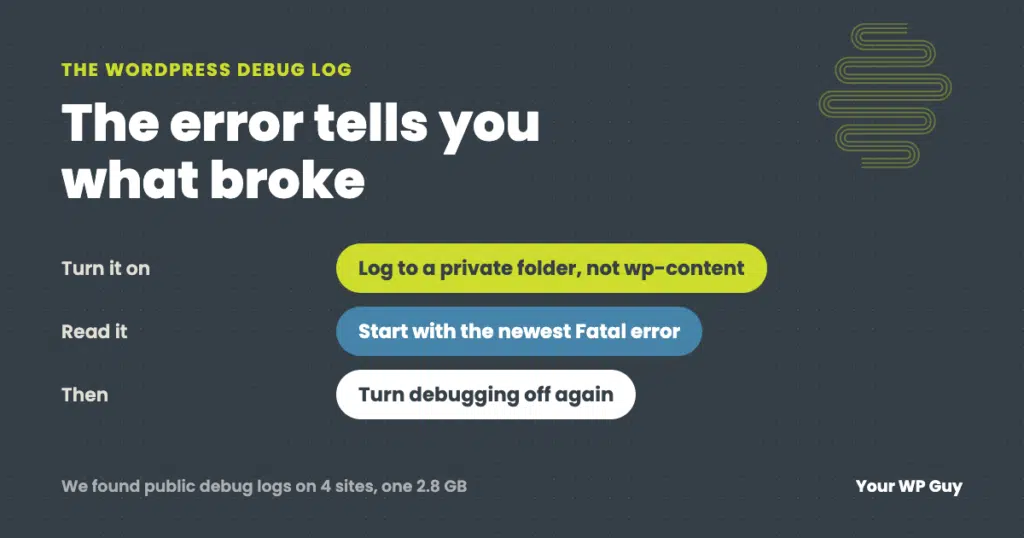
WordPress Debug Log: How to Turn It On Safely and Read Your Error Log
The short answer To turn on the WordPress debug log, add WP_DEBUG and WP_DEBUG_LOG to your wp-config.php file, and point the log at a private folder outside your website’s public files. Set WP_DEBUG_DISPLAY to false so visitors never see the errors. Then repeat whatever breaks, download the log, and read the newest lines. An AI…
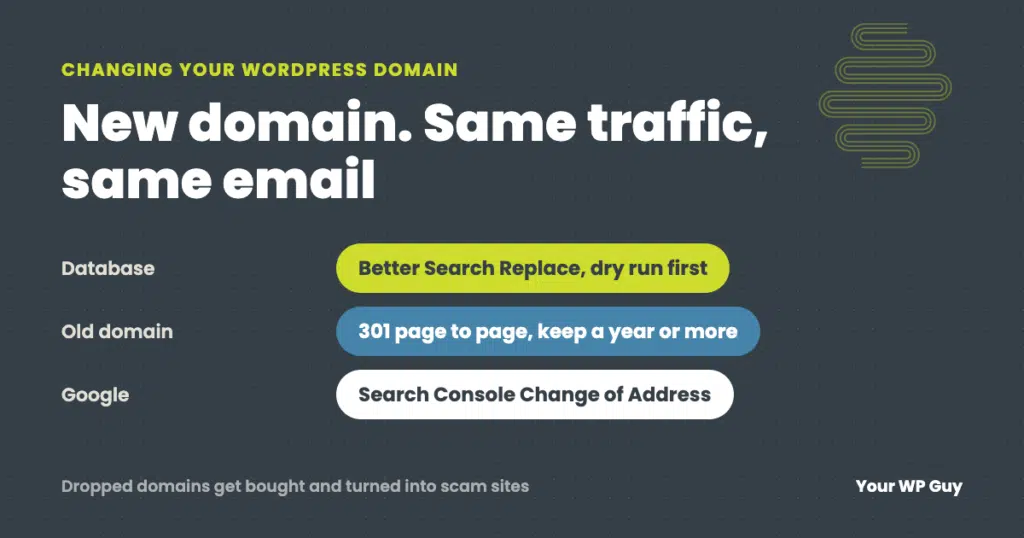
How to Change Your WordPress Domain (Without Losing Traffic or Email)
The short answer To change a WordPress site’s domain, add the new domain to your hosting with an SSL certificate, back up the site, then use the Better Search Replace plugin to replace the old address with the new one throughout the database. Check that Settings, then General, shows the new address in both fields,…
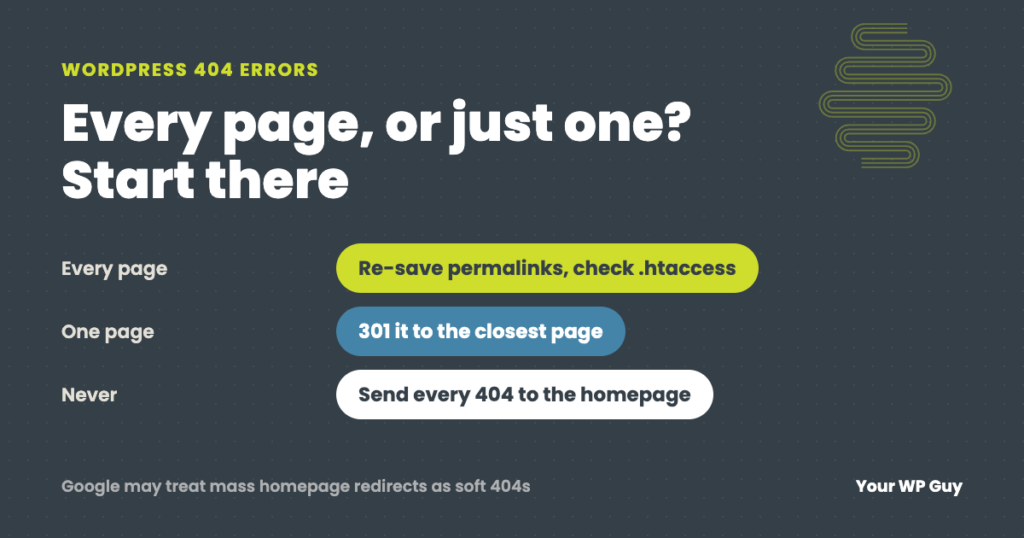
WordPress 404 Errors: Why They Happen and How to Fix Them
The short answer A WordPress 404 error means the server could not find the page that was asked for. First check whether it is every page or just one. If every page except the homepage shows a 404, the site’s rewrite rules are broken, usually because the .htaccess file is missing after a new install…
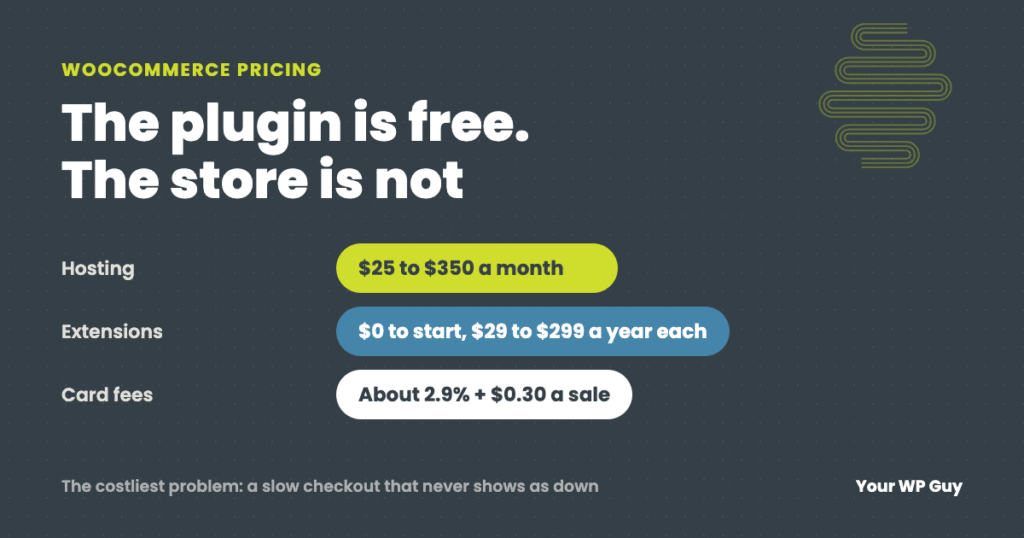
How Much Does WooCommerce Cost? Real Numbers From the Stores We Maintain
The short answer WooCommerce itself is free. There is no monthly fee and no cut of your sales. What you pay for is everything around it: hosting (WooCommerce puts most stores at $25 to $350 a month), a domain, any paid extensions ($29 to $299 a year each), card processing fees (about 2.9% plus $0.30…
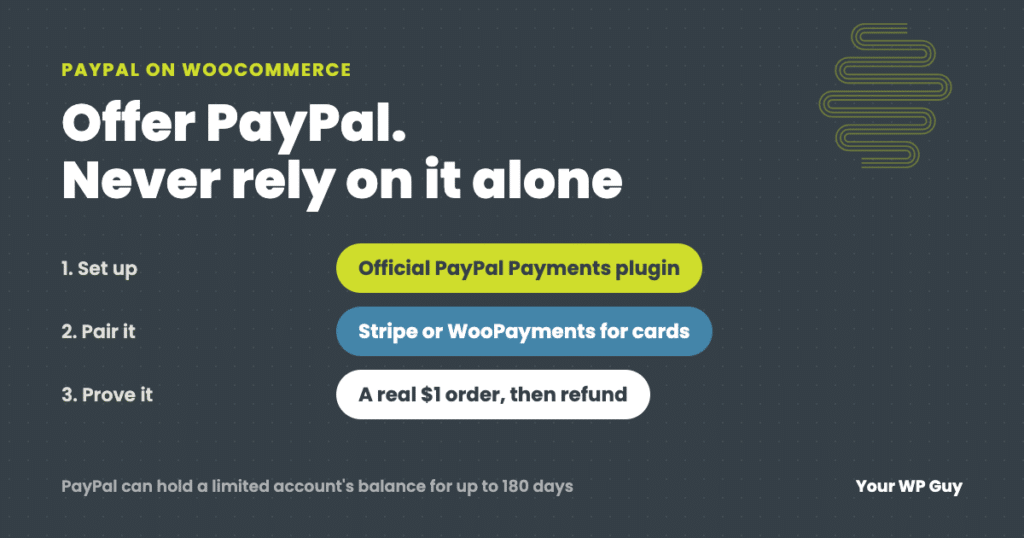
How to Set Up PayPal on WooCommerce (and Keep It Working)
The short answer To add PayPal to WooCommerce, install the free WooCommerce PayPal Payments plugin, connect your PayPal business account, choose which buttons to show, then place a real $1 order to prove it works. Do not use the old PayPal Standard option. Most stores we set up actually run on Stripe, which covers cards,…
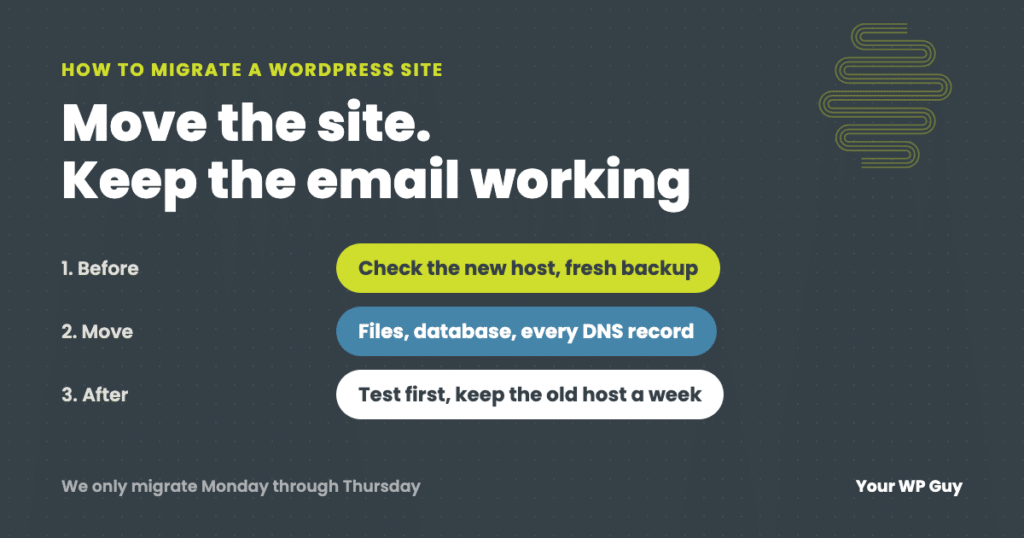
How to Migrate a WordPress Site to a New Host (Without Losing Email or Orders)
The short answer To migrate a WordPress site to a new host, check that the new host can actually run your site, make your own fresh backup, copy your DNS records (including email), move the files and database, and test everything on the new host before you point your domain at it. Keep the old…
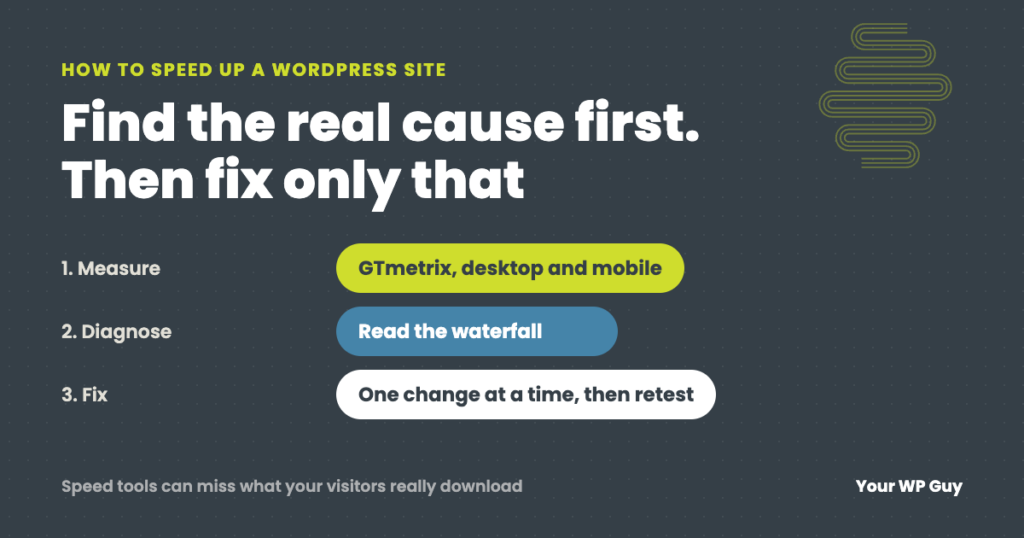
How to Speed Up a WordPress Site: Find the Real Cause First
The short answer To speed up a WordPress site, measure first so you know which part is slow: the server’s response, the weight of the page, or code that holds the page back. We test in GTmetrix on desktop and mobile and read the waterfall to find it. Then fix that cause. Page caching and…
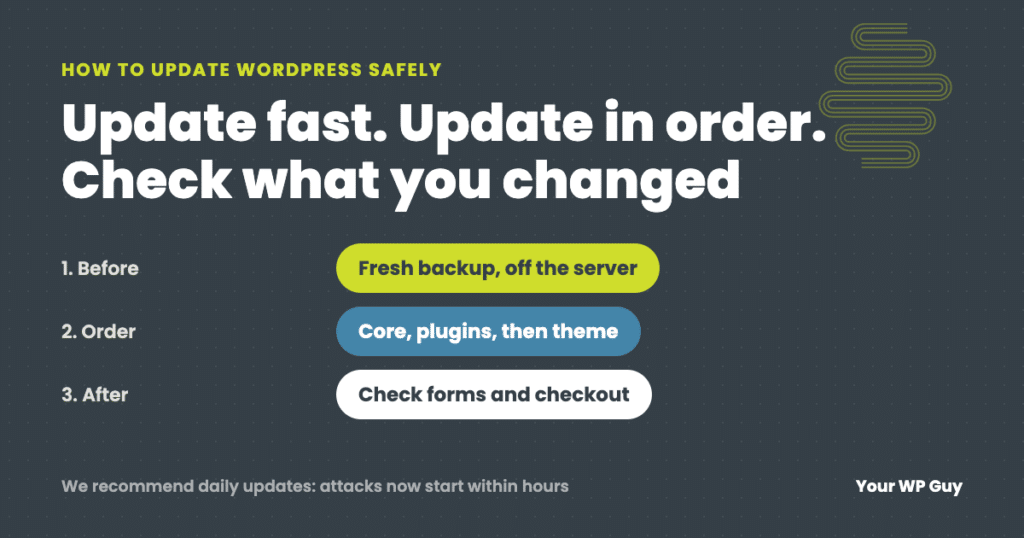
How to Update WordPress Safely (Without Breaking Your Site)
The short answer To update WordPress safely, make a fresh backup, then update in this order: PHP (if needed), WordPress core, plugins a few at a time, then your theme, and check the site after each step, including forms and checkout. We recommend updating daily, because with AI, attacks on a newly published flaw now…
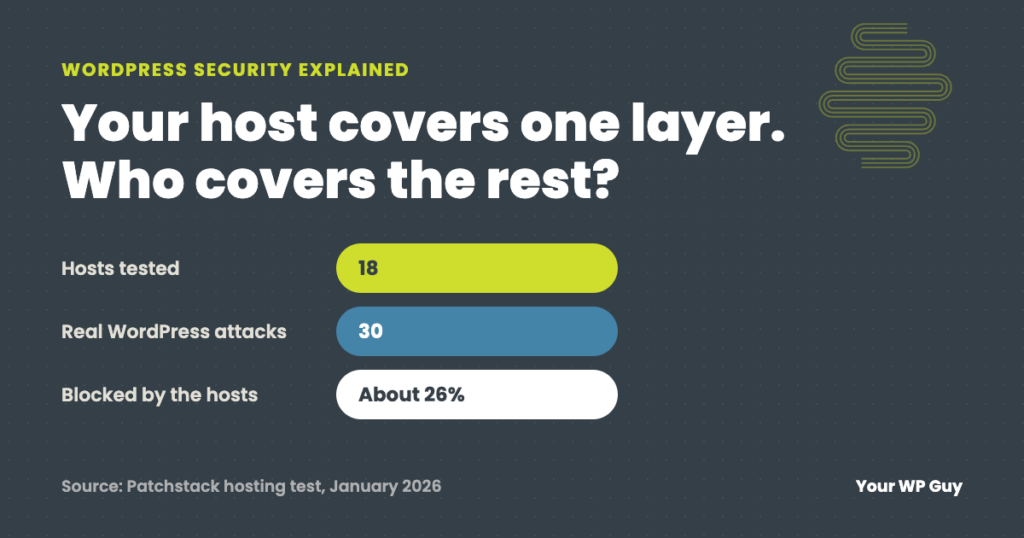
WordPress Security Explained: How the Layers Work Together (and Where Hosts Fall Short)
The short answer WordPress security is not one thing. It is layers: a firewall in front of the site, the server it runs on, WordPress itself, the plugins and theme, and the people who log in. Each layer catches what the others miss. Most hosts protect the server well but not WordPress: in an independent…
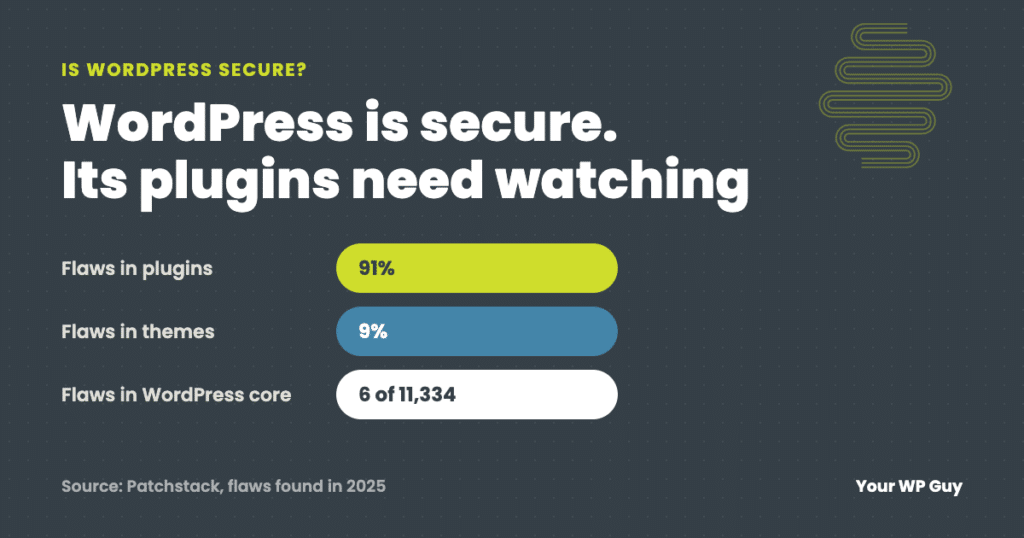
Is WordPress Secure? The Real Security Issues and How Sites Get Hacked
The short answer Yes, WordPress itself is secure: only 6 of the 11,334 WordPress security flaws found in 2025 were in WordPress core, all low priority. The real security issues are plugins (91%) and themes (9%), weak logins, and updates that wait too long, because attacks on a new flaw often start within hours, and…