WordPress Maintenance Mode: Fix a Stuck Site or Turn It On Safely
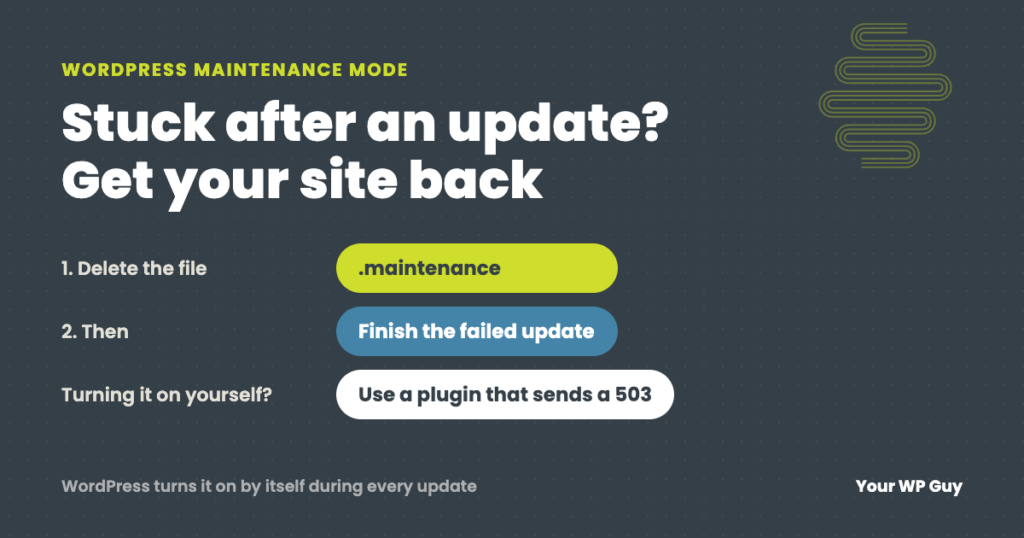
WordPress puts your site in maintenance mode by itself for a few seconds every time it updates. If an update hangs, the site gets stuck showing “Briefly unavailable for scheduled maintenance. Check back in a minute.” To fix it, delete the .maintenance file in your site’s main folder, then finish the update that failed. Want someone else running updates? Our WordPress care plans do.
Most of the time, maintenance mode is not something you turn on. WordPress turns it on by itself every time WordPress, a plugin or a theme updates, and turns it off again a few seconds later. You only notice it when an update hangs and the site gets stuck showing “Briefly unavailable for scheduled maintenance. Check back in a minute.” to everyone who visits.
This guide explains why that happens and how to get the site back, then covers the less common case: turning maintenance mode on yourself, and how to do it without hurting your search rankings.
What is WordPress maintenance mode?
It is a short pause WordPress puts on your site while it updates. When an update starts, WordPress creates a small file called .maintenance in your site’s main folder, and every visitor sees “Briefly unavailable for scheduled maintenance. Check back in a minute.” When the update finishes, WordPress deletes the file and the site comes back on its own, usually within seconds.
Plugins can also put a site in maintenance mode on purpose, showing visitors a “back soon” page while logged-in administrators still see the real site. That is far less common, and we cover it further down.
How to fix a site stuck on “Briefly unavailable for scheduled maintenance”
If that message stays up for more than a few minutes, an update was interrupted and the .maintenance file was never removed. The site will not come back on its own. Here is the fix:
- Open your site’s files with your host’s file manager or an SFTP app.
- Go to your site’s main folder, the one that contains
wp-config.phpand thewp-contentfolder. - Find the file named
.maintenance. Files starting with a dot can be hidden, so turn on “show hidden files” if you do not see it. - Delete it, then reload your site.
- Finish the update that failed. In the dashboard, check Dashboard > Updates and your plugins list. Run any update that did not complete. If a plugin now looks broken, delete it and install a fresh copy of the same version.
If the site goes white or shows “There has been a critical error” after you delete the file, the interrupted update left a plugin half installed. Our guide to the WordPress white screen of death walks through finding and fixing it.
Why updates hang
The usual causes
The most common causes are closing the browser tab while updates are running, updating many plugins at once on a slow or busy server, and the server running out of memory or time partway through. Updating a few plugins at a time, staying on the page until WordPress says it is done, and keeping a recent backup make a stuck site much less likely, and much easier to recover. We have also seen an automatic update corrupt a plugin’s files during install with no warning at all, which is why someone should check the site after updates run.
Rather not deal with hung updates at all?
On a care plan, a real person runs your updates and checks the site after every one. Here is how it works:
- Talk to a WordPress expertTell us about your site and what it needs.
- We run the updatesDaily updates, with daily backups, so a bad update can be rolled back.
- Your site stays upA person checks the site after every update and fixes anything an update breaks, including a stuck site.
Should you ever turn it on yourself?
Rarely. Routine updates do not need it, because WordPress handles maintenance mode on its own for the seconds an update takes. Bigger work, like a new design or a large plugin change, belongs on a staging copy of the site, so the live site stays open while you build and test. That is how we handle bigger changes on the sites we look after.
Turning it on yourself makes sense in a few situations:
- The site is broken in a way customers can see, like a checkout that is failing, and you need time to fix it.
- The site is moving to a new host or domain, while the copy is in transit.
- A large update you cannot test first, like a major version jump on a store, where a half-updated site would cause wrong orders.
How to put WordPress in maintenance mode
There are three common ways. Most site owners should use the first.
Option 1: A maintenance mode plugin (easiest)
- In your dashboard, go to Plugins > Add New and search for “maintenance mode.”
- Install a well-reviewed, recently updated one. Popular choices include LightStart (formerly WP Maintenance Mode), SeedProd and Maintenance by WebFactory.
- Write a short message: what is happening, when the site will be back, and how to reach you in the meantime (phone or email).
- Turn it on, then open your site in a private browser window to see what visitors see.
- When you are done, turn it off, check the site in a private window again, and delete the plugin if you will not need it soon.
Choose a plugin that sends a “503 Service Unavailable” status with the page. Most popular ones do, and it is what keeps Google from treating your “back soon” page as your real content (see the SEO section below).
Option 2: Your page builder or host
Some tools already include maintenance mode, so you do not need another plugin. Elementor has one under Elementor > Tools > Maintenance Mode, and some hosts offer a switch in their control panel. Check what you already have before you install something new.
Option 3: A few lines of code
If you are comfortable editing code, this snippet shows a maintenance message with a proper 503 status to everyone who is not logged in as an administrator. Add it with a code snippets plugin or to your child theme’s functions.php, and remove it when you are done:
add_action( 'template_redirect', function () {
  if ( ! current_user_can( 'manage_options' ) ) {
    wp_die( 'We are making some improvements and will be back shortly.',
      'Back soon', array( 'response' => 503 ) );
  }
} );
Back up the site first. A typo in functions.php can cause a white screen of death.
Maintenance mode or coming soon page?
They look similar but do different jobs. Maintenance mode is for an existing site that will be back shortly, and it should send a 503 status so search engines keep your pages. A coming soon page is for a brand-new site that has not launched, and it can be indexed so people can find you and sign up for updates. Most maintenance plugins offer both, so pick the right mode.
Does maintenance mode hurt SEO?
Not if it is short and sends a 503 status. Google’s own guidance says a 503 tells it the outage is temporary, so it comes back later instead of dropping your pages. A few hours, or even a day, is fine.
Two things do cause harm:
- A maintenance page that returns a normal “200 OK” status. Google may index the “back soon” message as your real content.
- Leaving it on for days. Google says that if a site keeps returning 503 for more than a few days, it may start dropping pages from its results.
To check what your maintenance page sends, open your browser’s developer tools (F12), go to the Network tab, reload the page while logged out, and look at the status of the first request. You want 503.
Want to know how your site is holding up? Our free Uh Oh Score checks your site and shows what needs attention, with no sales call required.
Get my Uh Oh ScoreQuestions people ask
How do I get my WordPress site out of maintenance mode?
If you turned it on with a plugin, turn it off in that plugin’s settings. If the site is stuck on “Briefly unavailable for scheduled maintenance,” delete the .maintenance file from the site’s main folder with your host’s file manager, then finish any update that failed.
Can I still see my site while it is in maintenance mode?
Yes. Logged-in administrators see the real site, and visitors see the maintenance page. To see what visitors see, open the site in a private browser window.
How long can a site stay in maintenance mode?
Keep it as short as possible. A few hours is fine for search engines if the page sends a 503 status. Google warns that a site returning 503 for more than a few days may start losing pages from its results.
Does WordPress have a built-in maintenance mode?
Only during updates. WordPress puts the site in maintenance mode for the seconds an update takes, then switches it off. For planned work, use a plugin, your page builder’s setting, or a code snippet.
Do I need maintenance mode to update plugins?
Usually not. Routine updates take seconds and WordPress handles maintenance mode on its own. For bigger changes, a staging copy of the site is safer than taking the live site offline.
What is the difference between maintenance mode and a coming soon page?
Maintenance mode is for an existing site that will be back shortly and should send a 503 status. A coming soon page is for a site that has not launched yet and can be indexed so people can find you before launch.
Sources
- Google Search Central, Pause or disable a website (503 status for temporary outages, and what happens after a few days).
- WordPress Developer Resources, wp_maintenance() (the built-in .maintenance check).
- WordPress Developer Resources, wp_die() (used in the code snippet).
Keep your hardest-working employee open for business
Every hour your site shows “back soon” is an hour it is not answering questions or taking bookings. With a care plan, a real person handles updates, checks the site after every one, and fixes what breaks, without taking your site offline.

Jonathan Wofford is the founder of Your WP Guy, a WordPress care and maintenance service supporting 105+ active client sites. He and his team keep WordPress sites fast, secure, and running, so business owners can stay focused on their business instead of their website.