How to Restore WordPress From a Backup (and What to Do When It Fails)
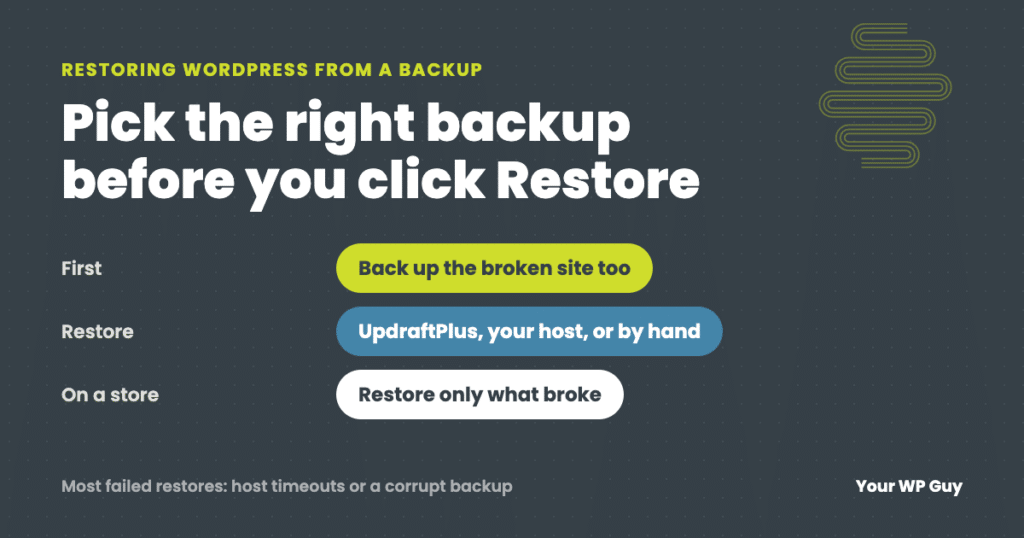
To restore WordPress from a backup, first pick the right backup: the last one from before the problem started. Then restore it with whatever made it. In UpdraftPlus, go to Settings, then UpdraftPlus Backups, find the backup and click Restore. Other backup plugins work much the same way. Hosting backups are restored from your hosting control panel. If the restore times out or fails, restore the files and database by hand, and if a host restore gets stuck, contact your host.
A restore is supposed to be the easy way out: something broke, you have a backup, you put the site back. Most of the time that is exactly how it goes. But restores fail more often than people expect, usually when there is the least time to deal with it.
We restore WordPress sites as part of our care plans and emergency fixes. This guide covers how to choose the right backup, how to restore it whichever tool you use, what to do when the restore fails, and when you should not restore the whole site at all.
Before you restore
- Find out when it last worked. Pick the newest backup from before the problem started. If nobody has looked at that part of the site in weeks, that date can be further back than you think.
- Know what you will lose. A full restore puts everything back to that date: posts, pages, comments, form entries and, on a store, orders and customer accounts. Anything added since then is gone unless you save it first.
- Back up the broken site. It sounds strange, but take a backup of the site as it is right now. If the restore goes wrong, or you need something that was added after the old backup, you will want it.
- On a store, pause sales. If the site takes orders, put it in maintenance mode while you restore, so no orders land in the middle of it.
How to restore with UpdraftPlus
We use UpdraftPlus for client backups, so this is where we start. It is also one of the most popular backup plugins for WordPress.
- Open the backups. In the dashboard, go to Settings, then UpdraftPlus Backups. Your existing backups are listed by date.
- If the backup is not listed, for example on a fresh WordPress install, use “Upload backup files” to add the backup files you downloaded, or “Rescan remote storage” if the backups are in your cloud storage.
- Click Restore next to the backup you want.
- Choose what to restore. You can pick the database, plugins, themes, uploads and other files separately. For a full rollback, choose them all. If you only need part of the site back, choose only that part.
- Let it run, then log in again. Restoring the database logs everyone out, because the old database has the old logins.
Restoring with your host or another plugin
Not everyone uses UpdraftPlus, and you may have more than one backup to choose from.
- Your host’s backups. Most hosts make their own backups and let you restore them from the hosting control panel, usually under a name like Backups or Restore. Some let you restore just the files or just the database.
- Other backup plugins. Most backup plugins work much like UpdraftPlus: a list of backups with a Restore button, and a way to restore on a fresh install if the site will not load.
- A managed backup service. Services that keep backups away from your server usually restore from their own dashboard, which helps when you cannot get into WordPress at all.
If a restore through your host gets stuck or fails, your next step is to contact your host’s support. The restore runs on their system, and they can see what went wrong on their side.
When the restore fails
When a restore fails on client sites, it is almost always one of three things:
| What happens | Why | What we do |
|---|---|---|
| The restore stops partway or times out | The host limits how long a task can run, which is common on shared hosting | Restore the files and database by hand |
| The restore errors or the site is broken after | The backup itself is corrupt or incomplete | Try an older backup, or rebuild from the parts that are good |
| The database will not import | It is too big for the host’s import limits, even after a cleanup | Split the database and import it in chunks |
Restoring by hand
A manual restore means putting the two halves of a WordPress site back yourself:
- The files. Upload the backup’s wp-content folder (themes, plugins and uploads) with your host’s file manager or FTP. WordPress itself can be reinstalled fresh.
- The database. Import the backup’s database file with phpMyAdmin or your host’s database tool. For a very large database, split it into smaller pieces and import them one at a time.
- Check wp-config.php. Make sure the database name, user and password match the database you imported into.
- Clear every cache and test the site logged out.
Restore failing, or not sure which backup to use?
Restores that time out, corrupt backups and oversized databases are part of our everyday work.
- Tell us what happenedWhat broke, when it last worked, and what backups you have.
- We pick the right restoreFull or partial, so you keep what was added since.
- We restore it and test itPages, forms, logins and checkout, before we call it done.
When not to restore the whole site
A full restore is the biggest hammer you have. On a busy site, and especially a store, rolling everything back can cost more than the problem did, because orders, sign-ups and new content since the backup are wiped out. Often you only need to put back the part that broke.
Putting back 146 files instead of the whole store
On an online store we look after, a security scan wrongly flagged 146 files that came with a new version of WordPress and deleted them. Every page that was not cached stopped working, including the cart and checkout. A full restore would have rolled back the store’s orders too. Instead, we used WordPress’s own file check to list exactly which files were missing and put back only those, straight from the official WordPress download. The checkout was down for about 25 minutes, and the store’s orders were never touched.
The same goes for a single plugin or theme that broke after an update. Restoring just that plugin or theme, or rolling it back to the previous version, keeps everything else as it is.
After the restore
- Test logged out. Check the homepage, inner pages, forms, logins and, on a store, the cart and checkout.
- Look for old addresses. If the backup was made on a staging copy or under another domain, links can point to the wrong site.
- Re-apply what you lost. Add back anything created after the backup, from the copy of the broken site you saved first.
- Fix what caused it. A restore puts the site back, but if an update or a hack caused the problem, it will happen again unless the cause is fixed.
When the restore did not fix it
A business’s online store pages stopped working, and nobody had used them in weeks. We restored a backup from the last date the owner knew it had worked. The site came back, but the store still did not work, which told us the cause was not a recent change. We kept digging, brought over files from the site’s previous host, and had it fixed within a few days. Along the way the owner also spotted the logo linking to an old staging copy of the site, which we fixed too. Restoring is a good first step, but it does not always fix the cause.
Backups you can actually restore
The time to find out your backups do not work is not during an emergency. Keeping backups only on the same server as your site is the most common mistake we see: if the server fails or the site is hacked, the backups can go with it.
I come from a technical background where backup drives were rotated daily, one copy went into a fireproof safe, and another went offsite. Our care plans follow the same idea. We check that your host’s backups are running, which are usually on the same server, and we also back up to the cloud, away from your server, with versioning in case something happens to a copy. Cloud backups are kept on a 30-day rotation. Sites hosted with us also keep 90 days of backups in a separate location.
- Keep at least one backup somewhere other than your server.
- Keep more than one date, so a problem you notice late still has a clean backup before it.
- Check that backups are still running. Backups that quietly stopped months ago are a common surprise.
- Restore one to a staging copy now and then, so you know it works.
Backups are included on every one of our care plans, and so is restoring them when something goes wrong.
Not sure your backups are even running? Our free Uh Oh Score checks your site and shows what needs attention, with no sales call required.
Get my Uh Oh ScoreQuestions people ask
How do I restore my WordPress site from a backup?
Pick the last backup from before the problem, then restore it with the tool that made it. In UpdraftPlus that is Settings, then UpdraftPlus Backups, then Restore. Host backups are restored from your hosting control panel.
Will restoring a backup delete my new content?
A full restore removes anything added after the backup date, including posts, form entries and orders. Back up the current site first, or restore only the part that broke.
Why does my WordPress restore keep failing?
Usually the host stops long tasks partway, which is common on shared hosting, or the backup is corrupt. Restore the files and database by hand, or try an older backup.
How do I restore just the database?
In UpdraftPlus, choose only the database when you click Restore. By hand, import the database file with phpMyAdmin, splitting it into chunks if it is very large.
My host’s restore failed. What now?
Contact your host’s support. The restore runs on their system, and they can see what went wrong.
Can I restore a backup if I cannot log in to WordPress?
Yes. Use your host’s backup tool, a backup service’s own dashboard, or install WordPress fresh, add the backup plugin and upload your backup files.
How long should I keep WordPress backups?
Keep several dates, not just the latest. Our cloud backups are kept 30 days, and sites hosted with us keep 90 days in a separate location.
Sources
- WordPress, WordPress backups.
- WordPress.org, UpdraftPlus.
Get your site back the right way
We pick the right backup, restore it, keep what you added since, and fix whatever broke it in the first place.

Jonathan Wofford is the founder of Your WP Guy, a WordPress care and maintenance service supporting 105+ active client sites. He and his team keep WordPress sites fast, secure, and running, so business owners can stay focused on their business instead of their website.