WordPress Debug Log: How to Turn It On Safely and Read Your Error Log
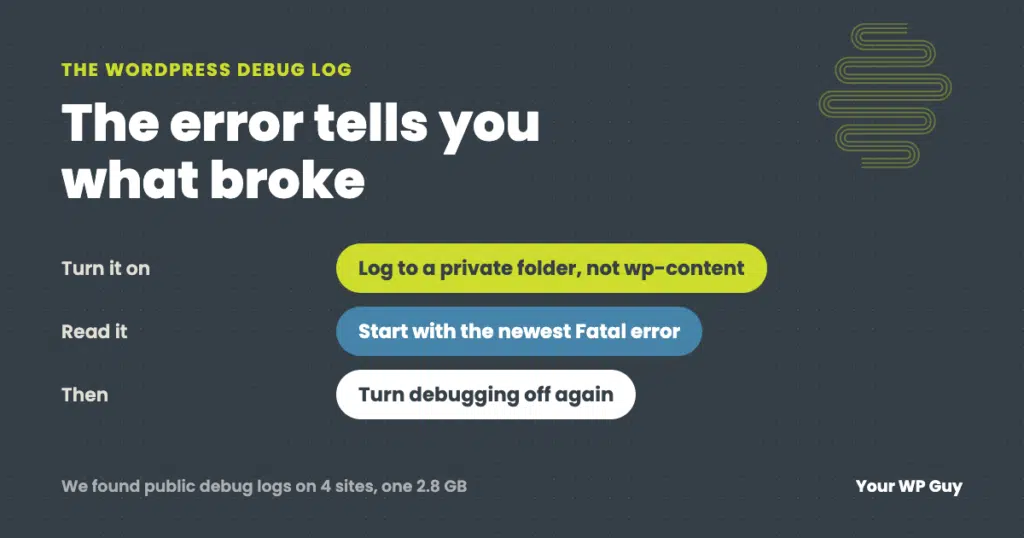
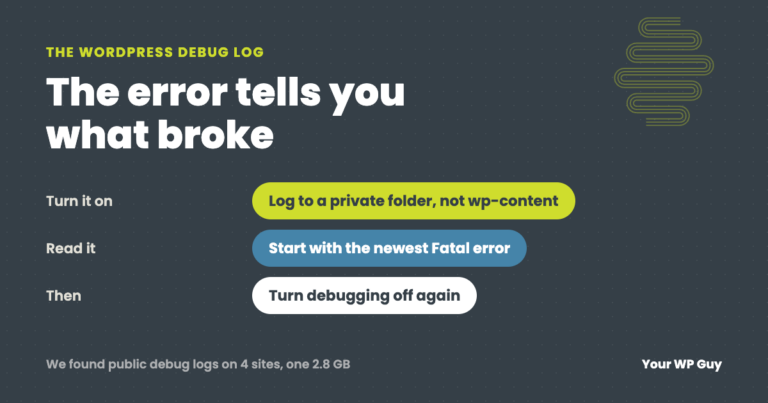
To turn on the WordPress debug log, add WP_DEBUG and WP_DEBUG_LOG to your wp-config.php file, and point the log at a private folder outside your website’s public files. Set WP_DEBUG_DISPLAY to false so visitors never see the errors. Then repeat whatever breaks, download the log, and read the newest lines. An AI assistant can explain them in plain English. When the problem is fixed, turn debugging off again.
When a WordPress site breaks, the error usually tells you exactly what went wrong and which plugin or theme caused it. The trouble is that WordPress hides errors by default. The debug log is how you see them.
Reading error logs is a daily part of fixing client sites for us. This guide shows how to turn the log on without creating a new problem, where to find it, how to read it, and what to do when the log comes back empty.
What the WordPress debug log is
WordPress runs on PHP. When PHP hits a problem, such as a plugin calling a function that no longer exists, it creates an error message. Normally WordPress keeps those messages out of sight. Debug mode makes WordPress collect them, and the debug log saves them to a file you can read later.
There are actually two kinds of logs you might look at:
- The WordPress debug log, which you turn on yourself. It records PHP errors, warnings and notices from WordPress, your theme and your plugins.
- Your host’s server error log, which is usually already running. It catches server-level problems, including some errors that happen before WordPress even loads.
When a site breaks, we check both.
How to turn on the debug log safely
Debug settings live in wp-config.php, in your site’s main folder. You can edit it with your host’s file manager or FTP. Back up the file before you change it.
- Find a private folder. You want a folder your hosting account can write to that is outside your website’s public files, usually the folder above public_html or httpdocs. Many hosts already have a private “logs” or “private” folder. If you are not sure, ask your host.
- Add these lines to wp-config.php, above the line that says “That’s all, stop editing!” Change the path to your private folder.
- Repeat the problem. Load the page that breaks, or do whatever triggers the error, so it gets written to the log.
- Download the log from the private folder and read it, as explained below.
define( 'WP_DEBUG', true );
define( 'WP_DEBUG_LOG', '/home/youraccount/logs/wp-debug.log' );
define( 'WP_DEBUG_DISPLAY', false );
@ini_set( 'display_errors', 0 );
WordPress’s own documentation confirms WP_DEBUG_LOG can be set to a file path, so the log is saved wherever you choose.
Why not use the default setting?
Most guides tell you to set WP_DEBUG_LOG to true. That saves the log as debug.log inside your wp-content folder, which is part of your public website. Anyone who knows the address can download it, and debug logs can include file paths, plugin versions, database errors and sometimes email addresses.
What we found when we checked
In October 2026 we checked the sites we look after for this exact problem. On four of them, wp-content/debug.log could be downloaded by anyone, and one of those files had grown to 2.8 GB. Debug logging had been turned on the default way and left running. We moved the logs somewhere private, turned debugging off, and now check the sites we manage every day for an exposed log.
Blocking the file with a rule in .htaccess is not always enough, because some servers deliver files directly without ever reading .htaccess. Saving the log outside the public folder works on every host.
Never show errors to visitors
WP_DEBUG_DISPLAY set to false keeps the errors in the log and off your pages. Leave it out, and WordPress may print error messages right into your site for every visitor to see.
The outage every monitor called “up”
A publishing site came to us with every page, including the login screen, showing raw PHP error text. Debug mode had been left on with errors displayed, so visitors saw the errors, and the owner could not get into the dashboard. Uptime monitors stayed green, because the server was still answering with a normal “OK” status. The cause was three separate problems from an upgrade to PHP 8.4, stacked so that each one hid the next. We fixed them one at a time, then turned error display off.
Where to find WordPress error logs
- Your debug log is wherever you pointed WP_DEBUG_LOG. If someone used the default setting, it is wp-content/debug.log.
- Your host’s error log is usually in the hosting control panel, under a name like Logs, Errors or Error Log. Some hosts keep a separate PHP error log.
- WordPress’s own email. When a plugin or theme causes a fatal error, WordPress may email the site’s admin address with the error and a special link to get into the dashboard.
How to read the log
Download the log and open it in a text editor. We use Sublime Text, but any plain text editor works. Start at the bottom, where the newest entries are, and look for lines with the same time as the problem.
Each line starts with a date and time, then the type of message:
| Message type | What it means | How worried to be |
|---|---|---|
| PHP Fatal error | Something stopped the page from loading | Start here. This is usually the cause. |
| PHP Warning | Something went wrong, but the page kept going | Worth fixing, often not the emergency |
| PHP Notice | Minor coding issue | Usually harmless |
| PHP Deprecated | Code that will stop working in a future PHP version | A warning about future updates |
The file path in each line tells you where the problem is. A path containing wp-content/plugins/ followed by a name points to that plugin. wp-content/themes/ points to your theme. A line that repeats hundreds of times is usually one problem, not hundreds.
Let an AI read it first
Here is our honest advice to site owners: download the log and give it to your preferred AI assistant. Ask it what is causing the problem. It can usually name the plugin or theme involved and explain the error in plain English. Before you paste it in, skim the log and remove anything private, such as customer email addresses.
Even if you still want someone to fix it, you will have the error, the file and a likely cause to hand over. That cuts down troubleshooting time, which saves you money.
Rather have someone read the log and fix it?
Send us what you found. Error logs are where most of our fixes start.
- Tell us what brokeAnd share the log or what your AI assistant said about it.
- We find the causeIncluding problems that never show up in the standard log.
- We fix it and turn debugging offSo nothing is left exposed afterward.
Turn it off when you are done
We only turn debugging on while we are tracking down a problem. Once it is fixed, we turn it off. A debug log left running keeps growing, slows the site down a little with every error it writes, and becomes one more file someone might find. One we came across had reached 60 MB.
To turn it off, change the lines in wp-config.php to:
define( 'WP_DEBUG', false );
define( 'WP_DEBUG_LOG', false );
define( 'WP_DEBUG_DISPLAY', false );
Then delete or move the old log file, and if you ever used the default setting, check that yoursite.com/wp-content/debug.log no longer loads.
When the log is empty
The debug log only catches what PHP reports. Some of the worst problems never show up in it.
Thirty-three hours with nothing in any log
An online course site went blank on every page except its cached homepage. Every monitor said the site was up, and every log was clean: no PHP errors, no server errors, nothing from WordPress. The site had been broken for about 33 hours before anyone noticed. We found the cause by testing pages the cache could not hide, and had it fixed the same afternoon it was reported.
When the standard log does not show the problem, we test the parts of the site that skip the cache, such as logins and checkouts, and sometimes build our own debugger and logger to record exactly what the site is doing. Logs also turn up problems nobody reported. On a nursing education site, reading the logs during an update showed old lesson links crashing about once a day instead of showing a normal “page not found.”
Not sure what else on your site needs attention? Our free Uh Oh Score checks your site and shows what needs attention, with no sales call required.
Get my Uh Oh ScoreQuestions people ask
Where is the WordPress debug log?
Wherever WP_DEBUG_LOG points in wp-config.php. If it is set to true, the log is wp-content/debug.log, which is public, so we recommend pointing it at a private folder instead.
How do I turn on debug mode in WordPress?
Add WP_DEBUG set to true, WP_DEBUG_LOG set to a private file path, and WP_DEBUG_DISPLAY set to false to wp-config.php, above the “That’s all, stop editing!” line.
Is it safe to leave WP_DEBUG on?
No. Leave it on only while you are tracking a problem. A running log keeps growing, and with display on, visitors can see your errors.
How can I view my WordPress error logs?
Download the debug log and your host’s error log and open them in a text editor. Start at the newest lines and look for “PHP Fatal error.”
Can AI read my WordPress error log?
Yes, and it is a good first step. Remove private details such as customer emails, paste in the log, and ask what is causing the problem. It will usually name the plugin or theme involved.
Why is my debug log empty?
Either nothing has gone wrong since you turned it on, the path is not writable, or the problem is not a PHP error at all. Repeat the problem, check the path, and check your host’s error log too.
What is the difference between WP_DEBUG and WP_DEBUG_LOG?
WP_DEBUG turns debugging on. WP_DEBUG_LOG saves the messages to a file. WP_DEBUG_DISPLAY controls whether they also appear on your pages.
Sources
- WordPress, Debugging in WordPress.
- WordPress, wp-config.php.
Find the error. Fix the site.
We read the logs, find the cause, fix it, and turn debugging off so nothing is left exposed.

Jonathan Wofford is the founder of Your WP Guy, a WordPress care and maintenance service supporting 105+ active client sites. He and his team keep WordPress sites fast, secure, and running, so business owners can stay focused on their business instead of their website.