How to Export WooCommerce Orders (for Your Accountant, Taxes or Analysis)
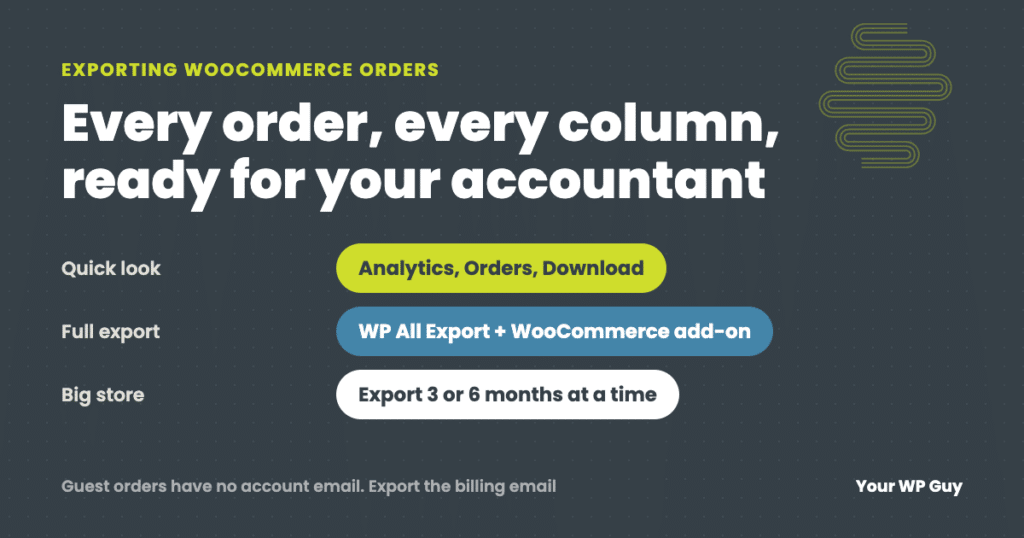
WooCommerce does not have a full order export built in. For a quick summary, go to Analytics, then Orders, choose your dates and click Download to get a CSV file. For a complete export with customer details, line items, taxes and fees, use an export plugin. We use WP All Export with its WooCommerce add-on. If a big export times out, export in smaller date ranges, such as 3 or 6 months at a time, and combine the files.
Most store owners need an order export for the same reasons our clients do: their accountant wants the year’s sales, tax season is coming, or they want to know more about their customers. The export itself is easy once you know where to click. The trouble starts when the file is missing columns you need, or the export just stops on a store with years of orders.
We export WooCommerce orders for client stores regularly. This guide covers the built-in option, the plugin we use, how to get the right columns, and what to do when a big export fails.
The built-in option: Analytics
WooCommerce’s Analytics reports can download their tables as a CSV file, which opens in Excel or Google Sheets.
- In your dashboard, go to Analytics, then Orders.
- Set the date range at the top, and any filters you need, such as order status.
- Click Download in the top right corner of the table.
If the report fits on one page, the file downloads right away. If it is longer, WooCommerce builds the file in the background and emails you a link when it is ready.
This is fine for a quick look at sales by date. It is a report, though, not a full export: you do not get every customer field, every line item or every custom detail. For an accountant, a tax filing or any real analysis, you usually need a plugin.
A full export with WP All Export
Our go-to is WP All Export Pro with its WooCommerce add-on. There are cheaper plugins, but it has given us excellent results and exports every piece of order data we have needed, including line items, customer details, coupons, taxes and custom fields. It can also filter orders by status and date range, export to CSV, Excel or XML, and run exports on a schedule.
- Start a new export. Go to All Export, then New Export, and choose WooCommerce Orders.
- Add filters. Pick the orders you want, for example Completed orders in a date range. Leave filters off to export everything.
- Customize the export file. Drag in the columns you need from the available data. See the list below.
- Choose the format, CSV or Excel, and run the export.
- Download the file and check the row count against what you expect before you send it to anyone.
Save the export once it is set up the way you want, so next quarter you can run the same export again in a couple of clicks.
Which columns to include
The right columns depend on who the file is for:
| For | Columns to include |
|---|---|
| Your accountant | Order ID, order date, status, order total, total tax, shipping cost, discounts, refunds and payment method |
| Sales tax | Order date, billing and shipping state, postcode and country, order total, total tax and shipping |
| Customer analysis | Order ID, order date, billing email, customer user ID, order total, coupons used and products |
| Fulfillment or shipping | Order ID, shipping name and address, products, quantities and shipping method |
Use the billing email to identify customers
Many stores take guest orders. A guest has no customer account, so the account email column is blank for them. The billing email is saved on every order, guest or not, so use that column when you need to match orders to customers.
Check which order statuses you include. Pending, failed and cancelled orders were never paid, and counting them will make sales look higher than they were.
When a big export times out
On a store with years of orders, big exports often time out no matter which tool you use. The server stops long tasks, and the export never finishes.
The fix is to break it down by date. Export 3 or 6 months at a time, using the date filter, then combine the files in Excel or Google Sheets. Smaller exports finish, and if one fails, you only redo that piece.
Twenty-six months of orders, three exports
One online store we look after wanted to know how long customers wait between orders, so it could time its reorder reminders. That meant pulling every order since the store opened: more than two years and nearly 29,000 orders. We ran it as three separate exports with WP All Export and combined the files.
The answer surprised them. The typical customer reordered after 38 days, but the average was 54 days, pulled up by a few very slow returners. Reminders timed to the average would have arrived about two weeks late for most customers. The export also showed that 37.9% of customers never ordered a second time.
Rather have us pull the export for you?
We export order data for accountants, tax filings and customer analysis, including stores too big to export in one go.
- Tell us what you need it forThe date range and who the file is going to.
- We set up the exportWith the right columns and statuses, saved to run again next time.
- We check it before you get itOrder counts and totals that match your store.
Other order export plugins
WP All Export is what we use, but it is not the only option:
- Advanced Order Export For WooCommerce is free on WordPress.org and exports to Excel, CSV, XML and more. Its own help notes that a blank export or a server error usually means the site needs more memory.
- WooCommerce’s Customer / Order / Coupon Export is a paid extension from WooCommerce. It can also send exports automatically by FTP, HTTP POST or email, for example to a fulfillment company.
- Your accounting software. If you only export for bookkeeping, a direct connection between WooCommerce and your accounting software may save you from exporting at all.
Whichever you use, check the plugin is up to date if your store uses WooCommerce’s newer order storage, so the export picks up every order.
What an order export can tell you
Most exports go to an accountant and are never looked at again. But an order export is also the most honest picture of your business you have: who buys, how often, what they buy together and which coupons actually bring people back. A spreadsheet or an AI assistant can answer a lot of those questions in minutes once you have the file.
Not sure what else on your store needs attention? Our free Uh Oh Score checks your site and shows what needs attention, with no sales call required.
Get my Uh Oh ScoreQuestions people ask
Can WooCommerce export orders without a plugin?
Partly. Analytics, then Orders, has a Download button that gives you a CSV of the report. For every customer field and line item, you need an export plugin.
How do I export WooCommerce orders to CSV or Excel?
Use Analytics, then Orders, then Download for a quick CSV, or an export plugin such as WP All Export to choose your columns and export to CSV or Excel.
What is the best WooCommerce order export plugin?
We use WP All Export Pro with its WooCommerce add-on, because it exports every piece of order data we have needed. Advanced Order Export For WooCommerce is a free alternative.
Why does my WooCommerce order export time out?
The server stops long tasks. Export smaller date ranges, such as 3 or 6 months at a time, and combine the files.
How do I export orders for a specific date range?
In Analytics, set the date range before you click Download. In an export plugin, add a date filter to the export.
Why are some customer emails blank in my export?
Guest orders have no customer account, so the account email is empty. Export the billing email instead, which every order has.
Can I export WooCommerce customers too?
Yes. Most order export plugins, including WP All Export, can also export customers, and so can the Customers report in Analytics.
Sources
- WooCommerce, Analytics and sales reports (CSV download).
- WP All Import, Export WooCommerce orders.
- WooCommerce, Customer / Order / Coupon Export.
- WordPress.org, Advanced Order Export For WooCommerce.
Get the numbers out of your store
We set up the exports your accountant needs, handle stores too big to export in one go, and keep your store running in between.

Jonathan Wofford is the founder of Your WP Guy, a WordPress care and maintenance service supporting 105+ active client sites. He and his team keep WordPress sites fast, secure, and running, so business owners can stay focused on their business instead of their website.