How to Update WordPress Safely (Without Breaking Your Site)
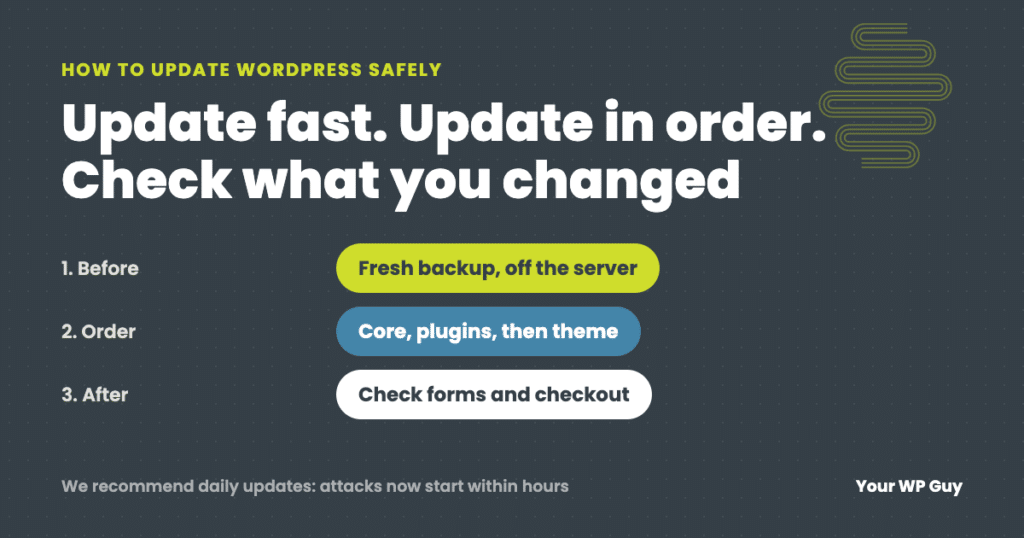
To update WordPress safely, make a fresh backup, then update in this order: PHP (if needed), WordPress core, plugins a few at a time, then your theme, and check the site after each step, including forms and checkout. We recommend updating daily, because with AI, attacks on a newly published flaw now start within hours. If you would rather not do it yourself, our WordPress care plans include daily updates checked by a person.
Updates put WordPress owners in a bind. Skip them and your site runs code with published security holes. Run them carelessly and an update can take the site down, sometimes without anyone noticing. Both happen every day.
The answer is not “update less” or “update everything at once.” It is updating quickly, in the right order, with a way back if something breaks. This guide covers what gets updated, how often, the safe order, what to check afterward, whether to trust automatic updates, and what to do when an update goes wrong.
What gets updated in WordPress
A WordPress site has five kinds of updates, and they carry different levels of risk:
| Update | What it is | Risk of breaking something |
|---|---|---|
| WordPress minor release | Security and bug fixes (for example 7.1.1 to 7.1.2). Installs automatically on most sites. | Low |
| WordPress major release | New features and changes (for example 7.0 to 7.1). | Medium |
| Plugins | Every add-on, updated by its own developer on its own schedule. | Varies: the most common cause of a broken site |
| Theme | The design and layout code, plus any plugins bundled with it. | Medium, higher if the theme was edited directly |
| PHP | The programming language on the server that WordPress runs on, usually changed through your host. | Higher: old plugins can stop working |
Premium plugins and plugins bundled with a theme often do not show up in the normal updates list until a license is entered or the theme is updated. They are the ones most likely to fall years behind.
How often should you update WordPress?
We recommend updating daily. That is a change from the “once a week” or “once a month” advice you will still find in most guides, and AI is the reason.
When a security flaw in a plugin is made public, the write-up tells attackers exactly where the hole is. AI tools now help them turn that write-up into working attack code in hours instead of days or weeks. Patchstack found that for heavily exploited WordPress flaws, mass attacks started a median of 5 hours after the flaw was made public, and about half of high-impact flaws were attacked within 24 hours. A site updated weekly can spend days running code with a hole that attackers are already scanning for. A site updated monthly spends weeks.
| How often you update | Longest time a published flaw stays open |
|---|---|
| Daily | About a day |
| Weekly | Up to 7 days |
| Monthly | Up to a month |
| “When I get to it” | Until the site is hacked |
Mass attacks start a median of 5 hours after disclosure (Patchstack, State of WordPress Security in 2026).
Daily does not mean careless. The goal is small, frequent updates with a check after each round, not a pile of updates run blindly. Daily updates also keep each round small, which makes them safer: a site that is two years behind often cannot update in one step without breaking. That is how we run updates on the sites we look after, every day, with a person checking afterward. For more on how AI is changing attacks, see is WordPress secure? the real security issues.
Before you update
- Make a fresh backup and know where it is. Files and database, stored off the server. If you cannot say where your last backup is and when it was made, stop here.
- Read the notes for big updates. For a WordPress major release or a plugin’s major version (2.x to 3.x), skim the changelog for warnings like “requires PHP 8.1” or “breaking change.”
- Check that big updates fit your site. A plugin that has not been updated in a year may not work with the newest WordPress. Search the plugin’s support forum for the new version number.
- Use a staging copy for major changes. A staging site is a private copy of your site where you can run risky updates first. Many hosts include one. For routine plugin updates it is optional; for a major WordPress release, a PHP upgrade or a store’s checkout plugins, it is worth it.
- Pick a quiet time. Update when traffic and orders are lowest, and when you have time to check the site afterward. Not five minutes before you leave for the weekend.
How to update WordPress, step by step
Update in this order, and check the site between steps so you know which update caused any problem:
- PHP, only if your host is upgrading it. Do it on its own day, ideally after testing on staging, because it can affect every plugin at once.
- WordPress core. Go to Dashboard > Updates and click Update to version …. Stay on the page until it says the update is complete.
- Plugins, a few at a time. On the same screen, or under Plugins, select two or three plugins and update them, then check the site. Avoid “select all”: if the site breaks after twenty updates, you will not know which one did it. On a store, update WooCommerce and its extensions together, then run any “database update” WooCommerce asks for.
- Your theme last. Under Appearance > Themes. If someone edited the theme’s files directly instead of using a child theme, those edits will be lost, so check first.
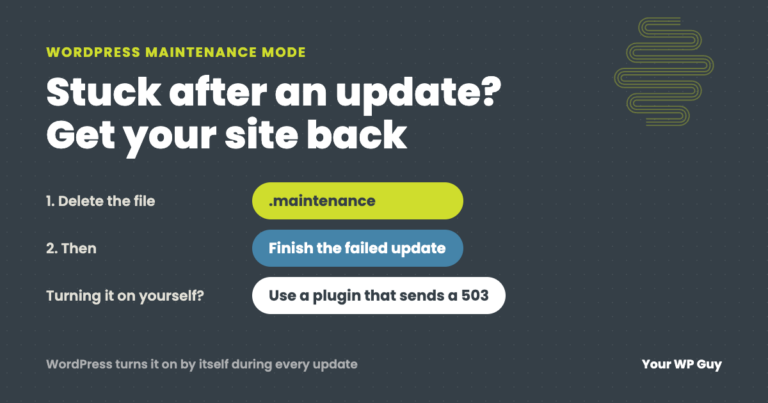
Do not close the browser tab while updates run. An interrupted update can leave the site stuck showing “Briefly unavailable for scheduled maintenance.” If that happens, here is how to fix a site stuck in maintenance mode.
Rather not spend your mornings running updates?
This is the work our care plans do every day. Here is how it works:
- Talk to a WordPress expertTell us about your site and how it is hosted.
- We set up your planDaily backups, daily updates, and monitoring, on our server or the host you already have.
- We check every updateA real person checks the site after updates run and fixes anything an update breaks, on every plan.
What to check after updating
A quick look at the homepage is not enough, because an update can break one feature while everything else looks fine. After each round of updates, check:
- The site logged out, in a private browser window, so you see what visitors see instead of a cached or admin view.
- A few different pages, not just the homepage: a blog post, a service page, your contact page.
- Your forms, by sending a test message and making sure it arrives.
- Your checkout, if you sell online, by placing a test order or at least getting to the payment step.
- The dashboard, including the plugins screen, for warnings or errors.
The update that broke everything but the homepage
On one site we look after, a plugin’s automatic update corrupted its own files during install. The homepage kept loading from cache with a normal status, so every uptime check said the site was fine. Every other page was completely empty. It stayed that way for 33 hours until a person noticed, and we found and fixed the cause the same day. That is why “check more than the homepage” is on the list above. Read the full invisible outage story.
Should you turn on automatic updates?
For WordPress minor releases, yes: they are security fixes, and WordPress installs them automatically on most sites already. For plugins, it depends on who is watching. Automatic plugin updates are one way to get daily updates, and they close security holes fast, which is a real benefit. But they also run when nobody is looking, so a bad update can break the site and nobody finds out until a customer complains, as the story above shows.
A sensible rule: automatic updates are fine for a simple site if something checks that pages still have content afterward and someone reads the alerts. For a store, a membership site, or any site where a broken form costs money, updates should be run and checked by a person.
What to do when an update breaks your site
- Figure out which update did it. If you updated a few at a time, it is one of the last few. If the site shows a white screen or “There has been a critical error,” WordPress may have emailed you which plugin crashed. Our guide to the WordPress white screen of death walks through finding it.
- Roll that one plugin back. Deactivate it, or install the previous version (the free WP Rollback plugin can do this from the dashboard), and report the problem to the plugin’s developer.
- If several things broke, restore the backup you made before updating, then redo the updates more slowly.
- Be careful with database changes. Some updates, like WooCommerce’s, change the database. Rolling back the plugin without restoring the database can make things worse, so on a store, restoring the full backup is usually safer.
If you would rather someone else sort it out, our one-time WordPress fix gets a broken site working again.
Not sure how far behind your site is? Our free Uh Oh Score checks your site and shows what needs attention, with no sales call required.
Get my Uh Oh ScoreQuestions people ask
Is it safe to update WordPress?
Yes, if you have a fresh backup and update in the right order with a check after each step. Not updating is the bigger risk, because outdated plugins are the most common way WordPress sites get hacked.
How often should I update WordPress?
We recommend daily. Attacks on newly published plugin flaws now start within hours, helped by AI tools, so weekly or monthly updates leave your site exposed for days or weeks. Keep each round small and check the site after.
Should I update WordPress or plugins first?
WordPress core first, then plugins, then the theme. If your host is upgrading PHP, do that separately, before the rest, after testing on a staging copy.
How do I check which WordPress version I have?
Go to Dashboard > Updates. It shows your current version and whether a newer one is available. The version also appears at the bottom right of most dashboard screens.
Do WordPress updates affect SEO?
Not directly. They can help indirectly by fixing speed and security problems, and they can hurt if an update breaks pages and nobody notices for days. Check your site after updates and the risk is small.
What if a WordPress update fails?
If the site shows “Briefly unavailable for scheduled maintenance,” delete the .maintenance file in your site’s main folder and run the update again. If a plugin was left half updated, delete it and install a fresh copy of the same version.
Why are some of my plugins not showing updates?
Premium plugins usually need an active license to receive updates, and plugins bundled with a theme often update only when the theme does. These are the plugins most likely to be years out of date, so check them by hand.
Sources
- WordPress.org, Updating WordPress.
- WordPress Developer Resources, Upgrading WordPress.
- Patchstack, State of WordPress Security in 2026 (5-hour median time to mass exploitation).
- Your WP Guy client case: the invisible WordPress outage.
Keep your hardest-working employee up to date
Updates are the most important maintenance job and the easiest one to put off. With a care plan, a real person updates your site every day, checks it afterward, and fixes anything an update breaks, so you never have to choose between safe and up to date.

Jonathan Wofford is the founder of Your WP Guy, a WordPress care and maintenance service supporting 105+ active client sites. He and his team keep WordPress sites fast, secure, and running, so business owners can stay focused on their business instead of their website.