How to Clean Up and Optimize Your WordPress Database (Safely)
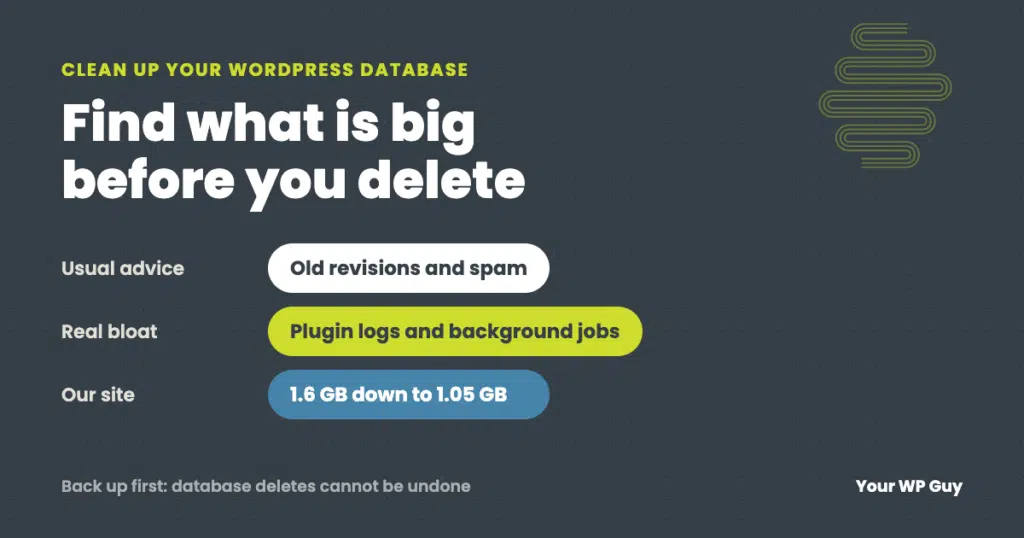
Back up the database first. Then find which tables are actually big before deleting anything, because the real bloat is rarely just old revisions. Clear the routine clutter (revisions, spam, expired temporary data), trim the settings WordPress loads on every page, cap runaway plugin logs, and remove tables left by deleted plugins. Finish by optimizing the tables. If the site is still slow afterward, our WordPress speed optimization service finds the real cause.
Every WordPress site keeps everything in one database: posts, pages, settings, orders, and whatever your plugins decide to store. Over the years it fills up with things nobody needs, and the dashboard gets slower, backups take longer, and your host starts sending warnings.
Most guides tell you to delete old revisions and run a cleanup plugin. That helps a little. When we clean up databases on the sites we look after, the space usually goes somewhere else. This guide shows how to find it and clear it safely.
Does your database need cleaning?
Probably, if any of these are true:
- The dashboard is slow even though the public site is fast. The dashboard is never cached, so database problems show up there first.
- Site Health warns about autoloaded options. Since WordPress 6.6, Tools > Site Health flags it when the settings loaded on every page pass 800 KB.
- Backups are slow, huge or failing. A bloated database makes every backup bigger and more likely to run out of memory partway through.
- Your host warns about database size, or WooCommerce order screens and searches crawl.
If your public pages are slow and the dashboard is fine, the database is usually not the main problem. Start with our guide to speeding up a WordPress site instead.
Before you touch it
- Take a full database backup and download a copy. Database deletes are permanent. There is no trash can and no undo. Our guide to backing up a WordPress site covers how.
- Work on a staging copy for anything beyond the routine clutter, especially on a store.
- Write down the size before you start, so you know what worked. Site Health’s Info tab shows the database size under Directories and Sizes.
Step 1: Find what is actually big
Do not start deleting until you know where the space is. In your host’s phpMyAdmin, open the database and sort the tables by size. If you have WP-CLI, wp db size --tables lists every table and its size. Then match the biggest ones against this list:
| Table | What fills it | Safe to clean? |
|---|---|---|
| wp_posts | Posts and pages, plus old revisions and auto-drafts | Revisions and auto-drafts, yes. Limit future revisions. |
| wp_postmeta | Extra data for posts, including page builder layouts and WooCommerce product details | Careful. Much of it is your real content. Only orphaned rows are safe. |
| wp_options | Site and plugin settings, temporary data, settings from removed plugins | Expired temporary data, yes. Settings from removed plugins, once confirmed. |
| wp_actionscheduler_* | Background job history from WooCommerce and other plugins | Completed and failed jobs, yes. Never pending ones. |
| wp_comments | Comments, including spam and trash | Spam and trash, yes. |
| Plugin log tables | Security, email, redirect, analytics and AI usage logs | Usually, then set the plugin to keep less. |
| Tables from deleted plugins | Data a plugin left behind when it was removed | Yes, after confirming the plugin is gone for good. |
Your table names may start with something other than wp_. Many hosts change the prefix.
Step 2: Clear the routine clutter
This is the part most guides cover, and it is the safest place to start:
- Old revisions. WordPress keeps every saved version of every post and page, forever, unless you set a limit. Delete the old ones, then add a limit such as
define( 'WP_POST_REVISIONS', 10 );towp-config.phpso they stop piling up. - Auto-drafts and trashed posts. Empty the trash in Posts and Pages.
- Spam and trashed comments. Empty them under Comments.
- Expired transients. These are temporary bits of data plugins store with an expiry date. Expired ones are safe to delete. With WP-CLI:
wp transient delete --expired.
A cleanup plugin such as WP-Optimize does all of this in a few clicks and can repeat it on a schedule. Untick anything you do not understand before you run it.
Step 3: Trim what loads on every page
Some settings in wp_options are marked to load on every single page view, whether the page needs them or not. A few kilobytes is normal. Hundreds of kilobytes slows every page and every dashboard screen.
On one client site we audited, those always-loaded settings totaled 1 MB. A fonts plugin was storing 510 KB of font data there, and 91 KB belonged to a shopping cart plugin that had been deactivated long before. About 730 KB of the 1 MB could go.
To see yours, check Tools > Site Health for the autoloaded options warning. With WP-CLI, wp option list --autoload=on --fields=option_name,size_bytes lists them so you can sort by size. For anything big, find out which plugin owns it. If the plugin is still in use, ask its developer or look for a setting that stores less. If the plugin is gone, the setting can usually go too.
Step 4: Cap runaway logs and background jobs
This is where we find the most waste, and almost no guide mentions it. Some plugins write a row to the database every time something happens, and never throw old rows away.
- Plugin logs. Security, email, redirect and AI plugins often keep logs. Look for a setting to keep 30 or 90 days instead of forever, then clear the old rows.
- Action Scheduler. WooCommerce and many other plugins run background jobs through a tool called Action Scheduler and keep a history of them. You can see it under WooCommerce > Status > Scheduled Actions (or Tools > Scheduled Actions). By default, finished jobs are cleared after 30 days, and since Action Scheduler 4.0, failed ones after three months. If thousands of jobs are piling up as pending or past-due, something is broken. That is worth fixing, not just deleting.
Where 550 MB was hiding on our own site
Our own company website’s database had grown to 1.6 GB, and the nightly backup was running out of memory partway through saving it and having to retry. Revisions were not the problem. Here is where the space was:
- 728 MB was page builder layouts. That is real content, so it stayed.
- About 540 MB was one plugin’s usage log. An internal-linking plugin was recording its AI usage, 3.58 million rows of it, growing by about a million rows a day.
- 441,504 rows sat in a background-job table that normally holds almost nothing.
After a full backup, we cleared the log and the stuck job rows. The database dropped from 1.6 GB to 1.05 GB, and the site worked exactly as before. A cleanup plugin’s “delete revisions” button would have saved almost nothing.
Step 5: Remove leftovers from deleted plugins
Deleting a plugin removes its code. It often leaves its database tables, settings and scheduled tasks behind. Tables with a plugin’s name in them, when that plugin is no longer installed, are the clue.
- Confirm the plugin is really gone and that nothing else uses the same tables. Some plugins share tables with their add-ons.
- Delete the tables in phpMyAdmin, and its settings in
wp_options. - Clear its scheduled tasks too. Leftover tasks can even crash a site on newer PHP; our post on the unknown named parameter error in wp-cron.php shows one we found on dozens of sites.
Step 6: Optimize the tables
Deleting rows does not always shrink the files on the server. Optimizing rebuilds each table and gives the space back. Use WP-Optimize’s optimize option, phpMyAdmin’s Optimize table action, or wp db optimize.
A table can look huge for this reason alone. On one site, the options table took up 44 MB on the server but held only about 2 MB of real data. That is overhead, not bloat, and optimizing it fixes it.
Rather have us clean it up?
Database cleanups are part of how we speed up slow WordPress sites, and we back up before we touch anything.
- Talk to a WordPress expertTell us what feels slow and what your host has said.
- We find where the space and the slowness really areTable by table, before anything is deleted.
- We clean it and stop it coming backRetention settings, revision limits and leftovers removed.
Mistakes that lose data
Deleting what you do not recognize
Page builders, WooCommerce and membership plugins store real content in tables and meta you may not recognize. A big wp_postmeta table is often your pages, not junk. Find out what something is before you delete it.
Running “clean everything” without a backup
Cleanup plugins are good, but a one-click “clean all” can remove things you wanted, like drafts or a revision you were counting on. Back up first, and only tick what you understand.
Deleting pending background jobs
Pending jobs in Action Scheduler are things that have not happened yet, such as subscription renewals and follow-up emails. Clear completed and failed jobs only.
Cleaning once and walking away
If a plugin’s log grew to millions of rows once, it will again. Set log retention, set a revision limit, and schedule the routine cleanup.
Not sure what is slowing your site down? Our free Uh Oh Score checks your site and shows what to fix first, with no sales call required.
Get my Uh Oh ScoreQuestions people ask
How do I clean up my WordPress database?
Back up first. Find the biggest tables, clear old revisions, spam and expired temporary data, trim settings that load on every page, cap plugin logs, remove leftovers from deleted plugins, then optimize the tables.
Is WP-Optimize safe to use?
Yes, for routine cleanup, and it is made by the team behind UpdraftPlus. Take a backup first, and only tick the cleanup options you understand.
Should I delete post revisions?
Old ones, yes. Keep a few recent revisions so you can undo mistakes, and set a limit in wp-config.php, such as 10, so they stop piling up.
Will cleaning the database speed up my site?
It mostly speeds up the dashboard, searches, order screens and backups. If your public pages are slow but the dashboard is fine, the cause is usually somewhere else, such as images, scripts or hosting.
What are autoloaded options?
Settings WordPress loads on every page view. Since WordPress 6.6, Site Health warns when they pass 800 KB. Plugins sometimes store far too much there, including plugins you already removed.
Can I delete Action Scheduler data?
Completed and failed actions, yes. They are only history. Never delete pending actions, since those are jobs that still need to run, like subscription renewals.
How often should I clean the WordPress database?
Set routine cleanup to run monthly, and set retention limits on plugin logs so they clean themselves. Do a deeper check once or twice a year, or whenever the dashboard slows down.
Sources
- WordPress Core Trac, Site Health check for autoloaded options (WordPress 6.6).
- WooCommerce Developer Blog, What’s changing in Action Scheduler 4.0.0.
- WordPress Developer Resources, Editing wp-config.php (post revisions).
- WP-CLI, wp db commands.
- WordPress.org, WP-Optimize.
A lean database and a faster dashboard
We find where the space really went, back up before we touch it, and set things up so it does not fill up again.

Jonathan Wofford is the founder of Your WP Guy, a WordPress care and maintenance service supporting 105+ active client sites. He and his team keep WordPress sites fast, secure, and running, so business owners can stay focused on their business instead of their website.