Locked Out of WordPress? What Your Login Error Means and How to Get Back In
Most WordPress login problems come down to four things: a wrong username or password, a password reset email that never arrives, a lockout (from a security plugin, your host or a firewall), or a login page that keeps sending you back. The exact message on the login screen tells you which one you have. Rather have us get you back in?
Being locked out of your own website is stressful, especially when you need to post something or a customer is waiting. The good news: WordPress login errors are specific. Each message points to a different cause, and most have a fix you can do yourself in a few minutes.
We look after WordPress sites for small businesses every day, so this guide works from what you actually see on the screen: what each login message means, why you are locked out and who can unlock you, how to reset your password when the email never comes, and what to do when the login page keeps sending you back.
What your WordPress login error means
WordPress shows a small set of messages on its login page. Here is the exact wording (WordPress 7.1, October 2026), what each one tells you, and what to try first:
| What you see | What it means | Try first |
|---|---|---|
| “The username … is not registered on this site.” | No account has that username | Log in with your email address instead |
| “Unknown email address. Check again or try your username.” | No account uses that email | Try your username, or another email you use |
| “The password you entered for the username … is incorrect.” | The account exists; only the password is wrong | Type it by hand (not autofill), then use “Lost your password?” |
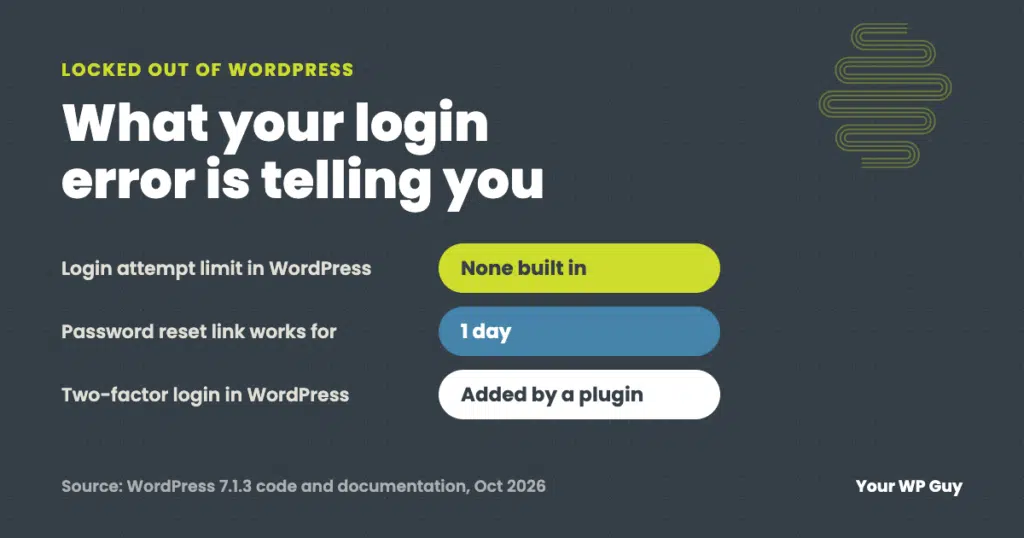
| “Your password reset link has expired.” | Reset links work for one day | Request a new link and use it right away |
| “The email could not be sent.” | Your site cannot send email | See resetting without email |
| “Cookies are blocked or not supported by your browser.” | Your browser is refusing the login cookie | Allow cookies for the site or try a private window |
| “Cookies are blocked due to unexpected output.” | A file on the server is sending text too early. Your browser is fine | A recent plugin, theme or file edit is the usual cause |
| “Too many failed login attempts” or similar | Not a WordPress message: a security plugin or your host locked you out | See who can unlock you |
If the password message names your account, the account is fine. That rules out a deleted user and points straight at the password.
Why you are locked out (and who can unlock you)
WordPress itself does not limit login attempts. You can type a wrong password as many times as you like and WordPress will just say it is incorrect. So if you are locked out, something added to the site did it, and that tells you who can let you back in:
- A security plugin. Most security plugins block an address after several failed logins, for a time the plugin decides. Wait it out, ask another admin to unlock you, or have your developer or host switch the plugin off briefly from the server.
- Your host. Many hosts block repeated logins at the server. You may see a “403 Forbidden” page or “429 Too Many Requests” instead of the login form. Your host’s support can lift it.
- A firewall such as Cloudflare. A firewall rule can block the login page itself. Whoever manages the firewall can add an exception for you.
- Two-factor login. WordPress does not include two-factor login, so if you are asked for a code, a plugin added it. Use one of your backup codes, or ask another admin to turn two-factor off on your account in your user profile so you can set it up again.
A firewall can catch the wrong person, too. One client’s staff member was blocked at the step where she set up two-factor login, because a strict firewall rule set was treating that step as an attack. The fix was a narrow exception for exactly that request, tested to make sure real attacks were still blocked. Turning the firewall off would have fixed her login and left the site open.
Those limits exist for a reason. Bots try passwords on WordPress login pages around the clock, which our guide to WordPress security issues covers. On our plans, the login page sits behind a Cloudflare challenge and failed logins are limited, so a lockout is rare and we can lift it fast.
How to reset your WordPress password
Start with the built-in reset:
- Click “Lost your password?” under the login form and enter your username or email address.
- Check your inbox and spam folder for the reset email. It contains a link, not a new password.
- Open the link within a day, choose a new password, and save it in a password manager.
If the email never arrives, the problem is usually the site’s email, not your account. WordPress sites often send email badly unless they use a mail service, and a site with two mail plugins can end up sending nothing at all. Also check which reset page your site really uses: membership and shop plugins often have their own, and it sends its own emails.
To reset a password without email, in order of how safe it is:
- Ask another admin to set a new password for you under Users in the dashboard.
- Ask your host. Many hosts can reset a WordPress password from their control panel.
- Change it in the database. In phpMyAdmin, open the users table, edit your user, and save a new password using the MD5 option. This still works on current WordPress, which upgrades the password to a stronger format the next time you log in.
- Use WP-CLI if your host offers command-line access:
wp user update 1 --user_pass=NewPassword(with your own user ID and password).
Take a backup before you edit the database or any files. A wrong click in phpMyAdmin can do more damage than the lockout.
When the login page keeps sending you back
If you enter the right password and land back on the login page with no error, you are in a login loop. The usual causes:
- Old cookies or cache. Clear cookies for the site or try a private window. This fixes most loops.
- A changed site address. If the site recently moved to a new domain or to https, WordPress may be setting the login cookie for the old address. Our guide to changing your WordPress domain covers fixing the address when you cannot log in.
- A caching or security plugin serving a stored copy of the login page. Excluding the login page from caching fixes it.
When it is not a login problem
Some problems show up on the login page but have nothing to do with your password:
| What you see | What is really wrong | Where to start |
|---|---|---|
| The whole site is down, not just the login page | The server, hosting or domain | What to check when your site is down |
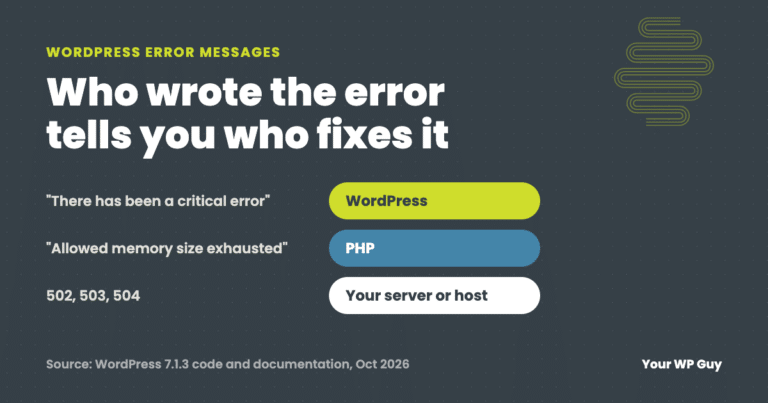
| “There has been a critical error on this website.” | A plugin or theme crashed the site | Fix the critical error |
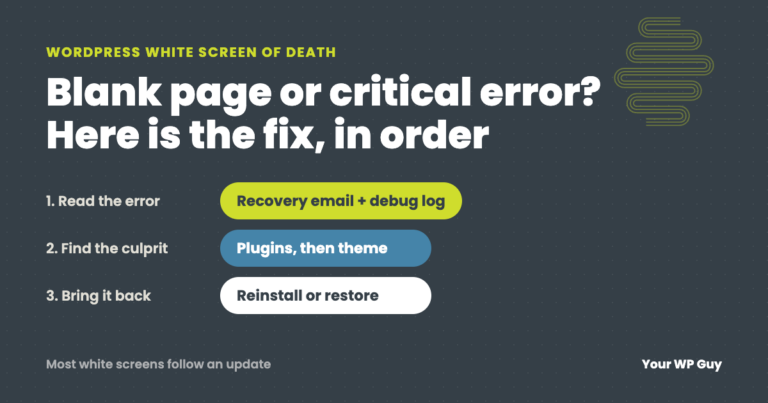
| A blank white login page | An error the site is hiding | Turn on the debug log |
| Another error on every page | A site-wide problem | What to do about a WordPress error message |
| An admin account you do not recognize | Possibly a hacked site | Get the site cleaned |
An admin you did not create is a warning sign even if you can still log in. In one breach we cleaned up, the attacker never touched the login page at all.
A real example: the reset emails that never came
Customers of a consulting firm we look after could not get into their accounts. They clicked “forgot password,” the site said an email was on its way, and nothing arrived. When we looked, 11 accounts were sitting locked out.
Two mail plugins were both switched on, each cancelling the other’s email. And the reset page customers used was not WordPress’s own: it belonged to a membership plugin, which sent its own emails. The server log showed 1,405 visits to that page and not one use of WordPress’s reset link, so testing “Lost your password?” would have looked fine while customers stayed locked out. We switched off one plugin, moved the site’s email to a proper mail service, and resets were landing the same session.
Rather have someone get you back in?
A lost password, a login loop or a security plugin that shut you out: we fix it and tell you what caused it.
- Tell us what you seeSend the error message or a screenshot.
- We get you back inWe find the cause, fix it, and make sure it stays fixed.
- You get back to your businessWith a plain-English note on what happened.
Wondering how well protected your login is? Our free Uh Oh Score checks your site and shows what to fix first, with no sales call required.
Get my Uh Oh ScoreQuestions people ask
Why can’t I log in to my WordPress admin?
Read the message on the login page. “Not registered” or “unknown email” means the account details are wrong, “incorrect password” means only the password is wrong, a 403 or “too many attempts” means a security plugin, host or firewall blocked you, and no message at all usually means a login loop caused by cookies or a changed site address.
Why does WordPress say my password is incorrect when I know it is right?
Usually autofill entered an old password, you are logging in to a different copy of the site (such as a staging site), or someone changed the password. Type it by hand, check the address bar, then use “Lost your password?”
How long does a WordPress lockout last?
WordPress itself never locks you out, so there is no standard time. The security plugin or host that blocked you sets it, and it can range from minutes to permanent. Another admin, your host or your developer can usually lift it right away.
Why isn’t my WordPress password reset email arriving?
Most often the site cannot send email reliably, two mail plugins are fighting, or a membership or shop plugin uses its own reset page with its own emails. Check spam first, then have the site’s email sending checked.
How do I reset my WordPress password without email?
Ask another admin to set a new one, ask your host, or change it in the database with phpMyAdmin using the MD5 option. Back up the site before you edit the database.
How do I get back in if I lost my two-factor codes?
Use one of the backup codes you saved when you set it up. Without them, another admin can turn two-factor off on your account so you can set it up again. If you are the only admin, your developer or host can switch the two-factor plugin off from the server, and you should turn it back on as soon as you are in.
How do I give someone admin access to my WordPress site safely?
Create a separate admin account for them, or a temporary login that expires, instead of sharing yours. Never send your password by email. If you already did, change it right after the work is done.
Sources
- WordPress 7.1.3 source code, wp-includes/user.php and wp-login.php (login and reset messages, reset link lifetime).
- WordPress Developer Resources, Brute Force Attacks (checked October 2026).
- WordPress.org, Reset Your Password.
- Make WordPress Core, WordPress 6.8 will use bcrypt for password hashing.
Keep your website working as hard as you do
We update, back up, monitor and protect your WordPress site every day, and get you back in fast when something locks you out.

Jonathan Wofford is the founder of Your WP Guy, a WordPress care and maintenance service supporting 105+ active client sites. He and his team keep WordPress sites fast, secure, and running, so business owners can stay focused on their business instead of their website.