How to Set Up PayPal on WooCommerce (and Keep It Working)
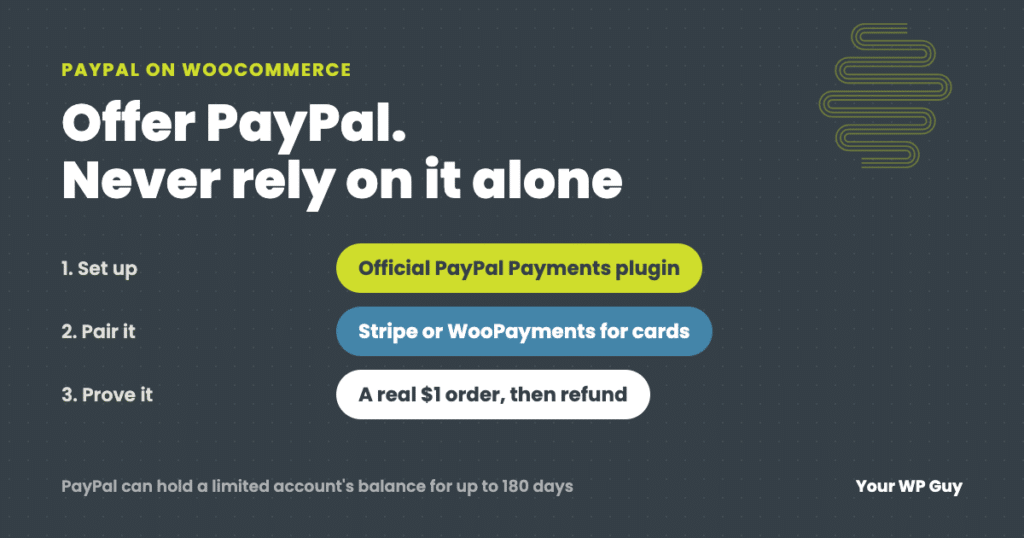
To add PayPal to WooCommerce, install the free WooCommerce PayPal Payments plugin, connect your PayPal business account, choose which buttons to show, then place a real $1 order to prove it works. Do not use the old PayPal Standard option. Most stores we set up actually run on Stripe, which covers cards, Apple Pay and Google Pay, and we add PayPal when a client wants it. Whatever you choose, do not make PayPal your only way to get paid: if it limits your account, it can hold your balance for up to 180 days.
Adding PayPal to a WooCommerce store takes about 15 minutes. Keeping it working is the part nobody writes about: orders stuck on “pending,” a PayPal button that quietly disappears, or an email from PayPal saying your account is limited and your money is on hold.
We set up and fix payment gateways on client stores, including full gateway swaps when a processor drops a store. This guide covers which gateway to use, how to set up PayPal the right way, the $1 test we run after every gateway change, and how to fix the PayPal problems we see most.
Do you need PayPal at all?
Our default for client stores is Stripe. It takes credit and debit cards, Apple Pay and Google Pay in one gateway, at a lower fee than PayPal, and it covers everything most stores need. WooPayments, WooCommerce’s own gateway, works just fine too. We add PayPal when the client asks for it.
There are good reasons to ask. Some shoppers would rather pay with PayPal than type a card number into a store they have never used, and PayPal also brings Venmo and “Pay Later” installments. If your customers expect it, offer it.
Just go in knowing the trade-offs:
- It costs more. In the US, a PayPal checkout costs 3.49% plus $0.49, against 2.9% plus $0.30 for Stripe or WooPayments.
- PayPal can hold your money. Its user agreement lets it hold your balance for up to 180 days if it decides that is needed to protect against risk, or if it thinks you broke its acceptable use policy. For a small business, months without that money can be crippling.
- Terms change. PayPal changes its terms of service and sometimes stops serving a type of business or market altogether. Stores we look after have had to swap away from PayPal at short notice.
So offer PayPal next to a card gateway, not instead of one.
WooCommerce payment gateways compared
| Gateway | US fee per sale | Customers can pay with | Our take |
|---|---|---|---|
| Stripe | 2.9% + $0.30 | Cards, Apple Pay, Google Pay and more | Our default for most stores |
| WooPayments | 2.9% + $0.30 | Cards, Apple Pay, Google Pay and more | Works just fine, managed inside WooCommerce |
| PayPal Payments | 3.49% + $0.49 for PayPal and Venmo, 2.99% + $0.49 for cards | PayPal, Venmo, Pay Later, cards | Add it when your customers want it, next to a card gateway |
Fees from Stripe, WooCommerce and PayPal’s US pricing pages, October 2026. International cards and currency conversion cost extra with all three. Pay Later costs 4.99% + $0.49 with PayPal.
Want to take Zelle, Venmo or Cash App directly, with no processing fee? That is why we built SendDollar, our own WooCommerce gateway for person-to-person payments.
How to set up PayPal on WooCommerce
- Get a PayPal business account. If you have a personal account, you can upgrade it to a business account for free. Use an email address the business controls, not an employee’s.
- Install WooCommerce PayPal Payments. In WordPress, go to Plugins > Add New, search for “WooCommerce PayPal Payments,” and install the one by WooCommerce. It is free, and it is the plugin WooCommerce and PayPal both point to.
- Connect your account. Go to WooCommerce > Settings > Payments, open PayPal, and follow the steps to connect. You log in to PayPal and approve the connection; you do not need to copy any keys by hand.
- Choose what shows and where. Decide whether to show PayPal, Venmo and Pay Later buttons, and on which pages: product pages, the cart, the checkout, or all three.
- Do not show two card forms. If Stripe or WooPayments already takes cards, turn off PayPal’s own card option. Two card forms on one checkout confuses shoppers.
- Place a real $1 order, then refund it. More on that below.
Still using PayPal Standard?
PayPal Standard was WooCommerce’s original built-in PayPal option. WooCommerce has hidden it for new stores since version 5.5 and says its support for it is very limited. If your store still uses it, switch to WooCommerce PayPal Payments. Do it as a planned change, and run the $1 test right after.
Be careful with third-party PayPal plugins too. Some are fine, and there are good reasons to use one, but each adds code that sits in your checkout. On one store we look after, a third-party PayPal plugin crashed pages for visitors whenever WooCommerce had not started a shopping session yet, and we had to patch it twice. The official plugin is the safer default.
Rather have someone set up and test your payments?
Gateway setup, swaps and checkout fixes are everyday work for our WooCommerce developers.
- Talk to a WordPress expertTell us what you take payments with now and what you want to add or replace.
- We set it up on a copy firstBigger changes are built and tested away from your live checkout.
- We prove it with a real orderA $1 test order through every gateway we touch, then a refund.
Our $1 test order rule
Any time a gateway changes on a store we look after, whether it is a new gateway, a swap, or new API keys, we place a real $1 order through it. Not a test-mode order. A real one, with a real card or PayPal account. Test mode proves the settings screen works. A real order proves customers can pay you.
- Make a $1 product and set it to hidden, so customers never see it.
- Buy it through each gateway you changed, the way a customer would, logged out.
- Check the order in WooCommerce. It should say “Processing” (or “Completed” for downloads), not “Pending payment.”
- Check the emails. You should get the new order email and the customer should get theirs.
- Check the money shows in your Stripe or PayPal account.
- Refund the order from inside WooCommerce, which also proves refunds work.
Routine plugin updates do not need a test order every time. Updates that change API keys or how the gateway connects do.
Fixing common PayPal problems
Orders stuck on “Pending payment”
This is the PayPal problem we have to track down most often. “Pending payment” means WooCommerce created the order but never got PayPal’s confirmation that it was paid. Start by finding out which of these it is:
- The customer did not finish. They opened the PayPal window and closed it. That is normal, there is no payment in PayPal, and WooCommerce cancels unpaid orders on its own after the “Hold stock” time in WooCommerce > Settings > Products > Inventory.
- The customer paid, but your site never heard about it. Look the payment up in your PayPal account. If it is there, PayPal’s message to your site did not get through. A security firewall blocking it, maintenance mode, or a site that moved to a new domain or host are the usual causes. Check the webhook status in the PayPal Payments settings and reconnect it if needed, then mark the paid order as Processing yourself.
- It is happening on every order. Stop and test with a $1 order now. Something between PayPal and your site is broken, and customers may be paying for orders you never ship.
If your store recently moved, our guide to migrating a WordPress site covers what to recheck after the switch.
The PayPal button is missing at checkout
WooCommerce hides a payment option it cannot use. Check that the plugin still shows as connected, that your PayPal account is not limited, and that PayPal supports your store’s currency. Speed plugins that delay JavaScript can also stop PayPal’s buttons from loading, so exclude PayPal’s scripts if you use one.
When PayPal quietly disappeared from a checkout
One online store we look after took PayPal through a third-party gateway plugin. One day PayPal orders simply stopped. Nothing crashed and nobody got an error email. The plugin’s vendor no longer had a PayPal account assigned to the store, so every attempt to load PayPal failed, 1,468 times in one week, and WooCommerce hid PayPal from the checkout. Customers just saw one less way to pay. The same store’s card processor later stopped accepting Mastercard and then Discover, and we rewrote the confusing checkout error into plain guidance so shoppers knew which cards would work.
Neither problem broke the site, so neither showed up as “down.” That is why we watch payment errors and order patterns, not just whether the site loads.
If PayPal limits or closes your account
PayPal can limit an account, hold its balance for up to 180 days, or stop serving a kind of business when its terms change. When it happens, you usually cannot talk your way out of it quickly. What you can control is how much it hurts:
- Have a second gateway already connected. If Stripe or WooPayments is already taking cards on your store, losing PayPal costs you one button, not your checkout.
- Turn PayPal off in WooCommerce so customers are not sent to a payment option that will fail.
- Move your subscriptions carefully. Recurring payments set up through PayPal usually cannot just be copied to another gateway. Customers often have to enter new payment details, so plan the message to them.
- Keep your records of orders, shipping and customer messages. PayPal will ask for them if you appeal or wait out a hold.
We have done these swaps for stores under pressure. If it happens to you, talk to us and we will get a working checkout back first, then sort out the rest.
Not sure what else on your store needs attention? Our free Uh Oh Score checks your site and shows what needs attention, with no sales call required.
Get my Uh Oh ScoreQuestions people ask
Is PayPal free to use with WooCommerce?
The WooCommerce PayPal Payments plugin is free. PayPal charges a fee on each sale, 3.49% plus $0.49 for a standard PayPal checkout in the US.
What is the best payment gateway for WooCommerce?
For most stores we use Stripe. It takes cards, Apple Pay and Google Pay at 2.9% plus $0.30 in the US. WooPayments works just as well. Add PayPal if your customers ask for it.
Can I use PayPal and Stripe together on WooCommerce?
Yes, and we recommend it if you offer PayPal. Let Stripe handle cards and turn off PayPal’s own card option, so shoppers see one card form plus a PayPal button.
What is the difference between PayPal Payments and PayPal Standard?
PayPal Payments is the current official plugin. PayPal Standard is the old built-in option that WooCommerce has hidden for new stores since version 5.5. If you still use Standard, switch.
Why are my WooCommerce PayPal orders stuck on pending?
Either the customer did not finish paying, or they paid and PayPal’s confirmation never reached your site. Look the payment up in PayPal. If it is there, check the plugin’s connection and webhook status, then mark the order as Processing.
Can PayPal hold my money?
Yes. PayPal’s user agreement allows it to hold your balance for up to 180 days if it decides that is needed to protect against risk, or longer if a court or regulator requires it. Keep a second gateway connected so a hold does not stop your sales.
Do I need a PayPal business account?
Yes, for selling on WooCommerce. You can upgrade a personal account to a business account for free.
Sources
- WooCommerce, WooCommerce PayPal Payments documentation.
- WooCommerce, PayPal Standard (hidden for new installations since 5.5.0).
- PayPal, PayPal merchant fees (US).
- PayPal, PayPal User Agreement (holds of up to 180 days).
- Stripe, Pricing.
- WooCommerce, WooPayments fees.
Make sure every customer who wants to pay you can
We set up, swap and test WooCommerce payment gateways, and prove each one with a real order before we call it done.

Jonathan Wofford is the founder of Your WP Guy, a WordPress care and maintenance service supporting 105+ active client sites. He and his team keep WordPress sites fast, secure, and running, so business owners can stay focused on their business instead of their website.