How to Find Which Plugin Is Breaking Your WordPress Site
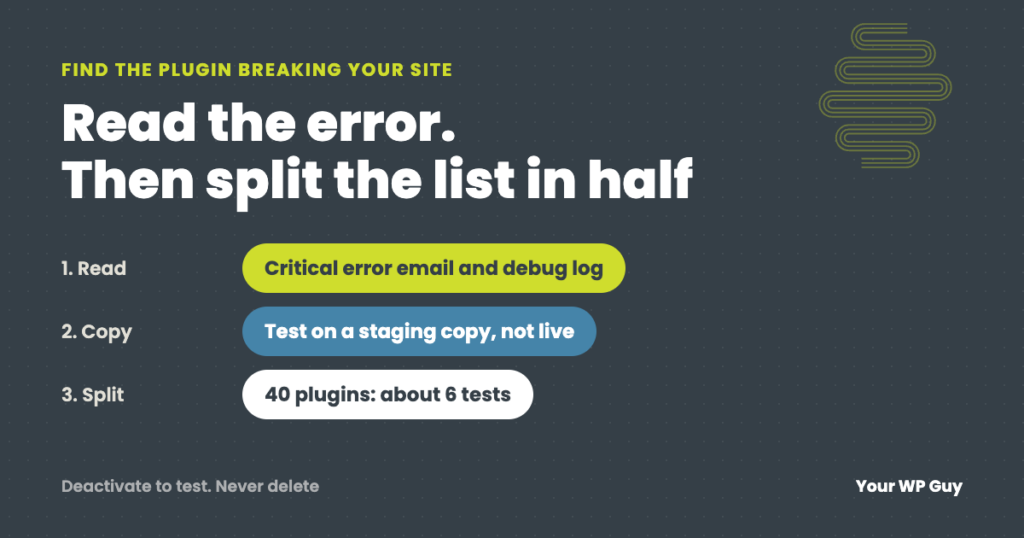
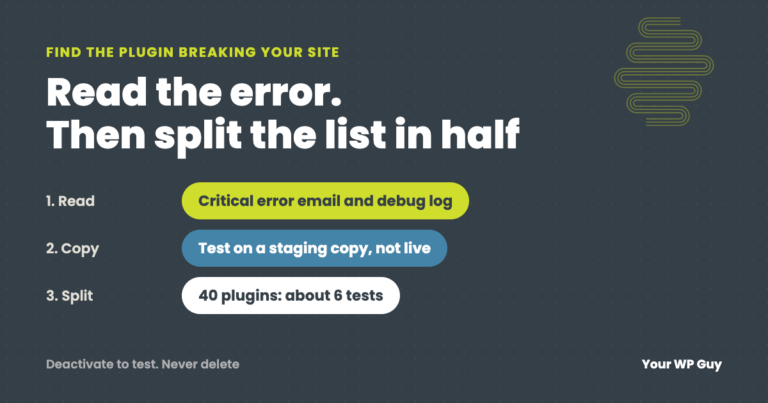
Read the error before you start switching plugins off. WordPress’s “critical error” email and your debug log often name the plugin that failed. If there is no error, copy the site to a staging site, turn off half the plugins, and check if the problem goes away. Keep halving the suspect group until one plugin is left; even 40 plugins take about 6 rounds. If you would rather not risk it, our one-time WordPress fix finds and fixes it for you.
Something broke. Maybe it was a button that stopped working, a blank page, or the “There has been a critical error on this website” message. Most of the time it happened right after an update, and most of the time the cause is two plugins, or a plugin and your theme, that no longer get along.
Tracking down plugin conflicts is part of our everyday work across the WordPress sites we look after. This guide covers the order we do it in: read the error, test safely, narrow it down fast, and then fix it so it stays fixed.
What a plugin conflict looks like
A plugin conflict is when a plugin breaks because of something else on the site: another plugin, your theme, your WordPress version or your server’s PHP version. Each piece may work fine on its own. Together, they fail. The signs we see most:
- “There has been a critical error on this website,” or a white screen with nothing on it.
- Something stops working with no error at all: a menu that will not open, an add-to-cart button that does nothing, a form that never sends.
- Checkout or payment failures, often only for some customers or some payment methods.
- Admin screens that hang or break, like the Updates screen or the page builder.
- Blank pages that still load as “working.” Uptime monitors can miss these completely.
The biggest clue is timing. If it broke right after updates ran, start with whatever was updated.
Before you start
- Take a fresh backup. If testing makes things worse, you can put the site back.
- Write down what changed. Plugin updates, a new plugin, a theme update or a host change. Your host’s or update tool’s log often shows exactly what updated and when.
- Clear every cache. Caching plugins, your host and Cloudflare can keep showing an old, working copy of a page, or an old broken one. Test with caches cleared or bypassed, or you will chase the wrong thing.
- Do not delete plugins to test. Deactivating a plugin keeps its settings. Deleting it can remove them.
Step 1: Read the error first
Guessing is slow. An error message often names the plugin straight away.
- The critical error email. Since WordPress 5.2, a fatal error sends an email to the site’s admin address with a link to recovery mode. The link lets you log in with the broken plugin paused for you only, so you can see which plugin failed and deactivate it. Visitors still see the error until it is fixed. Check spam if you did not get it.
- The debug log. It records the error with the file path, and the path tells you the plugin:
wp-content/plugins/plugin-name/.... Our guide to the WordPress debug log shows how to turn it on safely and read it. - The browser console. When a button or menu stops working with no error on the page, the problem is often JavaScript. Right-click the page, choose Inspect, then open the Console tab and look for red errors. They often name a plugin’s script file.
If the error names one plugin, you may already have your answer. If it names nothing, or nothing errors at all, move on to testing.
Step 2: Test without breaking the live site
Turning plugins off on a live site turns off features for your visitors and customers while you test. There are two safer ways to do it.
A staging site (our default)
A staging site is a private copy of your site. Many hosts create one in a click. Copy the live site to staging, check the problem shows up there too, and do all your testing on the copy. On a store, staging also means test orders never touch real customers.
The Health Check & Troubleshooting plugin
This free plugin from the WordPress.org community has a Troubleshooting mode that turns off all plugins and switches to a default theme for your login only. Visitors keep seeing the normal site. You then turn plugins back on one at a time, still only for yourself.
It is handy, but go in knowing that its last update was July 2024 and WordPress.org warns it has not been tested with the last three major WordPress versions. Try it on staging first, and do not lean on it for a store’s checkout.
Step 3: Find the plugin in a few rounds
Most guides say to turn plugins off one at a time. With 40 plugins, that can mean 40 rounds of testing. We split the list in half instead:
- Switch to a default theme, such as Twenty Twenty-Five, and test. If the problem goes away, the theme is part of it. Switch back and keep going.
- Deactivate half of your plugins (leave WooCommerce on if the problem is in your store) and test.
- If the problem is gone, the cause is in the half you turned off. If it is still there, it is in the half that is still on.
- Split the suspect half in half again and test. Keep going until one plugin is left.
- Confirm it. Turn everything back on except that plugin. If the problem stays away, you found it. If it only breaks when two certain plugins are both on, you found the pair.
| Plugins on the site | One at a time | Splitting in half |
|---|---|---|
| 10 | Up to 10 tests | About 4 tests |
| 20 | Up to 20 tests | About 5 tests |
| 40 | Up to 40 tests | About 6 tests |
| 80 | Up to 80 tests | About 7 tests |
Splitting in half finds one plugin in about as many rounds as it takes to halve the list down to one. Add a round or two if two plugins clash only with each other.
If you are locked out of wp-admin
When the error takes down the dashboard too, you can still turn plugins off from outside WordPress:
- Use the recovery mode link from the critical error email first. It is the easiest way back in.
- Rename one plugin’s folder. In your host’s file manager or an SFTP app, go to
wp-content/pluginsand rename the suspect folder (add-offto the end). WordPress deactivates a plugin it cannot find. - Rename the whole plugins folder to turn every plugin off at once, log in, then rename it back. Plugins come back deactivated, ready for you to turn on half at a time.
- Check for must-use plugins. Files in
wp-content/mu-pluginsrun on every page and cannot be turned off from the dashboard. Hosts often add them. Rename them the same way if everything else checks out. - Use WP-CLI if your host has it.
wp plugin deactivate plugin-nameturns off one plugin, andwp plugin list --skip-pluginsworks even when a plugin crashes every page.
Expect more than one error sometimes. On one site we look after, running PHP 8.4, the whole site and dashboard showed raw PHP errors. Fixing the first error, an old Twitter feed plugin, just uncovered the next: add-ons for a membership plugin were loading before the plugin they depended on. Behind that sat a third, a leftover file from the site’s pre-WordPress days. Each error hid the next one. Keep going until the site loads clean.
Rather have us find it and fix it?
Finding conflicts is everyday work for us, and most fixes take less time than one round of guessing.
- Talk to a WordPress expertTell us what broke and when it started.
- We find the cause on a safe copyTesting happens away from your customers.
- We fix it and check itOn phone and desktop, including forms and checkout.
Fixing it once you know which plugin
Finding the plugin is half the job. The fix depends on why it broke:
- It broke after an update: roll back to the version that worked. For plugins from WordPress.org, the free WP Rollback plugin does this in a few clicks. For paid plugins, download the earlier version from your account with the developer. Then wait for a fixed update before updating again.
- An update did not finish cleanly: reinstall a fresh copy of the same plugin version. A half-written update can look exactly like a conflict.
- A free plugin and its Pro version do not match: update both to the latest versions together.
- Add-ons load before the plugin they need: update everything, and if it still fails, ask the developer. This is a bug on their side.
- An old plugin fails on a newer PHP version: update it if there is an update. If the plugin is abandoned, replace it.
- Two plugins do the same job: two caching plugins, two SEO plugins or two security plugins often fight. Keep one.
Whatever you do, tell the plugin’s developer. Send the error message, your WordPress and PHP versions, and the other plugin involved. Good developers fix conflicts fast when they can reproduce them.
The blank site nobody noticed for 33 hours
A blog we look after reported “the site is down.” From outside, the homepage looked fine. It was a cached copy. Every other page on the site, including the login page, loaded as a blank page with a “200 OK” status, so nothing looked down to a basic uptime check. There was no PHP error in the log either.
The timing gave it away. An automatic update batch the morning before had updated Elementor and several other plugins, and had rewritten Elementor Pro’s files along the way. We turned the updated plugins off one at a time behind the scenes, without touching what visitors saw. Removing only Elementor Pro brought the pages back, every time. Removing any other plugin did nothing. A clean reinstall of Elementor Pro fixed it for good. The site had been blank for about 33 hours before anyone noticed, because the cached homepage hid it. That is why we check that pages actually show content, not just that the site answers.
Plugin conflicts on a WooCommerce store
Stores break in more expensive ways, because a conflict can stop people paying without showing an error to anyone. The method is the same, with a few changes:
- Keep WooCommerce and the extensions involved switched on while you split the rest. WooCommerce’s own conflict test works the same way.
- Test the whole path, not just the page. Many store conflicts only show up partway through: adding to cart, applying a coupon, choosing shipping, paying. Repeat the exact steps where it broke.
- Check WooCommerce > Status. The Templates section lists theme files that override WooCommerce’s own and flags any that are out of date. An outdated override after a WooCommerce update is a classic cause of broken cart and checkout pages.
- Look at payment and checkout plugins first when checkout fails. Gateways, checkout page builders and anything that changes the checkout fields clash most often.
- Prove it with a real order. After the fix, place a real $1 order and refund it, as we explain in our PayPal setup guide. Test mode proves the settings work; a real order proves customers can pay.
We built our free Plugin Conflict Detector for exactly this. It runs on WooCommerce stores, logs errors as they happen, and runs conflict scans that test your store with different groups of plugins turned off while customers keep the normal site.
When it is not a plugin at all
If no plugin makes a difference, look at what sits around WordPress:
- The theme or page builder. The default theme test in Step 3 catches this.
- The PHP version. A host upgrading PHP can break old plugins and themes overnight, with no plugin changed.
- Script “optimization.” Settings that delay, combine or reorder JavaScript, in a speed plugin or in Cloudflare’s Rocket Loader, break buttons, menus and checkouts. On one store, this kind of script reordering cost about three quarters of its orders over three days.
- Caching. A cached page can show an empty cart or an old form to logged-in customers. Clear the cache and test logged out and logged in.
- Server security rules. A firewall can block a plugin’s requests, which looks just like a conflict.
Preventing the next one
- Update in order and check after. Our guide to updating WordPress safely covers the order we use and what to check after each round.
- Update free and Pro versions of a plugin together.
- Keep fewer plugins. Every plugin you remove is one less thing that can clash. Remove the ones you are not using rather than leaving them deactivated.
- Watch what matters, not just “is it up.” A blank page or a broken checkout can return “200 OK” all day.
- On a WooCommerce store, test updates before you install them. Plugin Conflict Detector has an Update Checker that tests a plugin update first.
Want to know what else could break? Our free Uh Oh Score checks your site and shows what to fix first, with no sales call required.
Get my Uh Oh ScoreQuestions people ask
What is a WordPress plugin conflict?
It is when a plugin breaks because of something else on the site: another plugin, the theme, the WordPress version or the PHP version. Each piece can work on its own and still fail together.
How do I find which plugin is causing a problem?
Read the error first: the critical error email and the debug log often name the plugin. If not, test on a staging copy, turn off half your plugins, see if the problem goes away, and keep halving the suspect group until one plugin is left.
Will deactivating plugins delete my settings?
No. Deactivating a plugin keeps its settings, so you get them back when you turn it on again. Deleting a plugin can remove its settings, so do not delete plugins to test.
How do I turn off plugins if I cannot log in?
Use the recovery mode link in WordPress’s critical error email. If you do not have it, rename the plugin’s folder in wp-content/plugins using your host’s file manager or SFTP, or rename the whole plugins folder to turn them all off, then rename it back.
Does troubleshooting mode affect my visitors?
The Health Check & Troubleshooting plugin’s Troubleshooting mode is designed to change the site for your login only. It has not been updated since July 2024, though, so we test with it on a staging copy first.
How do I know if it is my theme and not a plugin?
Switch to a default WordPress theme, such as Twenty Twenty-Five, on a staging copy or in troubleshooting mode. If the problem goes away, the theme is involved.
How do I test for plugin conflicts on WooCommerce?
Do it on a staging copy. Keep WooCommerce and the extensions involved on, switch to a default theme, turn off the other plugins in halves, and repeat the exact cart or checkout steps that failed. Check WooCommerce > Status for outdated template overrides, and finish with a real $1 test order.
Can two plugins that do the same thing conflict?
Yes, often. Two caching plugins, two SEO plugins or two security plugins tend to step on each other. Pick one and remove the other.
Sources
- WordPress.org, Health Check & Troubleshooting plugin.
- Make WordPress Core, Fatal error recovery mode in 5.2.
- WordPress Developer Resources, Debugging in WordPress.
- WP-CLI, wp plugin deactivate.
- WordPress.org, WP Rollback plugin.
- WooCommerce, How to test for plugin and theme conflicts.
Get your site working again, and keep it that way
We find the plugin behind the problem, fix it on a safe copy first, and check the pages that make you money before we call it done.

Jonathan Wofford is the founder of Your WP Guy, a WordPress care and maintenance service supporting 105+ active client sites. He and his team keep WordPress sites fast, secure, and running, so business owners can stay focused on their business instead of their website.