How to Update PHP on WordPress (Without Breaking Your Site)
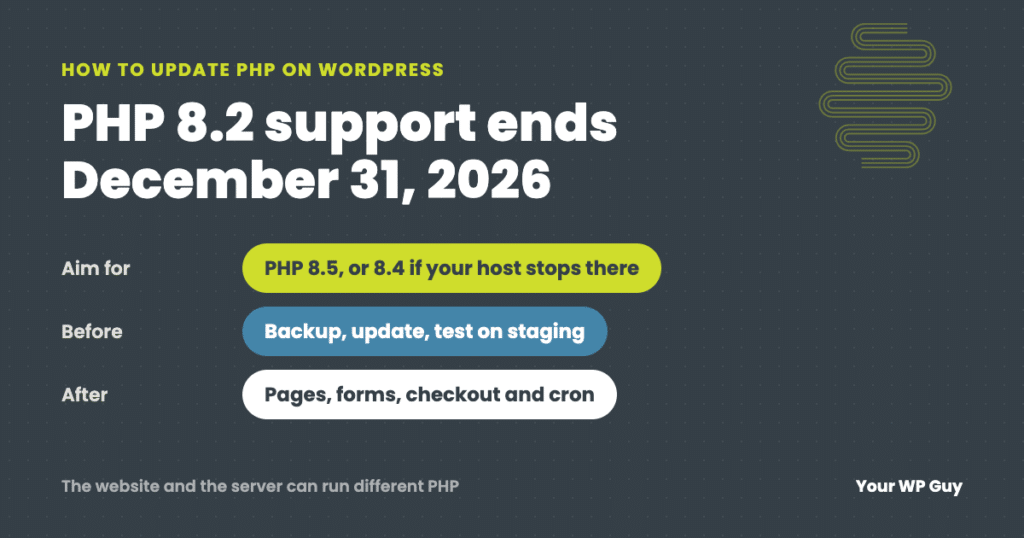
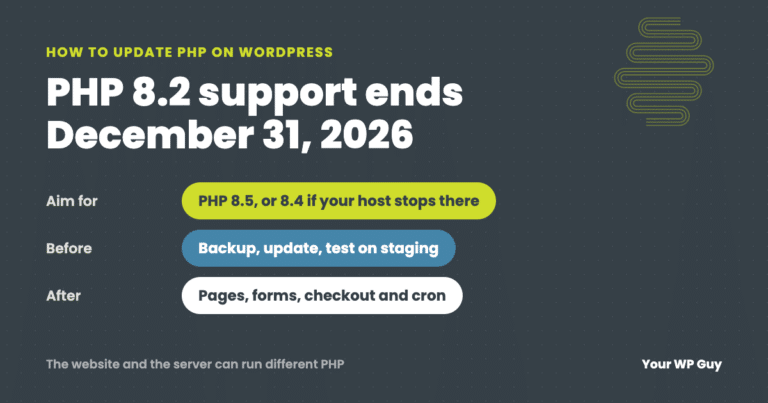
Move to PHP 8.5 if your host offers it, or 8.4 if it does not. PHP 8.2 stops getting security fixes on December 31, 2026. Back up, update everything and test on a staging copy first. Then change the version in your hosting control panel and check your pages, forms, checkout and scheduled tasks. Rather hand it off? Our one-time WordPress fix covers PHP upgrades.
Maybe your dashboard says “PHP Update Recommended.” Maybe a plugin stopped offering updates, or your host emailed that your PHP version is being retired. Either way, the server software that runs WordPress needs a newer version, and you do not want to be the person who clicks the button and takes the site down.
We move client sites to newer PHP all the time. This guide covers which version to pick, how to switch safely, what to check after, and the problems that catch people out.
Which PHP version should WordPress run?
Run PHP 8.5 if your host offers it, or 8.4 if it does not. That is what we are moving client sites to now, after testing each one.
WordPress itself recommends at least 8.3, and the current version of WordPress works with everything up to 8.5. Many hosts stop at 8.4 for now, and that is fine: 8.4 gets security fixes until the end of 2028.
The date that matters is when a version stops getting security fixes. After that, holes found in PHP itself are not patched, no matter how well you keep WordPress updated.
| PHP version | Security fixes until | Our take |
|---|---|---|
| 8.1 and older | Already ended | Upgrade now. WordPress still runs, but nothing is patching PHP itself. |
| 8.2 | December 31, 2026 | Move off before the end of the year. |
| 8.3 | December 31, 2027 | WordPress’s recommended minimum. |
| 8.4 | December 31, 2028 | What we use when the host stops at 8.4, or a plugin is not ready for 8.5. |
| 8.5 | December 31, 2029 | What we are moving client sites to now, wherever the host offers it. |
Dates from php.net’s supported versions page; WordPress support from WordPress.org’s requirements and PHP compatibility pages, October 2026.
Newer PHP is also faster and lighter on the server, which helps your site speed, especially in the dashboard and at checkout.
How to check your PHP version
- In WordPress: go to Tools > Site Health > Info and open the Server section. The PHP version is listed there.
- On the dashboard: if WordPress shows a “PHP Update Recommended” or “PHP Update Required” box, your version is old.
- In your hosting control panel: the same screen you change it on shows the current version.
If you have several sites on one hosting account, check each one. Many hosts let each site run its own PHP version.
Before you switch
- Take a fresh backup of files and database, stored off the server.
- Update WordPress, plugins and theme first. Developers fix PHP problems in updates, so old versions are the most likely to break.
- Look for plugins that are out of date or abandoned. A plugin that has not been updated in years is the most likely thing to fail on new PHP. Plan to replace it.
- Check for plugins that need newer PHP. On each plugin’s WordPress.org page, “PHP Version” shows the minimum it needs. If a plugin needs more than you run, WordPress will not offer you its update at all.
- Test on a staging copy. Copy the site to staging, switch the copy to the new PHP, and click through it. Compatibility scanner plugins can help, but they read code; only running the site shows what actually breaks.
How to change PHP at your host
You change PHP in your hosting control panel, not inside WordPress. The menu names vary; these are the hosts we see most:
- cPanel hosts: Software > MultiPHP Manager, tick the domain, choose the version, then Apply.
- Plesk: open the domain in Websites & Domains, then PHP (PHP Settings), and pick the version.
- SiteGround: Site Tools > Devs > PHP Manager, then the pencil icon next to the version.
- Kinsta: in MyKinsta, open the site, then Tools > PHP engine > Modify.
- WP Engine: open the site in the User Portal and change the PHP version from its overview. WP Engine also moves sites forward on its own schedule.
- Cloudways: open the application and change the PHP version in its settings. Each application has its own version, so you can move one site at a time.
Do not see 8.5 in the list? Many hosts do not offer it yet. Pick 8.4 and you are covered until the end of 2028. Cannot find the setting at all? Ask your host’s support to switch you, and tell them which version you want. Some hosts let you go back with the same switch if something breaks.
Rather have us handle the upgrade?
PHP upgrades are routine for us, and we test before we switch.
- Talk to a WordPress expertTell us your host and what PHP you run now.
- We test the new version firstOn a copy of your site, before the live site moves.
- We switch it and check itPages, forms, checkout and the background tasks most people forget.
What to check after
- Your main pages on phone and desktop, with the cache cleared, so you see the real site and not a saved copy.
- Every form. Send a test and make sure the email arrives.
- Checkout, if you sell online. Place a real order and refund it.
- The dashboard: log in, open the page builder, save a page.
- The error log for new warnings. Our guide to the WordPress debug log shows how to read it.
- Scheduled tasks. Scheduled posts, backups, renewal emails and other background jobs run through WordPress’s cron. Check that they still run (more on why below).
When the upgrade breaks something
If the site breaks right after the switch, put the old PHP version back in the same control panel screen. That buys you time to find the cause without the site staying down. Then look for the three things behind most failed PHP upgrades we see:
Old plugins using code PHP removed
PHP 8 removed older functions some plugins still used. On one site we look after, a plugin last updated in 2016 used one of them, and the whole site and dashboard went down with a raw error. The debug log names the plugin; our guide to finding the plugin breaking your site covers the rest. Update it, replace it, or remove it.
Leftovers from plugins you already deleted
Deleted plugins can leave scheduled tasks behind, and some only crash on PHP 8. Across the sites we look after, we found a leftover task from the Divi page builder on sites that had not run Divi in years. On PHP 8 it crashed every day at the same minute. Deleting the leftover task fixes it; there is nothing to downgrade.
The server’s other PHP
Your website and your server’s command line can run different PHP versions. Changing the website’s version in the panel does not always change the one that runs scheduled tasks, WP-CLI and server cron jobs. The site looks fine while background work quietly fails.
The missing update button
This week, on a server we manage, Contact Form 7 stopped offering an update. Nothing was wrong with the plugin. Its newest version needs PHP 8.3, and the sites ran 8.2. Six client sites shared that server, so we tested all six on the newer PHP before switching any of them. All six passed, so we moved them to PHP 8.4, the newest that host offered, and updated the form plugin.
The sites themselves were fine: we checked 22 pages on phone and desktop. But the server’s command-line PHP was still 8.2, and the new form plugin refuses to load on anything older than 8.3. So WordPress’s scheduled tasks and our command-line tools crashed on that site until we pointed them at the new PHP too. Visitors never saw a thing, which is exactly why it is easy to miss.
Not sure what else is out of date? Our free Uh Oh Score checks your site and shows what to fix first, with no sales call required.
Get my Uh Oh ScoreQuestions people ask
What is the best PHP version for WordPress?
PHP 8.5 if your host offers it, otherwise 8.4. WordPress recommends at least 8.3 and works with versions up to 8.5. We test each site before switching it.
Is PHP 8.3 stable for WordPress?
Yes. It is WordPress’s recommended minimum and gets security fixes until December 31, 2027. Test your own plugins on a staging copy before switching, since plugins vary.
Can I update PHP from inside WordPress?
No. PHP runs on your hosting server, so you change it in your hosting control panel, or ask your host to change it.
How do I update PHP in cPanel?
Open Software > MultiPHP Manager, tick your domain, choose the version and click Apply. Take a backup and test on staging first.
What does “your site is running on an outdated version of PHP” mean?
WordPress noticed your PHP version is old enough to be a security or compatibility risk. It is not an error, and your site still works, but you should plan the upgrade.
Will updating PHP break my site?
It can, usually because of an old or abandoned plugin. A backup, a staging test and the checks above catch nearly all of it, and you can switch back in your control panel if something slips through.
Why is a plugin not offering me its update?
The new version may need a newer PHP than your server runs, so WordPress hides the update. Check the plugin’s “PHP Version” on WordPress.org. Upgrading PHP brings the update back.
Sources
- PHP, Supported versions.
- WordPress.org, Requirements.
- Make WordPress Core, PHP compatibility and WordPress versions.
- WordPress.org, Get a faster, more secure website: update your PHP today.
Get on a supported PHP without the downtime
We test the new version first, switch it, and check your pages, forms, checkout and background tasks before we call it done.

Jonathan Wofford is the founder of Your WP Guy, a WordPress care and maintenance service supporting 105+ active client sites. He and his team keep WordPress sites fast, secure, and running, so business owners can stay focused on their business instead of their website.