Why Does My WordPress Site Say “Not Secure”? How to Fix It
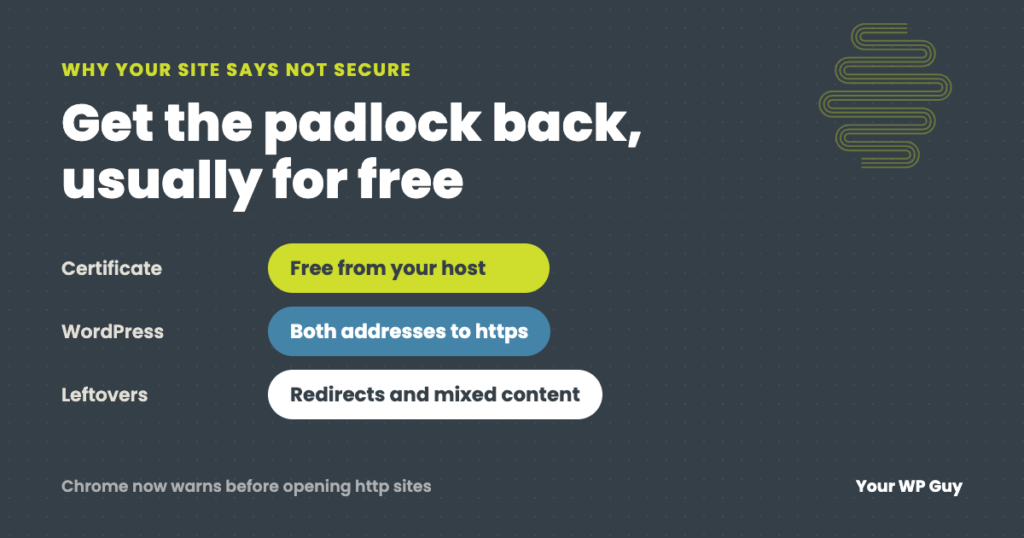
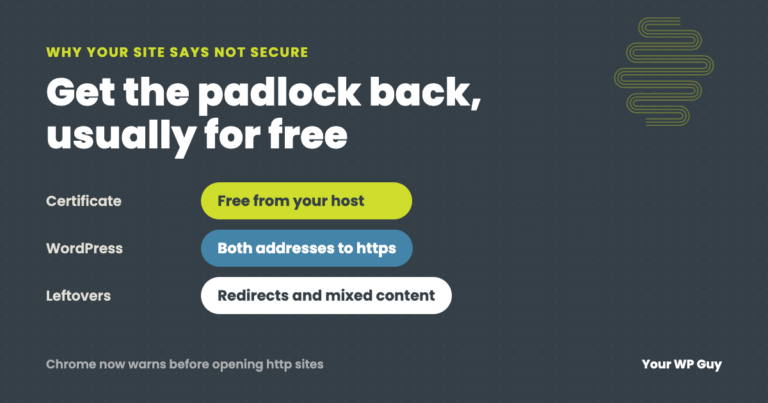
Browsers say “Not Secure” when your site loads over plain HTTP, when its security certificate is missing, expired or wrong, or when a secure page pulls in insecure files. The fix is usually free: turn on your host’s free certificate, switch both WordPress addresses to https, redirect old http links, and replace leftover http links in the content. From this month, Chrome warns visitors before it opens any public site that is still on plain HTTP. If you would rather hand it off, our one-time WordPress fix sorts it out.
You open your own website and the browser says “Not Secure” next to the address. Or a customer emails a screenshot of a full-page warning telling them the connection is not private. Either way, people are being told not to trust your site, and many of them will leave rather than click past it.
The good news is that the fix rarely costs anything. Certificate and https problems are routine fixes for us. This guide shows how to work out which problem you have and how to fix it for good.
What each warning means
Different warnings point to different problems. Find the one you are seeing:
| What you see | What it means | Where to start |
|---|---|---|
| “Not Secure” next to the address | The page loaded over plain http | Steps 1 to 3 |
| A full-page warning that the site does not support a secure connection | The site has no working https, and the browser now insists on it | Steps 1 to 3 |
| “Your connection is not private” | The certificate is expired, missing, or issued for a different name | Steps 1 and 5 |
| https in the address but no padlock, or a warning on the padlock | The page is secure but loads some files over http | Step 4 |
| “Too many redirects” | Two settings are bouncing visitors between http and https | Step 3 and the Cloudflare section |
Why Chrome is warning more this month
Google announced that Chrome 154, released in October 2026, turns on “Always use secure connections” for everyone. With it on, Chrome tries https first and shows a warning page before it opens any public site that only works over plain http. Visitors can still click through, but most will not.
If your site never moved to https, this is the month it starts losing visitors at the door. If it did move, check it anyway: a certificate that stopped renewing now leads to the same full-page warning.
Step 1: Get a certificate (usually free)
An SSL certificate is what lets your site run on https. Almost every host now gives you one free, usually from Let’s Encrypt, and renews it automatically.
- Look in your hosting control panel for SSL, SSL/TLS or Let’s Encrypt, and turn it on for both
yourdomain.comandwww.yourdomain.com. - Cannot find it? Ask your host’s support to issue a free certificate. If they only sell paid ones, that is worth knowing when you next review your hosting.
- Do you need to pay? Rarely. A free certificate encrypts the connection just as well. Paid certificates add company verification that most small business sites do not need.
Step 2: Switch WordPress to https
Having a certificate does not make WordPress use it. Take a backup first, then:
- Open the site with https in your browser (type
https://before your domain) and make sure it loads with a padlock. - Go to Settings > General and change both the WordPress Address and the Site Address from
http://tohttps://. Save. You will be logged out; log back in. - Locked out after the change? The certificate is not working yet. Ask your host, or set the two addresses back with
WP_HOMEandWP_SITEURLlines in wp-config.php.
Step 3: Redirect the old http addresses
Old links, bookmarks and Google results still point to http. Send them all to https with a single permanent (301) redirect, so visitors and search engines end up on the secure version.
- Use your host’s “force HTTPS” option if it has one. It is the cleanest way.
- Or add the redirect to your .htaccess file on Apache and LiteSpeed hosts (the code is below). Use one method only. Two redirect methods fighting each other cause the “too many redirects” error.
- Test it: type your address with
http://and with and withoutwww. All four versions should land on the same https address in one hop.
For the .htaccess route, take a backup of the file, then add these lines at the very top, above the # BEGIN WordPress line:
RewriteEngine On
RewriteCond %{HTTPS} off
RewriteRule ^(.*)$ https://%{HTTP_HOST}%{REQUEST_URI} [L,R=301]
Keep them outside the # BEGIN WordPress and # END WordPress lines, because WordPress rewrites everything between those two lines. If your site sits behind Cloudflare, skip this rule, since it can loop there. Turn on Cloudflare’s “Always Use HTTPS” instead, and see the Cloudflare section below.
Step 4: Fix insecure files on secure pages
If the page is on https but the padlock is missing or has a warning, the page is loading something over http: an image, a font, a script or a stylesheet. This is called mixed content, and browsers either block those files or mark the page as not fully secure.
- Find them. Right-click the page, choose Inspect, and open the Console tab. Mixed content warnings list each http file.
- Replace old addresses in the database. Most come from content written before the switch. Use a search-and-replace plugin such as Better Search Replace to change
http://yourdomain.comtohttps://yourdomain.com. Run it as a dry run first and take a backup. Our guide to changing a WordPress domain walks through the tool. - Regenerate builder and cache files. Page builders and caching plugins save copies of your styles with the old addresses. Clear their cache and regenerate their CSS.
- Check theme files and third-party embeds. An address typed directly into a theme file, or an old embed from another site that only works on http, needs editing or replacing by hand.
Rather have us fix it?
Certificates, redirects and mixed content are everyday fixes for us.
- Talk to a WordPress expertSend us the warning you are seeing.
- We find which problem it isCertificate, redirect, mixed content or Cloudflare.
- We fix it and check every versionhttp and https, with and without www, on phone and desktop.
Step 5: Make sure the certificate keeps renewing
Free certificates last 90 days and renew automatically, until something quietly stops the renewal. Then the site works fine for weeks and suddenly shows “Your connection is not private.” The usual causes:
- The domain’s DNS moved to a new provider, or a record now points somewhere else, so the host can no longer prove it owns the domain.
- A leftover verification record sits in your DNS from an old setup. On one client domain we found an old renewal record that Cloudflare would have served in a way the certificate check does not accept. We flagged it to be fixed before it could block a renewal.
- The site moved hosts and the old host’s certificate was never set up again on the new one.
Check the expiry date now and then: click the padlock, then the connection or certificate details. On one site we look after, visitors were getting intermittent certificate errors until a fresh certificate was issued. Monitoring that warns you weeks before expiry is better than a customer’s screenshot.
If your site uses Cloudflare
Cloudflare has its own SSL setting, and it is behind many “too many redirects” errors and false padlocks.
- Never use “Flexible.” Visitors see a padlock, but Cloudflare talks to your server unencrypted. It also causes redirect loops when your server forces https too.
- Use “Full (strict).” It is the only mode where Cloudflare checks that your server’s certificate is valid and really for your domain. It is the mode we recommend.
- If strict mode “breaks” the site, it has found a real problem. Fix the problem, not the setting.
The mistake “Full” mode hid on our own site
Before moving our sites to Full (strict), we checked which certificate each one actually served. Our own website failed. Its DNS record had been pointing at the wrong address on our own server: the right machine, but a doorway that hands out a generic default certificate instead of the site’s real one.
Under plain “Full,” Cloudflare accepts any certificate, so the site had looked perfect, padlock and all. Switching to strict would have broken it instantly, because strict is the first setting that actually checks. Fixing the record is the real fix. If a padlock has never been checked, it may only look secure.
Want to know what else visitors might be seeing? Our free Uh Oh Score checks your site and shows what to fix first, with no sales call required.
Get my Uh Oh ScoreQuestions people ask
Why does my website say “Not Secure”?
It is loading over plain http, its certificate is missing, expired or for the wrong name, or a secure page is loading some files over http. The table at the top of this guide shows which warning means which.
How do I make my website say secure?
Turn on a free certificate at your host, change both WordPress addresses in Settings > General to https, redirect http to https, and replace old http links in your content.
Do I need to pay for an SSL certificate?
Usually not. Most hosts include a free Let’s Encrypt certificate that encrypts the connection just as well and renews automatically.
Why does my site say “Not Secure” even though I have SSL?
Either WordPress is still set to http addresses, the old http address is not redirected, or the page loads images or scripts over http. Check Settings > General, then the browser console for mixed content warnings.
Why is Chrome suddenly warning about so many sites?
Chrome 154, released in October 2026, turns on “Always use secure connections” by default, so Chrome warns before opening public sites that only work over plain http.
Is it safe to visit a site that says “Not Secure”?
Reading it is usually fine. Do not enter passwords, card numbers or personal details on it, because anything you type travels unencrypted.
Does HTTPS help SEO?
Google uses HTTPS as a light ranking signal. The bigger effect is visitors: a browser warning sends many of them away before they ever read the page.
Sources
- Google, HTTPS by default (Chrome 154, October 2026).
- WordPress Developer Resources, HTTPS for WordPress.
- Let’s Encrypt, FAQ (90-day certificates).
- Cloudflare, SSL/TLS encryption modes.
Get the padlock back, and keep it
We find which problem is behind the warning, fix it, and check every version of your address on phone and desktop before we call it done.

Jonathan Wofford is the founder of Your WP Guy, a WordPress care and maintenance service supporting 105+ active client sites. He and his team keep WordPress sites fast, secure, and running, so business owners can stay focused on their business instead of their website.