How to Migrate a WordPress Site to a New Host (Without Losing Email or Orders)
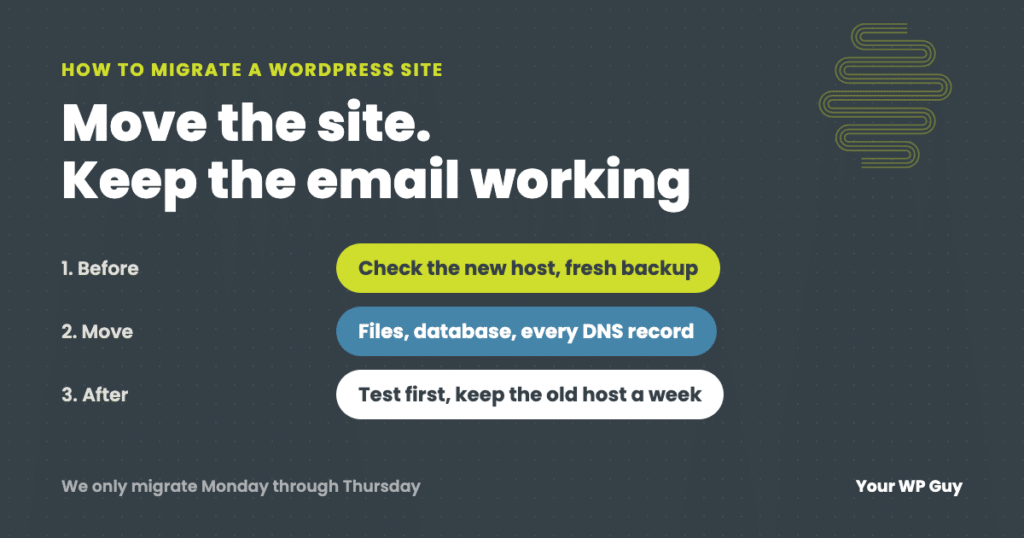
To migrate a WordPress site to a new host, check that the new host can actually run your site, make your own fresh backup, copy your DNS records (including email), move the files and database, and test everything on the new host before you point your domain at it. Keep the old host running for a week afterward in case you need it. We use UpdraftPlus for most moves and copy the files and database by hand when it cannot. If you would rather have it done for you, our WordPress migration service moves one site for $250, tested before your visitors see it.
Most migration guides are written by a hosting company or a plugin company, and they walk you through their own tool: copy the files, copy the database, change the DNS, done. That works on a simple site on a good day.
We have moved hundreds of WordPress sites, and the moves that go wrong almost never fail on the files. They fail on the details around them: email that stops arriving, an uploads folder that only half copied, a new host that is not set up for WordPress, or a store taking orders on the old server while the new one goes live. This guide is how we move sites now, including the parts the tool-based guides skip.
What a migration actually moves
A WordPress site is more than a folder of files. A full move covers five things, and most broken migrations miss at least one:
| Part | What it is | What goes wrong |
|---|---|---|
| Files | WordPress, your theme, plugins, and the uploads folder with every image and PDF | The uploads folder is the biggest part and the one that copies halfway |
| Database | Every page, post, product, order, user and setting | Big databases time out on import, and a careless find-and-replace breaks settings |
| DNS records | The settings that point your domain at your website and your email | Email records get left behind and mail stops arriving |
| Server settings | PHP version, upload and memory limits, scheduled tasks, caching | The new server is set up differently and things fail that worked before |
| Security certificate | The SSL certificate behind the padlock in the browser | Visitors see a security warning until it is issued on the new host |
Step 1: Check the new host first
Before you copy anything, make sure the new host can actually run your site. Log in to the new hosting account and check:
- The PHP version. Match what your site runs now, or newer if your plugins support it. WordPress recommends PHP 8.3 or greater.
- Upload and memory limits. If the upload limit is a few megabytes, you will not even be able to install some plugins, let alone restore a backup.
- Database access. You need to be able to create a database and import into it, usually through phpMyAdmin or the host’s control panel.
- File access. SFTP or a file manager, so you can fix things by hand if a tool fails.
- Free SSL. Most good hosts issue certificates for free. Ask how it works before you switch.
- Enough storage for your files, your database and a backup or two.
If anything on that list is missing or locked, sort it out with the new host now, while your site is still running happily on the old one. The story further down shows what happens when you find out halfway through.
Step 2: Pick the right time
- We only migrate Monday through Thursday. If something needs a host’s support team or a second pass, you want a working day after the move, not a weekend. We also avoid the day before a holiday.
- Pick your quietest hours for the final switch.
- Do not cancel the old host yet. Plan to keep it running for at least a week after the move. Check when it renews, so the deadline does not force a rushed move.
- On a store with active orders, take the site offline during the move. Otherwise an order can land on the old server after the copy was made, and it will not exist on the new one. Put the store in maintenance mode for the length of the move, then bring it back on the new host.
Step 3: Make your own fresh backup
Right before you start, make a complete backup of the files and database, and download a copy off the server. Do not rely on your host’s backups for this. We make our own on every move because we have seen too many host backups fail when they were needed: incomplete, out of date, or impossible to restore anywhere but that host.
A fresh backup is also your way back. If anything goes wrong on the new host, the old site is still running and you have a known-good copy.
Step 4: Copy your DNS records, including email
Your domain’s DNS records do more than point to your website. They also tell the world where to deliver your email, and they prove your email is really from you. If you are moving your DNS along with your hosting, every record has to come with it.
This is the step people forget most. The website comes up fine on the new host, everyone celebrates, and a day later someone notices no email has arrived since the move. Before you change anything, get a full copy of your DNS records (an export of the “zone file,” or screenshots of every record) and make sure the new DNS has all of them:
- A and CNAME records for the website, including “www” and any subdomains.
- MX records, which tell the world where to deliver your email.
- TXT records such as SPF, DKIM and DMARC, which keep your email out of spam folders, plus verification records for Google, Microsoft and other services.
If your DNS host lets you, lower the “TTL” on your website records to a few minutes a day ahead. The switch then spreads in minutes instead of hours.
Step 5: Move the site
Our first choice: UpdraftPlus
For most moves we use UpdraftPlus, the same backup plugin we run on every care plan site. We back up the full site on the old host, restore it on a fresh WordPress install on the new host, and UpdraftPlus updates the site’s addresses along the way. On a typical site that is most of the move.
When the plugin cannot: a manual copy
If the plugin fails or the site is unusual, we copy it by hand:
- Copy every file over SFTP, and check that the uploads folder on the new host has the same number of files and the same total size as the old one.
- Export the database from the old host and import it into a new database on the new host.
- Update wp-config.php with the new database name, user and password.
- Update the site’s address if it is changing, using a tool that understands WordPress. A plain find-and-replace in the database file can break plugin and theme settings, because WordPress stores some settings in a format that records the length of every piece of text. WP-CLI’s search-replace command handles this correctly.
Big sites and stores: move it in chunks
A site with years of uploads or a store with a large order history can be too big to move in one piece. The new server times out partway through and the move fails, sometimes without saying so. For these we export in chunks: the uploads folder a year at a time, and the database a few tables at a time. Smaller pieces are easier on the server you are moving to and easy to check one by one.
Why we stopped using hosts’ free migration tools
Many hosts offer a free migration plugin or a “we will move it for you” service, and for a small, simple site it can work. We stopped using them. Too often they timed out partway through, or reported success without copying the whole uploads folder, so the site looked fine until someone noticed missing images weeks later. If you use one, count the files afterward.
Step 6: Test before you switch
Your domain still points at the old host, so how do you see the new copy? Use a temporary address from the new host, a staging subdomain, or a “hosts file” entry on your own computer that sends just your browser to the new server. Then check:
- Pages and images, especially older posts and image galleries, which show a half-copied uploads folder.
- Forms. Submit each one and make sure the email arrives.
- On a store, a full test order, from cart to payment to the order email.
- Logins for you and for customers or members.
- Anything scheduled, like backups, subscription renewals or newsletters.
When we move a client’s site, the client gets the test copy to look over too. They know their own site better than anyone.
Rather have someone else handle the move?
This is what our migration service does, one site at a time, by a person who checks every step.
- Tell us about your siteWhere it is now, where it is going, and whether the domain is changing.
- We check it and confirm the priceA standard move is $250. If we find problems that would push it past two hours, you get a quote before we start.
- We move it and test itFresh backup, files, database and DNS including email, tested on the new host before your visitors see it. Most moves are done in 1 to 2 business days.
Step 7: Switch over, then keep the old host a week
- Point your domain at the new host, either by changing the DNS records or by changing your domain’s nameservers. The change spreads across the internet over minutes to a few hours, and occasionally up to two days.
- Check the security certificate once the domain points at the new host, and make sure the site loads with the padlock.
- Test again on the live domain: a page, a form, and on a store, an order.
- Send yourself an email from outside your company, and reply to it. That confirms email is arriving and leaving.
- Keep the old host running for a week. If something was missed, the old copy is still there to grab it from, and if something goes badly wrong you can point the domain back.
Your Google rankings stay where they are when only the host changes, because the pages and their addresses are the same. If the domain is changing too, that needs redirects and a change of address in Google Search Console, which is a bigger job.
The move two other companies could not finish
A manufacturer came to us with two sister-brand WooCommerce sites. The agency that built and hosted them quoted $5,000 to $6,000 to move them, and once the company decided to leave, the agency would not talk to us directly. Its copy of the DNS records arrived scrambled by an email security filter, and the nameserver change got stuck at the registrar. We set the DNS up on our own servers to keep the project moving.
We made fresh backups, did an audit and cleanup of both sites, including the database, and put staging copies up for the client to check. That check caught a display problem on the product category pages before any customer saw it. With the old hosting contract about to renew for another year, we moved both sites onto our own server for a few days, so the company was not charged for a year it did not need.
The final step was the new host the company had chosen, and it was not set up for WordPress. There was no way to create a database at first, the upload limit was too low to install a 5MB plugin, and a server setting showed a warning on the site that we could not turn off. Its support team would not help until the sites were live. A move that should have taken about five hours stretched across weeks. Both sites did go live, without the warning, and the company has been with us since.
That move is why step 1 is checking the new host, and why we always have somewhere to put a site while a host gets sorted out.
Migration mistakes to avoid
- Trusting the host’s backup instead of making your own right before the move.
- Forgetting email. Copy every DNS record, not just the one for the website.
- Canceling the old host on moving day. Keep it a week.
- Moving on a Friday, or the day before a holiday.
- Leaving a store open during the move, so orders land on the old copy.
- Switching before testing forms, checkout and logins on the new host.
- Not counting the uploads. A move can say it succeeded and still be missing images.
- Find-and-replace on the raw database file instead of a tool that handles WordPress settings safely.
Questions people ask
How long does it take to migrate a WordPress site?
The move itself usually takes 1 to 2 hours for a typical site. Large sites and stores take longer, and the DNS change can take a few hours to spread. Plan around a weekday, and keep the old host for a week after.
Will my site go down during the migration?
Usually not. The old site stays live while you copy and test the new one, and visitors switch over as the DNS change spreads. The exception is a store with active orders, which we take offline for the length of the move so no orders are lost.
Will I lose my Google rankings if I change hosts?
No, not if the domain and page addresses stay the same and the site works on the new host. Changing the domain at the same time is different and needs redirects.
Will my email stop working when I move my website?
It can, if your DNS moves too and the email records are not copied. Copy every DNS record, including MX, SPF, DKIM and DMARC, then test sending and receiving after the switch.
Should I use my host’s free migration tool?
For a small, simple site it can work. On larger sites they often time out or skip part of the uploads folder. If you use one, make your own backup first and check the file count afterward.
What is the difference between my domain, my DNS and my hosting?
Your domain is the name you registered. Your DNS is the list of records that says where that name sends website visitors and email. Your hosting is the server your WordPress site runs on. You can move your hosting without moving your domain, and your DNS can live with either one, or somewhere else like Cloudflare.
How much does a WordPress migration cost?
Hosts often move simple sites for free with an automated tool. Paid services commonly run from under $100 to several hundred dollars. Ours is $250 for one site, done and tested by a person, with large stores and several sites at once quoted first.
Sources
- WordPress Developer Resources, Moving WordPress.
- WordPress Developer Resources, wp search-replace (handles serialized data).
- WordPress.org, Requirements (PHP 8.3 or greater).
- WordPress.org plugin directory, UpdraftPlus.
Move your site without breaking a thing
One site, host to host, for $250. Backed up, moved, tested on the new host, then switched over, with your email still working.

Jonathan Wofford is the founder of Your WP Guy, a WordPress care and maintenance service supporting 105+ active client sites. He and his team keep WordPress sites fast, secure, and running, so business owners can stay focused on their business instead of their website.