How to Back Up a WordPress Site (the Way We Do It for Clients)
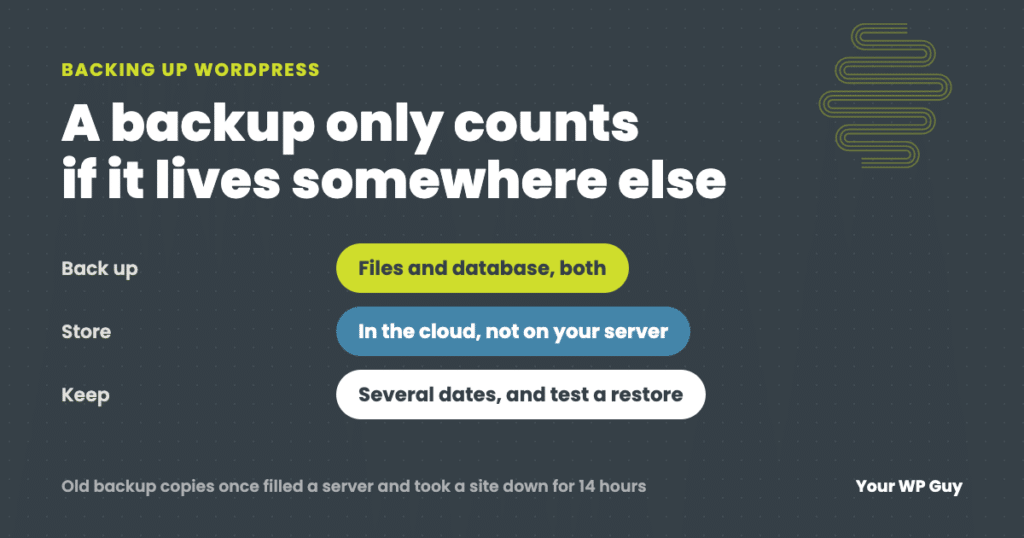
A WordPress backup has two parts: your files (themes, plugins and uploads) and your database (posts, pages, settings and orders). The easiest way to back up both is a plugin. We run UpdraftPlus Premium on client sites, and the free version of UpdraftPlus covers what most sites need. Install it, schedule automatic backups, and send them to cloud storage such as Google Drive, Dropbox or Amazon S3, so a copy lives somewhere other than your server. Keep several dates, and check now and then that the backups are still running.
Every site owner knows they should have a backup. Fewer know where theirs actually lives, how old it is, or whether it would restore. The time to find out is not the day the site gets hacked or an update breaks everything.
We back up every site on our care plans three times a day, and more often on busy online stores. This guide shows how to set up WordPress backups the way we do, using the free version of the plugin we use, other free options, and the mistakes that make a backup useless when you need it.
What a WordPress backup includes
A WordPress site lives in two places, and a backup needs both:
- The files. Your theme, your plugins, and the uploads folder with every image and document you have added. WordPress itself can always be downloaded again, so the important files are the ones in wp-content.
- The database. Every post, page, comment, setting and user, and on a store, every order and customer. This is the part that changes every day, and the part you cannot recreate.
A backup of only the files, or only the database, will not bring a site back on its own.
Are your host’s backups enough?
Most hosts back up your site, and that is a good first layer. We check that host backups are running on every site we look after. But they have limits:
- They usually live on the same server, or the same company. If the server fails, the account is suspended, or the site is hacked, the backups can go with it.
- You may not control them. Some hosts keep only a few days, restore only the whole account, or charge to restore.
- They are gone when you leave. If you change hosts, or stop paying, the host’s backups do not come with you.
So treat host backups as one copy, not the only copy. Keeping backups only on your own server is the most common backup mistake we see.
How to back up WordPress with UpdraftPlus
UpdraftPlus is the backup plugin we use for client sites, and one of the most widely used backup plugins for WordPress. We run the paid Premium version for its extra features, but the free version does everything most sites need: scheduled backups of files and database, sent to cloud storage. These steps use the free version.
- Install it. In the dashboard, go to Plugins, then Add New, search for UpdraftPlus, then install and activate it.
- Open the settings. Go to Settings, then UpdraftPlus Backups, then the Settings tab.
- Set the schedules. Choose how often to back up the files and how often to back up the database, and how many backups of each to keep. See how often below.
- Choose remote storage. Pick where the backups go, such as Google Drive, Dropbox or Amazon S3, and follow the steps to connect your account. This is the step that gets your backups off your server.
- Do not keep copies on the server. In the expert settings, leave “delete local backup” turned on, so copies are removed from your server once they are safely in the cloud. Old copies piling up on the server can fill the disk. More on that below.
- Save, then run one now. Save the settings, go back to the Backup / Restore tab and click Backup Now. Then open your cloud storage and confirm the backup files are there.
Set up an email report so you hear about failed backups, and look at the backup list in UpdraftPlus once in a while to make sure new dates keep appearing.
Other free backup plugins
UpdraftPlus is not the only good free option. These are also free on WordPress.org:
| Plugin | Free cloud storage | Worth knowing |
|---|---|---|
| WPvivid Backup | Dropbox, Google Drive, Amazon S3, OneDrive, FTP | Also does migrations and staging copies |
| BackWPup | Dropbox, Amazon S3, FTP, Microsoft Azure and more | Can send backups to more than one place at once |
| Duplicator | Not in the free version | Best known for moving sites; cloud storage is in Duplicator Pro |
| All-in-One WP Migration | Not in the free version | Built mainly for moving a site, not for scheduled backups |
Whichever you choose, the rules are the same: back up on a schedule, send the backups somewhere other than your server, and keep several dates.
How often to back up
Back up as often as you would mind losing the changes in between. We back up client sites three times a day, and more often on high-volume stores. If you are doing it yourself, start with:
| Type of site | Database | Files |
|---|---|---|
| Rarely changes (brochure site) | Weekly | Weekly |
| Regular posts, forms or sign-ups | Daily | Weekly |
| Online store or membership site | Daily or more | Daily |
Also back up before every big change: a WordPress update, a new theme, or a migration. Keep enough dates to go back a few weeks, because some problems, such as a hack or a broken page nobody visits, are not noticed right away.
For a busy store where losing even a few hours of orders would hurt, a real-time backup service that saves changes as they happen is worth looking at.
How to back up WordPress by hand
A manual backup is useful before a big change, or when a plugin cannot run. It is the same two parts, done yourself:
- The files. Use your host’s file manager or an FTP program to download the wp-content folder, plus wp-config.php. A file manager can usually compress the folder into one zip first.
- The database. Open phpMyAdmin from your hosting control panel, select your site’s database, click Export and save the file.
- Store them somewhere safe, off the server, and label them with the date.
Rather have your backups handled?
Backups three times a day, stored away from your server, are part of every care plan. So is restoring them when something goes wrong.
- We check what you have nowHost backups, plugins, and whether anything is actually running.
- We set up offsite backupsIn the cloud, with several dates to go back to.
- We check them every dayAnd restore your site if you ever need it.
How we back up client sites
I come from a technical background where backups were rotated daily, one copy went into a fireproof safe, and another went offsite. That idea, more than one copy in more than one place, is how we handle client sites today:
- Backups three times a day, and more often on high-volume stores, made with UpdraftPlus Premium.
- Host backups, checked to make sure they are running. These are usually on the same server.
- Offsite cloud backups, with versioning, so a damaged copy does not replace the good ones. These are kept on a 30-day rotation.
- Sites hosted with us also keep 90 days of backups in a separate location.
- No copies left on the server. Every site’s backups go to the cloud, and old copies are removed from the server.
We also check every day that backups are still running, are going somewhere, and did not fail. Our guide to restoring WordPress from a backup covers the other half: getting the site back.
Backup mistakes we see
- Backups going nowhere. The plugin runs, but no remote storage was ever connected, so every backup sits on the same server as the site.
- Backups that quietly stopped. A schedule that stopped running months ago, an expired cloud connection, or a full storage account. Nothing tells you unless someone checks.
- Only one date kept. If a problem is noticed a week late, a backup from yesterday already contains it.
- Never testing a restore. A backup you have never restored is a guess. Restore one to a staging copy now and then.
- Old copies filling the server. This one can take a site down on its own.
The backup that took a site down
One site we look after had a second Dropbox destination set up in its backup plugin that everyone had forgotten about. It stopped old backups from being cleaned off the server, and they piled up until the disk was full. The site returned server errors for about 14 hours, even though it looked perfectly normal in a browser. We cleared the space, fixed the backup settings, and made it our rule that no site keeps backup copies on its own server.
Not sure your backups are even running? Our free Uh Oh Score checks your site and shows what needs attention, with no sales call required.
Get my Uh Oh ScoreQuestions people ask
How do I back up my WordPress site for free?
Install the free UpdraftPlus plugin, schedule backups of your files and database, and connect free cloud storage such as Google Drive or Dropbox so the backups are stored off your server.
What is the best WordPress backup plugin?
We run UpdraftPlus Premium on client sites. Its free version backs up files and database on a schedule to cloud storage, which is what most sites need. WPvivid and BackWPup are good free alternatives.
Are my host’s backups enough?
They are a good first layer, but they usually live on the same server or with the same company. Keep at least one copy somewhere else.
How often should I back up WordPress?
Weekly for a site that rarely changes, daily for a site with regular posts or forms, and daily or more for a store. We back up client sites three times a day. Always back up before a big update.
How do I back up my WordPress site locally?
Download the wp-content folder and wp-config.php with your host’s file manager or FTP, and export the database with phpMyAdmin. Store the copies off the server.
How do I export an entire WordPress site?
A full backup of the files and database is a complete export. A backup or migration plugin can package both so the site can be restored or moved.
Where are my WordPress backups stored?
Wherever your plugin or host sends them. If you have not set up remote storage, they are probably on the same server as your site.
Sources
- WordPress, WordPress backups.
- WordPress.org, UpdraftPlus, WPvivid, BackWPup, Duplicator and All-in-One WP Migration.
Backups you never have to think about
Offsite backups three times a day, checked every day, and restores included on every care plan.

Jonathan Wofford is the founder of Your WP Guy, a WordPress care and maintenance service supporting 105+ active client sites. He and his team keep WordPress sites fast, secure, and running, so business owners can stay focused on their business instead of their website.