How to Accept Zelle, Venmo and Cash App on WooCommerce
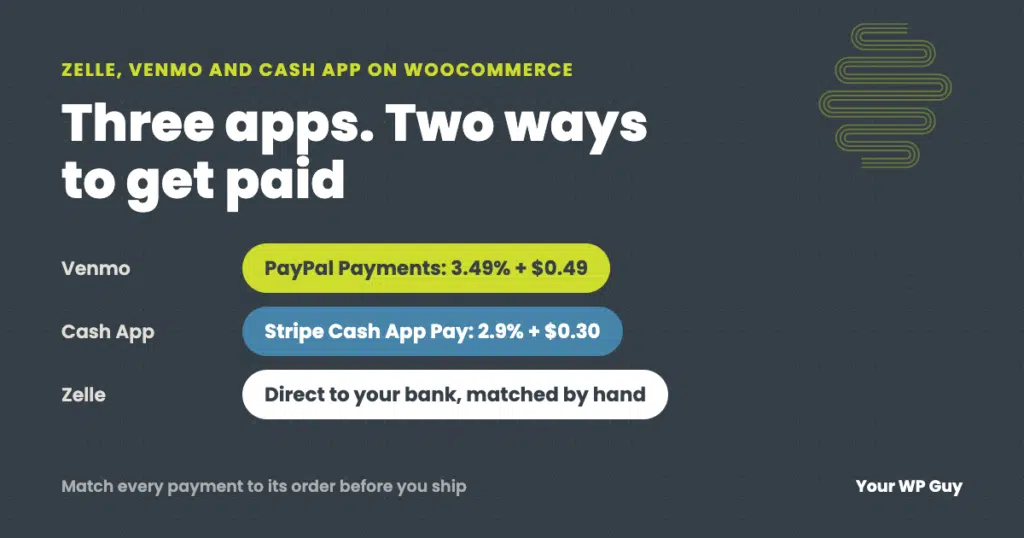
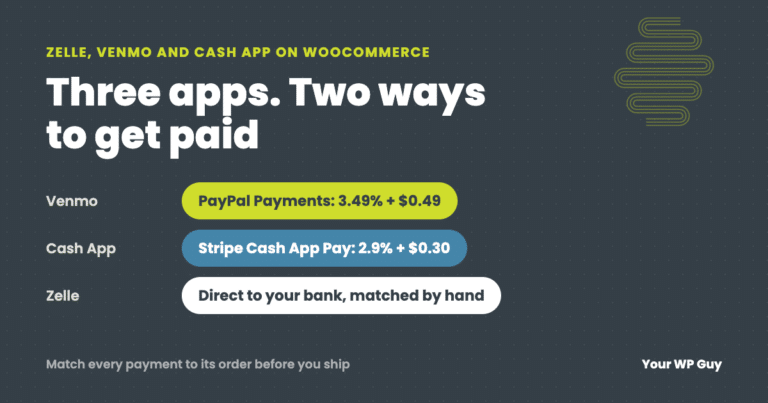
WooCommerce has no built-in Zelle, Venmo or Cash App option, but you can add all three. Venmo comes through the free PayPal Payments plugin, and Cash App Pay comes through Stripe. Both are automatic, but you pay card-level fees. Zelle has no checkout connection for stores, so it is always manual: the customer pays from their bank app and you confirm the money arrived before you ship. A gateway like SendDollar handles that manual flow for Zelle, Venmo and Cash App.
Customers ask for it all the time: “Can I just Zelle you?” Many small businesses already take Zelle, Venmo and Cash App in person or by invoice, and they want the same thing on their WooCommerce store.
It can be done, but the three apps work very differently. Some routes are automatic and cost about the same as a card payment. Others are free or cheap but leave you checking your phone before you ship. This guide covers which route fits which store, how to set each one up, and the mistakes that cost stores money.
Can WooCommerce accept Zelle, Venmo and Cash App?
Yes, but not out of the box. A fresh WooCommerce store offers cards through a gateway you add, plus a few manual options like bank transfer and check. Zelle, Venmo and Cash App each need either a payment plugin or a manual setup.
The bigger question is how you want the money to reach you, because there are two very different routes:
- Processed. A payment company sits in the middle and tells your store the order is paid. Venmo through PayPal and Cash App Pay through Stripe work this way. Orders mark themselves paid, but the fees are close to card fees, and the money lands in your PayPal or Stripe account.
- Direct. The customer sends money straight to your own Zelle, Venmo or Cash App account, and you mark the order paid once it arrives. Fees are low or zero. The catch is that you, or a plugin, have to match each payment to its order.
Zelle only works the direct way. Zelle has no checkout button or public connection for online stores; customers can only pay you from inside their own banking app.
Every option compared: fees and how you get paid
| Option | US fee per sale | Money lands in | Order marked paid |
|---|---|---|---|
| Venmo through PayPal Payments | 3.49% + $0.49 | Your PayPal account | Automatically |
| Cash App Pay through Stripe | 2.9% + $0.30 | Your Stripe account | Automatically |
| Zelle, direct | Zelle charges no fee (ask your bank about business accounts) | Your bank account, usually in minutes | By you, or by a matching plugin |
| Venmo business profile, direct | 1.9% + $0.10 | Your Venmo account | By you, or by a matching plugin |
| Cash App for Business, direct | 2.75% | Your Cash App account | By you, or by a matching plugin |
Fees from PayPal, Stripe, Venmo and Cash App’s US pricing pages, October 2026. On a $100 order, that is about $3.98 for Venmo through PayPal, $3.20 for Cash App Pay through Stripe, $2.00 for a Venmo business profile, $2.75 for Cash App for Business, and nothing from Zelle.
Two things the fee table does not show. Processed payments come with the payment company’s dispute process, so customers can get their money back if an order goes wrong. Direct Zelle payments do not: banks do not offer purchase protection on Zelle, and some customers will not pay a store they do not know that way. That is why we treat these apps as extra options next to a card gateway, never instead of one. Our guide to setting up PayPal on WooCommerce covers choosing that main gateway.
How to add Venmo with PayPal Payments
If you already take PayPal, this is the easiest way to add Venmo. You do not need a Venmo account at all, because the money goes into PayPal like any other PayPal sale.
- Install the free WooCommerce PayPal Payments plugin and connect your PayPal business account. Older PayPal options, like PayPal Standard, do not offer Venmo.
- Check that Venmo is on. PayPal Payments adds the Venmo button on its own. In WooCommerce > Settings > Payments > PayPal, make sure Venmo has not been turned off, and pick the pages the buttons show on: product, cart, checkout or all three.
- Know who will see it. PayPal decides when to show the Venmo button. It shows to eligible US shoppers, mainly on phones, and shoppers pay in their Venmo app.
- Test it on a phone with a real Venmo account and a real $1 order, then refund it from WooCommerce. If the button does not show on desktop, that is normal.
If the Venmo button is missing everywhere, check that PayPal Payments is connected, your store currency is US dollars, and no speed plugin is delaying PayPal’s scripts.
How to add Cash App Pay with Stripe
Stripe offers Cash App Pay to US businesses, and the official WooCommerce Stripe plugin can show it at checkout.
- Install the WooCommerce Stripe Payment Gateway plugin and connect your Stripe account, if you have not already.
- Turn on Cash App Pay in the plugin’s list of payment methods under WooCommerce > Settings > Payments > Stripe. If it is not offered there, turn it on in your Stripe dashboard’s payment method settings first.
- Check the limits. Cash App Pay works for US customers paying in US dollars, with a $0.50 minimum. Stripe suggests keeping it to orders under about $2,000, because Cash App sets its own customer limits and big payments get declined more often.
- Place a real $1 order and refund it. On a phone, the customer is sent to Cash App to approve the payment. On a computer, they scan a QR code with their phone.
Stripe pays Cash App Pay sales out on its normal schedule, up to two business days later, and customers can open disputes for up to 120 days.
How to take Zelle (and direct Venmo or Cash App)
Direct payments skip the payment company, so your store has to do two jobs on its own: tell the customer exactly how to pay, and wait for the money before the order moves on.
Before you start
- Zelle: use a business bank account that offers Zelle for small business. Not every bank does, and limits on how much you can receive vary by bank.
- Venmo: set up a Venmo business profile. A personal profile is not meant for sales, and if a customer marks a payment to it as goods and services, Venmo takes 2.99%.
- Cash App: use a Cash App for Business account, which takes 2.75% per payment.
Option 1: The free way, with WooCommerce’s bank transfer method
WooCommerce comes with a “Direct bank transfer” payment method. You can rename it “Zelle,” put your Zelle email or phone number in its instructions, and ask customers to put their order number in the payment memo. Orders paid this way are set to “On hold,” and you change them to “Processing” once you see the money.
It works for a handful of orders a week. The weak spots show up as you grow:
- It only covers one app. You cannot offer Zelle, Venmo and Cash App each with their own details.
- On-hold orders never cancel on their own. If a customer never pays, the order and its stock sit there until you clean them up.
- Every order needs you to open your banking app, find the payment and match it by hand.
Option 2: A gateway built for person-to-person payments
A dedicated gateway adds a proper checkout option for each app and handles the follow-up. Look for:
- Separate Zelle, Venmo and Cash App options, each with its own account details.
- Instructions that fill in the order number and total on the thank-you page and in the order email.
- A Venmo or Cash App link or QR code with the amount already filled in, so customers do not type it wrong.
- A payment deadline that cancels unpaid orders and puts the stock back.
- Payment matching that reads the payment alert emails from your bank, Venmo or Cash App, finds the order each payment belongs to, and holds anything uncertain for you to review.
- Partial payments, so a short payment is recorded and the balance can be matched when it arrives.
Those are the features we built into SendDollar, our WooCommerce gateway for Zelle, Venmo and Cash App.
Want someone to set up and test your payments?
Adding payment options, swapping gateways and fixing checkouts is everyday work for our WooCommerce developers.
- Talk to a WordPress expertTell us how your customers want to pay and what you take now.
- We set it up and match it to your accountsProcessed, direct, or both, with clear instructions at checkout.
- We prove it with a real orderA real $1 order through every option we add, then a refund.
Mistakes that cost stores money
Shipping on a screenshot
A common scam with direct payments: the “customer” sends a screenshot or a fake email that looks like a payment notice, and asks you to ship fast. Only trust the payment once you see it in your own bank or app. Never mark an order paid from a screenshot.
No order number on the payment
Without the order number in the memo, a $48 Zelle payment from “J Smith” could belong to any order. Make the order number impossible to miss in the instructions, and fill it in for the customer wherever you can.
Wrong amounts
Customers send the wrong amount more often than you would think: shipping left off, a typo, or a split payment. Decide ahead of time what you do with a short payment, and do not let anything mark an order paid when the amount is wrong.
Refunds
Direct payments have no refund button in WooCommerce. You refund by sending the money back from your bank or app, then recording the refund on the order. With Zelle, double-check the details first, because a payment sent to the wrong person usually cannot be pulled back.
Using it as your only way to get paid
Some customers will not pay a store they have never used with Zelle, and Venmo and Cash App both have customer limits. Keep a card gateway as your main option and add these next to it.
What happened when a store we look after took Zelle
An online store we look after offered Zelle at checkout from mid-October to December 2025, using the first version of our own gateway. In that time, 434 orders were placed with Zelle, averaging about $204 each.
- 240 were paid and shipped.
- 189 were never paid and were cancelled, which put their stock back on the shelf.
- 5 payments were declined after review.
For the orders that were paid, the middle time from order to confirmed payment was about 12 hours, and 47 took more than a day, because every payment was checked by hand. Zelle cost the store nothing in fees. It cost time, and close to half the people who picked it never finished paying.
That is why matching became the heart of SendDollar. It scores every payment alert it reads, using the order number in the memo, the amount and the sender’s name. Out of the box it never marks an order paid on its own: it lines the payment up beside the order it thinks it belongs to, and a person clicks Approve. Store owners can let strong matches approve themselves once they trust it. A wrong “paid” means shipping an order you were never paid for.
Not sure what else on your store needs attention? Our free Uh Oh Score checks your site and shows what to fix first, with no sales call required.
Get my Uh Oh ScoreQuestions people ask
Can WooCommerce accept Zelle?
Yes, but only as a manual payment. Zelle has no checkout connection for online stores, so the customer pays from their banking app and the order is marked paid once the money arrives, either by you or by a gateway plugin that matches payments to orders.
Does Zelle charge businesses to receive money?
Zelle itself does not charge a fee. Some banks charge business accounts for Zelle, so check with yours.
How do I add Venmo to WooCommerce?
The simplest way is the free WooCommerce PayPal Payments plugin. It shows a Venmo button to eligible US shoppers and the money goes into your PayPal account, at 3.49% plus $0.49 per sale. You can also take Venmo directly to a Venmo business profile for 1.9% plus $0.10, but then orders have to be matched to payments.
Can I use my personal Venmo account for my store?
It is not meant for business sales. Venmo charges 2.99% when a payment to a personal profile is marked as goods and services. Set up a business profile instead.
Can WooCommerce accept Cash App?
Yes. Stripe offers Cash App Pay to US businesses at 2.9% plus $0.30, and the WooCommerce Stripe plugin can show it at checkout. You can also take payments directly to a Cash App for Business account, which charges 2.75%.
Is it safe for customers to pay a store with Zelle?
Banks do not offer purchase protection on Zelle and tell people to only pay those they know and trust. That is why many shoppers prefer a card or Venmo through PayPal for a store they have not used before. Offer Zelle as an extra option, not the only one.
How do I refund a Zelle payment on WooCommerce?
Send the money back from your bank’s Zelle screen, then record the refund on the order in WooCommerce. There is no automatic refund for direct payments.
Sources
- WooCommerce, Venmo in WooCommerce PayPal Payments.
- PayPal, PayPal merchant fees (US, PayPal Checkout and Pay with Venmo).
- Stripe, Cash App Pay payments and local payment method pricing.
- Venmo, Our fees.
- Cash App, Cash App for Business fees.
- Zelle, Zelle for small business.
- Wells Fargo, Zelle for business FAQs (no purchase protection).
Let customers pay the way they already pay
We add Zelle, Venmo and Cash App to WooCommerce stores the right way, next to a card gateway, and prove every option with a real order before we call it done.

Jonathan Wofford is the founder of Your WP Guy, a WordPress care and maintenance service supporting 105+ active client sites. He and his team keep WordPress sites fast, secure, and running, so business owners can stay focused on their business instead of their website.