How to Speed Up a WordPress Site: Find the Real Cause First
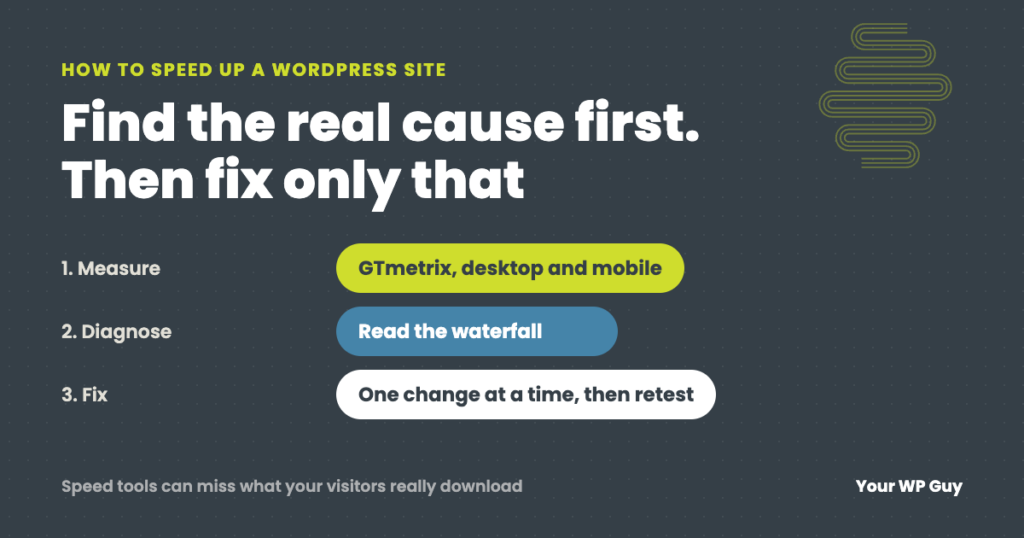
To speed up a WordPress site, measure first so you know which part is slow: the server’s response, the weight of the page, or code that holds the page back. We test in GTmetrix on desktop and mobile and read the waterfall to find it. Then fix that cause. Page caching and a current PHP version fix a slow server. Right-sized, modern-format images fix a heavy page. Removing or delaying scripts you do not need fixes lag. Test again on a phone after each change. If you would rather have it done for you, our WordPress speed optimization service is $499 one time, with a refund if we cannot make your site faster.
Most guides to speeding up WordPress hand you a list of 10 to 20 tips and suggest doing all of them. Some of those tips will help your site. Some will do nothing. A few, stacked on top of each other, can make it slower or break your checkout.
I got into speed work running a drop-shipped furniture store with more than 15,000 products, where every slow page cost sales. The lesson from that store, and from client sites since, is that a slow WordPress site usually has one or two real causes. Find them first and the fix is often small. Skip that step and you can spend a weekend installing plugins that never touch the problem. This guide walks through how we do it on client sites: how we find the cause, how we fix each kind of slow, and the tools we use and love, including where they fall short.
Why WordPress speed matters
Google measures how fast real visitors experience your pages with three numbers it calls Core Web Vitals. A page passes when 75% of visits meet all three:
| Measure | What it means | Good |
|---|---|---|
| Largest Contentful Paint (LCP) | How long until the main image or headline shows up | 2.5 seconds or less |
| Interaction to Next Paint (INP) | How quickly the page responds when someone taps or clicks | 200 milliseconds or less |
| Cumulative Layout Shift (CLS) | How much the page jumps around while it loads | 0.1 or less |
Source: Google’s web.dev.
WordPress sites struggle with this more than most. In the 2025 Web Almanac from HTTP Archive, only 45% of WordPress sites passed Core Web Vitals on phones, one of the lowest rates of any platform. Loading the main content was the weak spot, with about half of WordPress sites getting a good LCP.
It also costs money. A Deloitte study for Google found that making a mobile site just 0.1 seconds faster raised retail conversions by 8.4% and average order value by 9.2%. People do not wait for slow pages. They tap back and pick the next result.
Step 1: Measure the right way
Before you change anything, write down where you are starting. That is the only way to know whether a change helped.
Our tool for this is GTmetrix. We test every page twice, once on desktop and once on a mobile device setting, because a page that is fine on a desktop connection can crawl on a phone. Then we skip past the grade and go straight to the waterfall.
How to read the waterfall
The waterfall tab lists every file the page loads, top to bottom, in the order the browser asked for it, with a bar showing how long each one took. It turns “the site is slow” into a list of specific files. Here is what we look for:
- A long first bar. The very first row is the page itself. If it takes a second or more before anything else starts, the server is slow to build the page. That points to caching, PHP or hosting.
- The biggest files. Sort by size. Oversized images, GIFs, videos and fonts show up right away.
- Files from other companies. Chat widgets, trackers, review badges, maps and social feeds each add their own requests, and you can see exactly how long each one costs.
- Files that hold everything else up. Scripts and stylesheets near the top that other rows wait on keep the page blank longer.
- Plugins you forgot about. File paths include the plugin’s folder name, so a plugin loading files on every page is easy to spot.
We work down that list, worst first, and retest after each fix.
Then check what Google sees
- Run Google PageSpeed Insights too. Its top section, “Discover what your real users are experiencing,” is field data from real Chrome visitors over the last 28 days. That is what Google uses for Core Web Vitals. Small sites may not have field data yet.
- Test logged out. When you are logged in, WordPress skips most caching, so your site will always feel slower to you than to visitors. Use a private browser window.
- Test more than the homepage. Check your homepage, one of your busiest inner pages, and, on a store, a product page and the checkout.
- Write the numbers down for each page: load time, LCP, CLS, total page weight and number of requests. You will compare against them in step 4.
When every speed tool is wrong
On one online store, GTmetrix and Lighthouse both said the mobile homepage loaded about 5.5MB of media. When we measured the actual bytes reaching the phone, the real number was over 13MB. The store’s image CDN did not report its own transfers, so every tool counted them as zero. The hidden weight was three product demo GIFs, 8.2MB between them. Converted to video, they looked the same and weighed 588KB. Read the full story: the 8MB that most tools missed.
That store is why we read the waterfall instead of trusting the grade, and why we dig further when the numbers do not match what we see on a phone. The tools are still the best place to start. Just treat a score as a clue, not the answer.
Step 2: Find which kind of slow you have
Different problems feel different. Match what you see to the likely cause before you start fixing anything:
| What you notice | Likely cause | Where to look |
|---|---|---|
| A blank screen for a second or more before anything appears | The server is slow to build the page | Page caching, PHP version, hosting, heavy plugins |
| The page appears, but the main image or headline is slow | Oversized images, a hero image set to load late, slow fonts | Images and fonts (high LCP) |
| The page jumps around while it loads | Images without set sizes, fonts arriving late, banners pushing content down | Theme and images (high CLS) |
| Taps and clicks feel laggy | Too much JavaScript: chat widgets, trackers, sliders, page builder scripts | Plugins and scripts (high INP) |
| Fast most of the time, slow or timing out in bursts | A server setting, not usually the server’s size | Your host’s PHP settings |
| Only the WordPress dashboard is slow | Plugins doing work in the admin, a bloated database | Plugins and database (the admin is never cached) |
The GTmetrix waterfall usually shows you which row of this table you are in within a minute.
Step 3: Fix the cause
Make a backup before you start, change one thing at a time, and retest after each change. If a change does not move the number, undo it instead of keeping it “just in case.”
If the server is slow to respond
- Turn on page caching. Without it, WordPress builds every page from scratch for every visitor. On most sites we use WP Rocket. If your host has its own page caching, use one or the other, not both.
- Run a current PHP version. WordPress recommends PHP 8.3 or greater. Newer PHP versions run WordPress noticeably faster, and most hosts let you switch in the control panel. Test on a staging copy first, because an old plugin can break on a new PHP version.
- Find the heavy plugins. A plugin that runs slow database queries on every page will slow the server no matter how big it is. The free Query Monitor plugin shows which plugins take the most time.
- Add an object cache on busy dynamic sites. Stores, membership sites and course sites cannot cache most pages for logged-in users, so caching database results (Redis or Memcached, if your host offers it) helps there.
- Then judge the hosting. If the server is still slow with caching on and a current PHP version, the hosting itself may be the limit. But check the setup before paying for more.
Where WP Rocket helps, and where it does not
We like WP Rocket. It handles page caching, delays scripts until a visitor interacts, removes unused CSS, preloads pages and lazy loads images, all from one settings screen, and on a lot of sites that is most of the job. But we often get called in after someone installed it and the site is still slow. It cannot fix:
- A slow server or slow plugin. Caching hides a slow server for cached pages, but the cart, checkout, account pages and the dashboard are never cached, so they stay slow.
- A theme bug. If the theme turns off a WordPress feature, like the missing line in the story below, no setting can turn it back on.
- Huge files. It can delay an 8MB GIF, but the visitor still downloads 8MB.
- Too many outside scripts. Delaying them helps the first load, but they all still run.
Its file settings can also break things. Delaying JavaScript or removing unused CSS can stop a form, a menu or a checkout from working, so we turn those on one at a time, test, and add exclusions where needed.
When a bigger server would not have helped
One client’s site slowed to a crawl and sometimes timed out, but only during busy stretches. The obvious fix was a bigger server. But the server was sitting nearly idle between stalls. The real cause was one setting: it started a fresh PHP worker for every burst instead of keeping a few ready. We changed the setting. The same page went from over three seconds to about a tenth of a second, at no added hosting cost. The details: site slow under load.
If the page is heavy
- Size images for where they show. A photo displayed 800 pixels wide does not need to be uploaded at 4,000. WordPress makes smaller copies for phones automatically, as long as the theme uses them.
- Compress and convert them. We love Imagify for this. It compresses every image you upload, can go back and compress the ones already in your media library, and creates WebP versions, which are usually much smaller than JPEG or PNG at the same quality. Whatever optimizer you use, check that the WebP versions are actually being served, not just created.
- Lazy load images below the fold, but not the main one. WordPress has lazy loaded images automatically since 2020, so photos far down the page load only as visitors scroll. The main image at the top should load right away. Lazy loading it makes LCP worse.
- Replace animated GIFs with video. A short muted looping video can be a tenth of the size of the same GIF.
- Host big videos elsewhere. Put them on YouTube or Vimeo and embed them, with a preview image that loads the player only when someone clicks.
One missing line, 40 seconds lost
A nonprofit’s homepage took over 40 seconds to show its main content on a slow mobile connection, even though it already used modern image formats. WordPress’s automatic lazy loading was switched off, not by a setting, but by one missing line of code in the custom theme. No plugin could fix that. Adding the line cut the load time roughly in half within the hour, and the follow-up fixes brought it to 72% faster. The full story: the missing line of code.
If too much code is loading
- Delete plugins you do not use. Deactivated plugins do not slow the front of your site, but active ones you forgot about often do.
- Delay scripts that are not needed right away. Chat widgets, heat maps, social feeds and ad trackers can usually wait until the visitor scrolls or taps.
- Use one optimization plugin. Two plugins both minifying, combining or caching files fight each other. On the nonprofit site above, a second optimization plugin was quietly causing part of the problem.
- Load fewer fonts. Every font weight is a separate download. Two or three weights are usually enough, and preloading the main font stops the text from jumping when it arrives.
- Remove what only the back office needs. Themes sometimes load admin or builder code for every visitor. On the store above, visitors were downloading about 150KB of WordPress’s upload dialog code they could never use.
If the database is bloated
- Limit post revisions so every edit does not keep a full copy forever.
- Clear expired temporary data (transients) and old spam and trashed comments.
- Watch autoloaded options. Some plugins leave large settings behind that load on every page, even after the plugin is deleted.
Database cleanup plugins can do this in a few clicks. Back up first. Deleted database rows do not come back.
Put a CDN in front
A content delivery network keeps copies of your site’s files on servers around the world, so visitors download them from somewhere close instead of from your one server. We put Cloudflare in front of our sites. It speeds up delivery and adds a layer of protection in front of the site too.
When a site has a lot of images or video, we move that media to Amazon Web Services (AWS), storing it on Amazon’s servers and delivering it through Amazon’s CDN. Your web server stops spending its time sending out large files, and your hosting plan does not fill up with media.
Rather have someone find the cause for you?
This is what our speed service does. We measure every byte, find the real cause, and fix it.
- Get a free speed reviewSend us your website and we record a short video showing what is slowing it down.
- We fix it, usually in 1 to 3 business daysA one-time speed tune-up is $499, with a before-and-after report and a refund if we cannot make your site faster.
- Keep it fastOur Titanium care plan checks speed every month and after updates, and guarantees a load time under three seconds.
Step 4: Test again, then keep it fast
Run the same tests on the same pages you wrote down in step 1, and compare. Then check that faster did not mean broken:
- Submit your forms. Delaying scripts can stop a form or its spam protection from working.
- On a store, place a test order. The cart, checkout and account pages must never be cached, or shoppers can see the wrong cart.
- Check menus, sliders and pop-ups on a phone. Delayed or combined scripts break these most often.
- Look at the page logged out in a private window, the way visitors see it.
Speed does not stay fixed on its own. New plugins, plugin updates, new photos and new features all add weight over time. Retest every month, and after big changes. Keeping your site updated helps too, since plugin and PHP updates often include speed improvements.
The tools we use and love
No one tool makes a site fast. These are the ones we reach for on client sites, and what each one is for:
| Tool | What we use it for | Where it falls short |
|---|---|---|
| GTmetrix | Testing desktop and mobile, and the waterfall that shows which files are slow | It can only report what it can see. One store’s CDN hid 8MB from it |
| Google PageSpeed Insights | Real-visitor Core Web Vitals, the numbers Google uses | No field data for low-traffic pages, and the lab score jumps around |
| WP Rocket | Page caching, delaying scripts, removing unused CSS, preloading | Cannot fix a slow server, a theme bug or huge files, and its file settings need testing |
| Imagify | Compressing images and creating WebP versions, including old uploads | Cannot fix a photo uploaded far too large for where it shows, or a GIF that should be a video |
| Cloudflare | CDN and protection in front of the site | Cannot speed up pages it cannot cache, like checkout |
| AWS | Storing and delivering media on image- and video-heavy sites | More setup than most small sites need |
We do not get paid to recommend any of these, and there are no affiliate links in this post. They are simply what we use.
Speed mistakes to avoid
- Chasing a perfect score. A 100 in the lab test is not the goal. Passing Core Web Vitals for real visitors is.
- Stacking optimization plugins. One caching plugin, one image optimizer. More is not faster.
- Upgrading hosting first. A bigger server will not fix a setting, a theme bug or a 13MB page.
- Lazy loading everything. The main image at the top of the page should load first, not last.
- Caching pages that should not be cached, like the cart, checkout and account pages.
- Making changes without a backup, especially database cleanups and PHP upgrades.
Not sure what is slowing your site down? Send us your website and we will record a short, free video showing what is slowing it down and how we would fix it.
Get my free speed reviewQuestions people ask
Why is my WordPress site so slow?
Usually one or two causes: no page caching, an old PHP version, oversized images, too many scripts from plugins, or a theme that loads more than it needs. Measure first with PageSpeed Insights on a phone, then match what you see to the cause using the table in step 2.
What is a good load time for a WordPress site?
Aim for the main content to appear within 2.5 seconds on a phone, which is Google’s “good” mark for Largest Contentful Paint. A fully loaded page under three seconds is a sensible target for most business sites.
What is the best way to test WordPress speed?
We use GTmetrix on desktop and mobile and read the waterfall to see which files are slow, then check Google PageSpeed Insights for real-visitor Core Web Vitals. Test logged out, and test more than the homepage.
Will WP Rocket or another caching plugin fix my slow site?
It fixes a slow server response on cached pages, which is the most common problem, and WP Rocket’s script and CSS settings help with code. It will not fix a slow checkout or dashboard, a theme bug, or oversized files. If your site is still slow with caching on, read the waterfall to find what is left.
Does hosting affect WordPress speed?
Yes, but it is rarely the only cause. Check caching, PHP version and plugins first. If the server is still slow to respond after that, better hosting is worth it.
Why is my WordPress admin so slow?
The dashboard is never cached, so slow plugins and a bloated database show up there first. Query Monitor can show which plugin is slow, and limiting revisions and clearing old data helps.
Does site speed affect SEO?
Core Web Vitals are part of how Google judges page experience, so a slow site can hold rankings back, especially against competitors with similar content. Good content still matters more, but speed is the tiebreaker you control.
How do I speed up a WooCommerce store?
The same steps, plus a few store rules: never cache the cart, checkout or account pages, use an object cache if your host offers one, keep product images right-sized, and test checkout after every change.
Sources
- Google web.dev, Web Vitals (thresholds and the 75th percentile).
- HTTP Archive, Web Almanac 2025: CMS (WordPress Core Web Vitals pass rate on mobile).
- Google web.dev, Milliseconds make millions (Deloitte study).
- WordPress.org, Requirements (PHP 8.3 or greater).
- Your WP Guy client cases: the 8MB most tools missed, the missing line of code, site slow under load.
Your hardest-working employee shouldn’t keep customers waiting
We find what is really slowing your site down and fix it, usually in 1 to 3 business days, with a refund if we cannot make it faster.

Jonathan Wofford is the founder of Your WP Guy, a WordPress care and maintenance service supporting 105+ active client sites. He and his team keep WordPress sites fast, secure, and running, so business owners can stay focused on their business instead of their website.