How to Change Your WordPress Domain (Without Losing Traffic or Email)
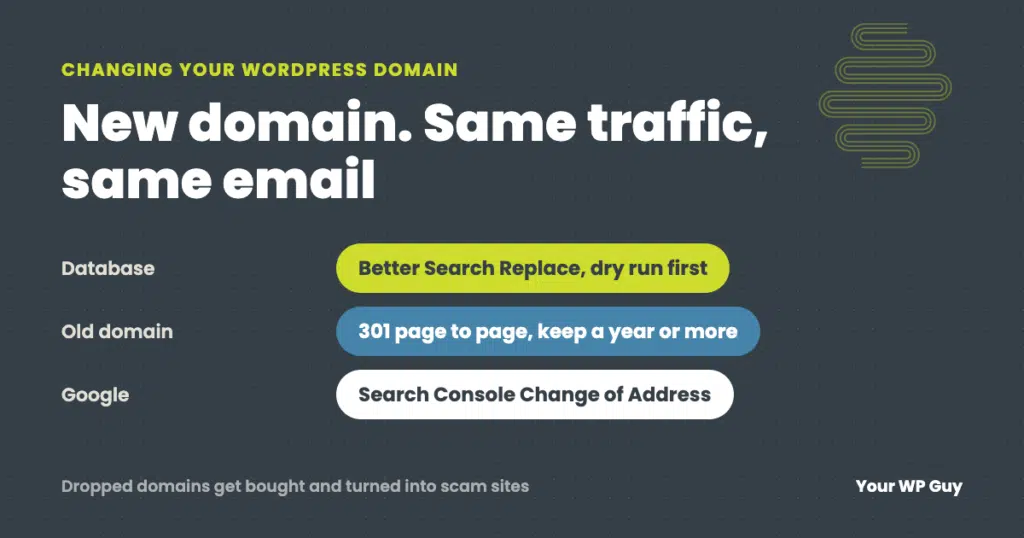
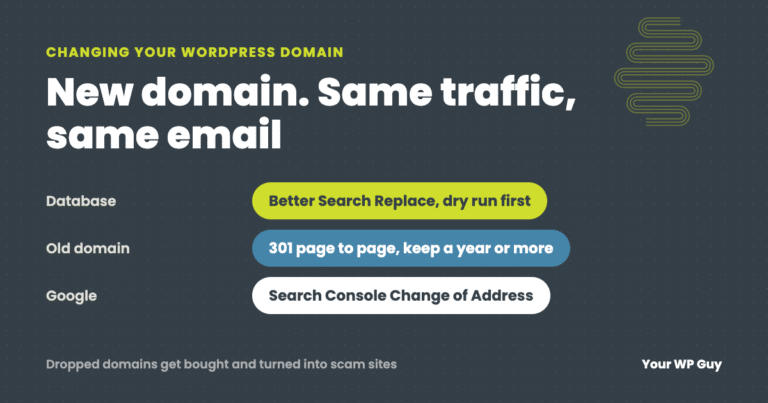
To change a WordPress site’s domain, add the new domain to your hosting with an SSL certificate, back up the site, then use the Better Search Replace plugin to replace the old address with the new one throughout the database. Check that Settings, then General, shows the new address in both fields, re-save your permalinks, and test every kind of page. Then 301 redirect every old page to its matching new page, run Google Search Console’s Change of Address tool, and keep your old domain email working. Keep the old domain registered for as long as you can.
Changing a domain is easy to start and easy to get half right. The site loads on the new address, but images still point at the old one, the old domain’s search traffic disappears, and email sent to the old address bounces.
We move WordPress sites to new domains for clients, and the people who change domains have good reasons: a rebrand, a better .com, a merger, or folding several sites into one. We do not try to talk anyone out of it. This guide is the process we follow, including the parts other guides skip.
Before you change the domain
A domain change affects your search rankings, your email and every link to your site. If search traffic does not matter much to your business, some of this can be lighter. If it does, plan first:
- List every page on the current site. You will need it to redirect each old page to its new address. A crawl of the site, plus your top pages in Search Console, gives you the list.
- Decide what happens to email. If your email addresses use the old domain, decide now whether they move, stay, or forward. More on that below.
- Get the new domain ready. Add it to your hosting account and make sure it has an SSL certificate before you switch anything, so the new address loads securely from the first minute.
- Back up the site and the database. Make a fresh backup right before the change, so you can undo it if something goes wrong.
- Pick a quiet day. We only make changes like this Monday through Thursday, so there is time to catch problems before the weekend.
How we are planning one right now
We are building a new site for a therapy practice that is also moving to a new domain. Before anything changes, we saved a full picture of the old site: every one of its 43 pages, what each one ranks for, and every site that links to it. From that we built a redirect map that sends each old page straight to its matching new page. Pages for services the practice no longer offers will return “gone” instead of pointing visitors somewhere unrelated. On launch day, both domains get verified in Search Console and we run Change of Address. Afterward we update the practice’s real links, such as its booking site and therapist directories, to the new domain.
Most of that work happens before launch, which is why launch day itself is short.
How to change your WordPress domain, step by step
These steps are for keeping the same host and changing only the domain. If you are moving to a new host at the same time, follow our WordPress migration guide first, then change the domain.
- Point the new domain at your hosting. Add the new domain to your hosting account, update its DNS, and install an SSL certificate. Wait until https://yournewdomain.com loads your hosting before going further.
- Back up. Take a fresh backup of the files and the database, and confirm it finished.
- Replace the old address in the database. This is the step people get wrong. WordPress stores your full address in thousands of places: links in posts, image paths, menus, page builder layouts and plugin settings. Many of those are stored in a packed format that breaks if you use a plain find-and-replace. Our go-to tool is the free Better Search Replace plugin, which handles that format safely.
- Do a dry run first. In Better Search Replace, search for your full old address, such as https://oldname.com, and replace it with https://newname.com. Select all tables, leave “Replace GUIDs” unchecked, and tick “Run as dry run.” It shows how many changes it would make without changing anything.
- Run it for real. Untick the dry run and run it again. Then run it once more for the www version of the old address if your site ever used www.
- Check both addresses. Go to Settings, then General. WordPress Address and Site Address should both show the new domain. If they are greyed out, they are set in wp-config.php and need to be changed there.
- Re-save permalinks and clear caches. Go to Settings, then Permalinks, and click Save Changes. Then clear your caching plugin, your host’s cache and any CDN.
- Test everything. Log out and test in a private window: the homepage, inner pages, blog posts, images, forms, the checkout on a store, and logging in. View the page source and search for the old domain to catch anything that was missed.
Leave “Replace GUIDs” unchecked. WordPress’s own documentation says the GUID column should never be changed, because RSS feed readers use it to know which posts they have already shown.
Only changing the site URL?
Many people searching “change WordPress URL” just need to switch from http to https, or from www to non-www, on the same domain. The same steps apply on a smaller scale: update both addresses in Settings, then General, run Better Search Replace for the old version of the address, and redirect the old version to the new one.
Redirect the old domain the right way
Once the new domain works, the old domain has to send everyone to it with permanent 301 redirects. How you do it matters:
- Page to page. oldname.com/services/ should go to newname.com/services/, not to the new homepage. Google warns that sending many old addresses to one unrelated page such as the homepage may be treated as a “soft 404.”
- One hop. Each old address should go straight to its final new address, not through a chain of redirects.
- Every version. Cover http and https, and www and non-www, of the old domain.
- Pages that changed or went away. If a page has a new address on the new site, redirect it there. If it is gone for good with no replacement, let it return “gone” rather than forcing it somewhere unrelated.
- Keep them in place. Google says to keep the redirects as long as possible, generally at least a year.
If the old and new domains point at the same hosting, a server rule can redirect the whole old domain, keeping each page’s path. If your old site’s page addresses changed too, you need a redirect map that lists each old address and its new one. Our guide to WordPress 404 errors covers the redirect rules we follow on every site.
Rather have us change the domain for you?
Domain changes and the redirects that protect your search traffic are part of our migration work. Changing only the domain on the same host is $99. Moving to a new host as well is $250, with the domain change included.
- Talk to a WordPress expertTell us the old and new domains and where your email lives.
- We map and back up everythingEvery page, its redirect, and a fresh backup before anything changes.
- We switch it and check itDatabase, redirects, email and Search Console, tested page by page.
Tell Google with Change of Address
Google Search Console has a Change of Address tool built for domain moves. It tells Google to move your old domain’s search presence to the new one.
- Verify both domains in Search Console with the same Google account. You must be an owner of both.
- Put the 301 redirects in place first. The tool checks a few of your pages for working redirects before it accepts the move.
- Open the old domain’s property, go to Settings, then Change of Address, choose the new domain, and submit.
- Cover every version. If you have separate properties for www and non-www, submit Change of Address for each.
- Submit the new sitemap in the new domain’s property.
Google says the move runs for 180 days, and to keep the redirects in place for at least that long, longer if the old domain still gets search traffic. Expect some ups and downs in rankings while Google catches up.
Keep your old email working
Email is the part people forget. If your addresses are on the old domain, they keep working only as long as the old domain’s email records stay in place. Whether customers should email you at the new domain is your call, and there are a few ways to handle it:
- Add the new domain as an alias so the same mailbox receives mail sent to either address.
- Switch everything to the new domain and keep the old addresses forwarding into it.
- Migrate the mailboxes to the new domain with their history.
Whichever you choose, we keep the old domain’s email working and flowing into the new domain, so nothing sent to an old address gets lost. Do not change the old domain’s email records until the new setup is tested. Update your email signatures, business cards and any forms that send email from the old address.
Should you keep the old domain?
How long to keep paying for the old domain is your decision. Just know what happens if you let it go. Expired domains are often bought at auction, sometimes by people who want the traffic and the trust that still comes with your old name. We have seen several dropped domains turned into scam sites, one of them infecting visitors’ computers with malware. Anyone who still has an old link, email or bookmark ends up there, and it can look like it is still your business.
Keeping the old domain registered and redirecting is cheap insurance. If you do let it go, make sure customers, directories and anywhere else that links to you have been updated first.
Locked out after changing the URL?
If you change WordPress Address or Site Address in Settings and the site or dashboard stops loading, you can set the addresses in wp-config.php instead. Open wp-config.php with your host’s file manager or FTP and add these two lines above the line that says “That’s all, stop editing!”, using your working address:
define( 'WP_HOME', 'https://yourdomain.com' );
define( 'WP_SITEURL', 'https://yourdomain.com' );
Save the file and reload. Once you can log in and everything is fixed, you can leave the lines in place or remove them.
Not sure what else on your site needs attention? Our free Uh Oh Score checks your site and shows what needs attention, with no sales call required.
Get my Uh Oh ScoreQuestions people ask
Can I change the domain of my WordPress site?
Yes. Point the new domain at your hosting with SSL, replace the old address in the database with a tool like Better Search Replace, check Settings, then General, and 301 redirect the old domain page by page.
Will changing my domain hurt my SEO?
It can for a while, even when it is done right. Page-to-page 301 redirects, Google Search Console’s Change of Address tool, and keeping the redirects for at least a year protect most of your rankings.
How do I change my WordPress site URL?
Go to Settings, then General, and update WordPress Address and Site Address. Then replace the old address throughout the database with Better Search Replace and redirect the old address to the new one.
Do I need to move my site to change its domain?
No. If the new domain points to the same hosting, the site can stay where it is. You only migrate if you are also changing hosts.
What happens to my email when I change domains?
Addresses on the old domain keep working only while its email records stay in place. Add the new domain as an alias, forward the old addresses, or migrate the mailboxes, and keep the old ones working either way.
How long should I keep my old domain?
As long as you can. Google says to keep redirects at least a year, and a dropped domain can be bought by someone who uses your old name for a scam site.
I changed the WordPress URL and got locked out. What now?
Add WP_HOME and WP_SITEURL lines with the working address to wp-config.php, save it, and log in again.
Sources
- Google Search Central, Site moves with URL changes.
- Google Search Console Help, Change of Address tool.
- WordPress, Moving WordPress (serialized data and the GUID note).
- WordPress.org, Better Search Replace.
Change your domain without losing your traffic or your email
We plan the redirects, swap the domain, keep your email flowing and handle Google, then test every page.

Jonathan Wofford is the founder of Your WP Guy, a WordPress care and maintenance service supporting 105+ active client sites. He and his team keep WordPress sites fast, secure, and running, so business owners can stay focused on their business instead of their website.